
Gmail Add-In: Creating a Signature Hyperlink
The common part is the unique URL used to send a secure email back to you from the email recipient. This URL can appear in the signature as a link. Below are the instructions for obtaining that URL and then separate instructions on how to incorporate that URL into the signature.
Video Tutorial
How to Create a Signature Hyperlink
Instructions
Click on the Receive Email tab on the left side of the screen and you will be directed to the Receive Email screen. Alternately, if you mouse over the email address on the right top of the screen you will be presented with a drop-down menu from which you can select the Receive Email menu item.
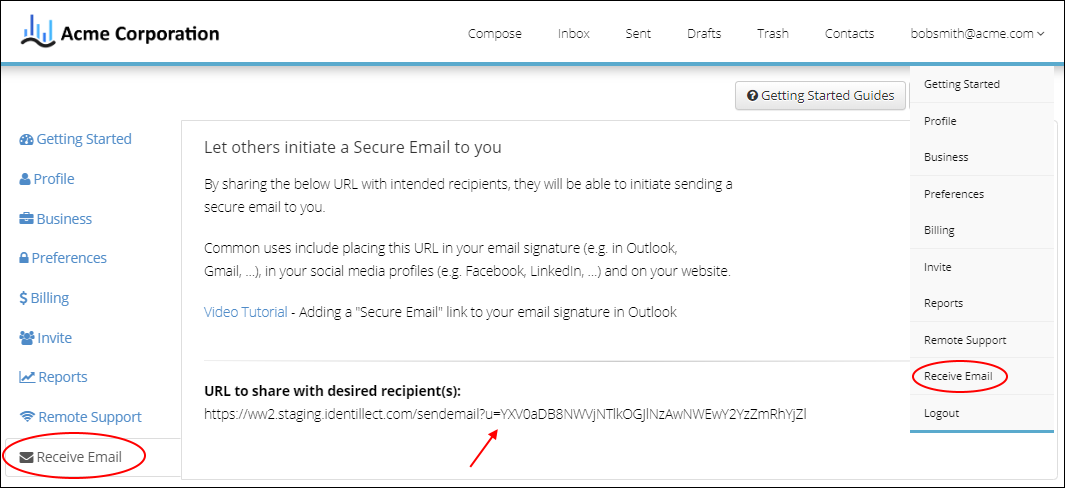 This will be your URL to Share that can be used in the signatures below
Gmail
This will be your URL to Share that can be used in the signatures below
Gmail
1. Open Gmail Settings
2. In General, locate the Signature section
3. Then locate the link in the text options (this icon looks like the infinity symbol)
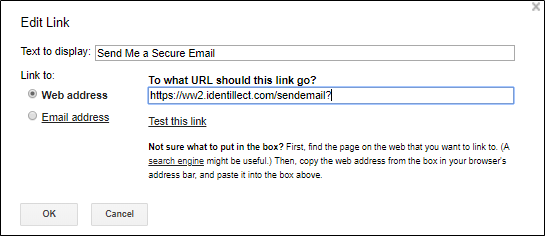
- Text to Display is what the customer will see (we suggest the text "Send Me a Secure Email")
- The Link to should say Web Address (this is where you paste the URL to Share)
- Paste in the Unique URL from above into the To what URL should this link go?
Related Topics
Was this helpful?