
Outlook Add-in: Outlook Disables the Delivery Trust Add-in
The following will discuss how to restore functionality to the Delivery Trust Add-in for MS Outlook when Outlook forces the add-in into a disabled state. This is usually due to Microsoft sending updates to Outlook.
Note: Screens captured for this guide apply to MS Outlook 2013 & 2016 versions. Older versions of MS Outlook may have screens that vary slightly.
Instructions
-
Click View Disabled Add-ins…
-
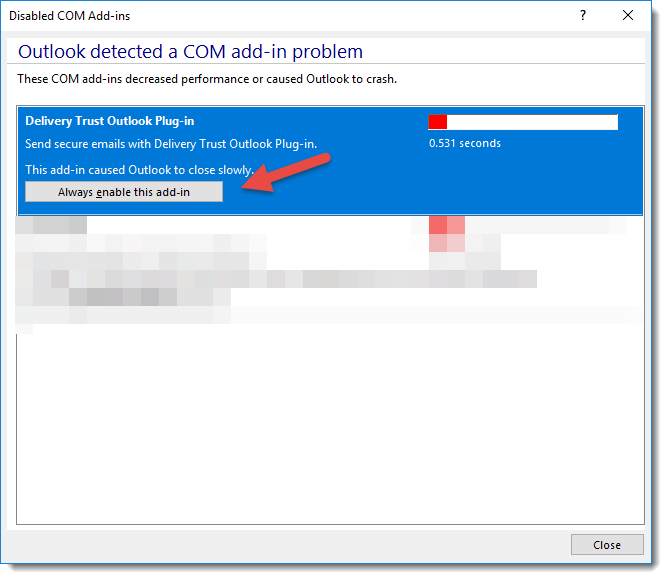
Click Always enable this add-in…

This can also be accessed through the File menu, then Manage Slow or Disabled Com Add-Ins
If prompted to register/activate the software, follow the onscreen instructions to do so.
If you receive an alert similar to that depicted below you will need to close the message and wait a moment for the system to respond.
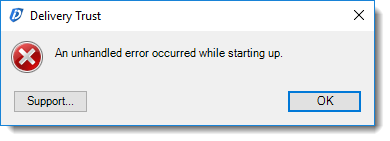
Note: Sometimes this requires you to close the windows and wait to try again or close Outlook and reopen it to refresh the settings.