Outlook Add-in: Signing In & Out of the Add-in
Sometimes it is necessary to disable and then re-enable your Outlook Add-in. This is primarily for forcing the Add-in to check for recent updates.
Video Tutorial
How to Sign In & Out of Outlook Add-in
Instructions
1. Click the New Email button.
2. Click the Options button in the new message window or from the Delivery Trust panel at the right of the new message window. (cog wheel icon)
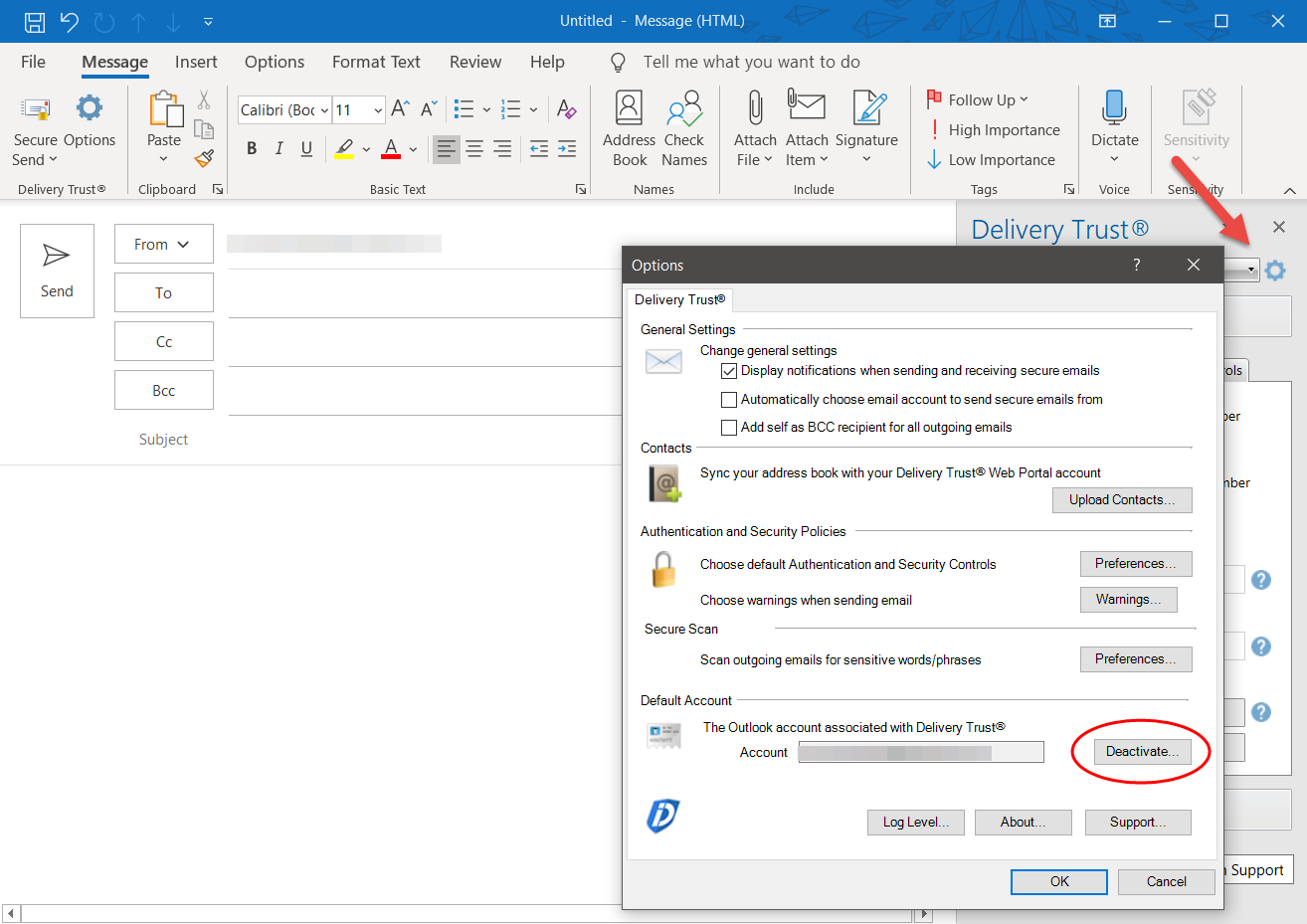
3. Click Deactivate... in the Options window
4. Confirm the deactivation
ReActivate
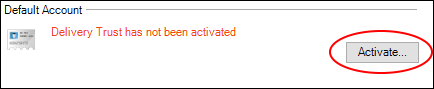
If you want to reactivate the Add-in follow the same steps. The Deactivate button will now say Activate. Click on the Activate button
1. Click the Activate button
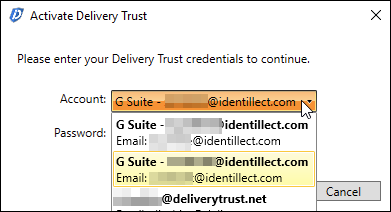
2. If you have multiple email accounts configured, select the email account registered to the Delivery Trust service, otherwise, simply move on to the next step.
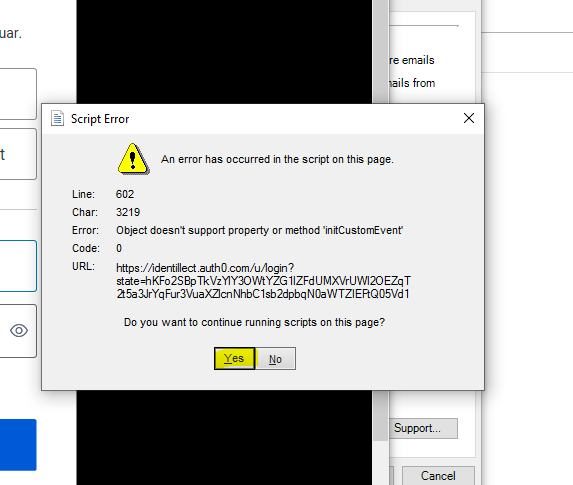
3. Click Yes on the message to continue:
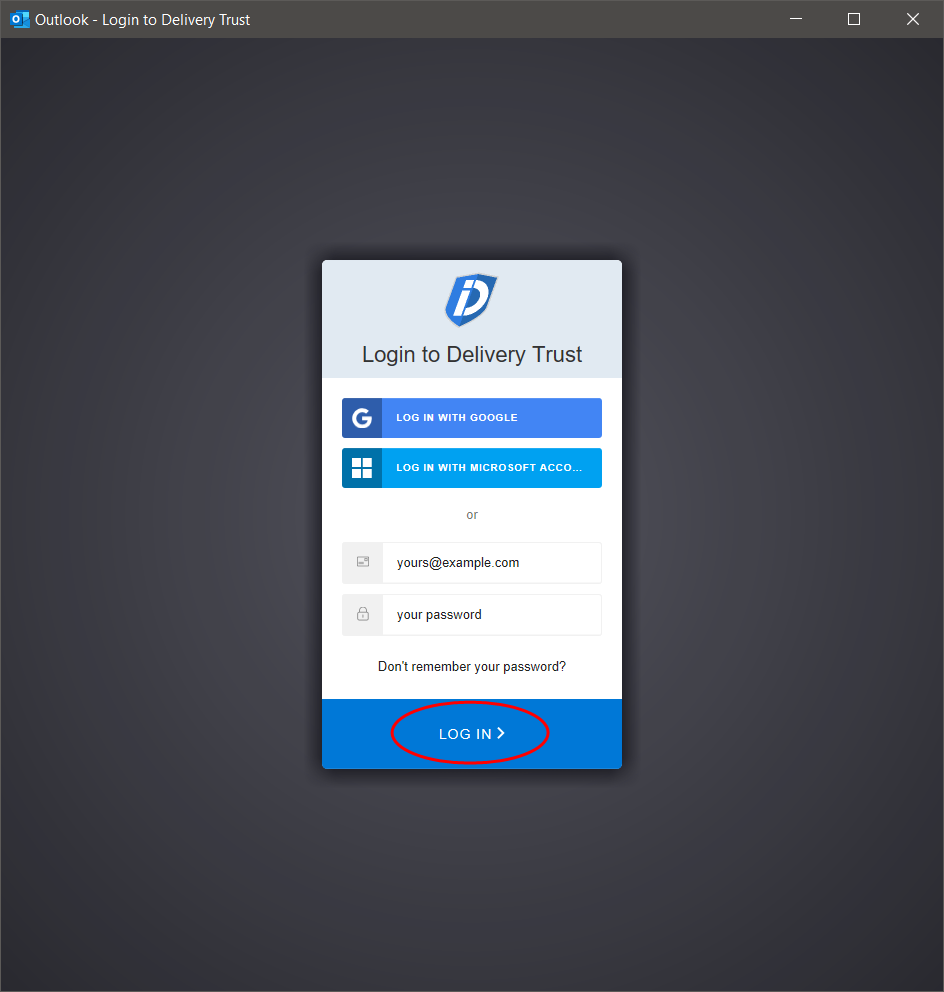
4. Enter your credentials and click LOG IN.
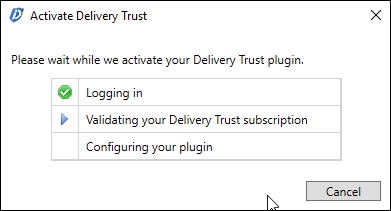
4. Continue with the login process. The Add-in will attempt to validate the login and activate.
5. Once the Add-in has successfully activated click Finish