
Thanks for Installing Delivery Trust® for Gmail!
Activate your Gmail Add-in
- Return to your Gmail page and reload(refresh) the page.
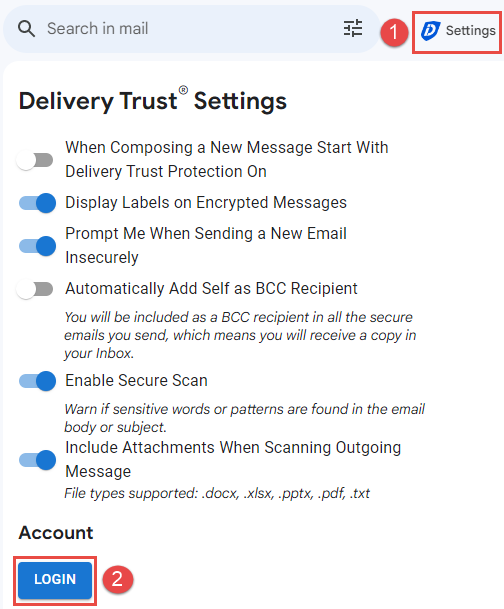
- (1) Click on the Delivery Trust® Settings in the top right corner.
- (2) Click the LOGIN button and sign in using your Delivery Trust® credentials or sign in with Google.
Feature Enhancements:
- Enhanced user experience with improved native feel and enhanced intuitiveness.
- Integration of the Gmail attachment icon for a streamlined attachment experience.
- Seamless toggling of protection mode, allowing users to easily enable or disable it.
- Convenient relocation of settings next to the Gmail settings for easier access and management.
- A clear indication of encrypted content through updated labels for better identification.
- Enhanced user support options with a clickable? icon for easy access to support articles and submitting support tickets.
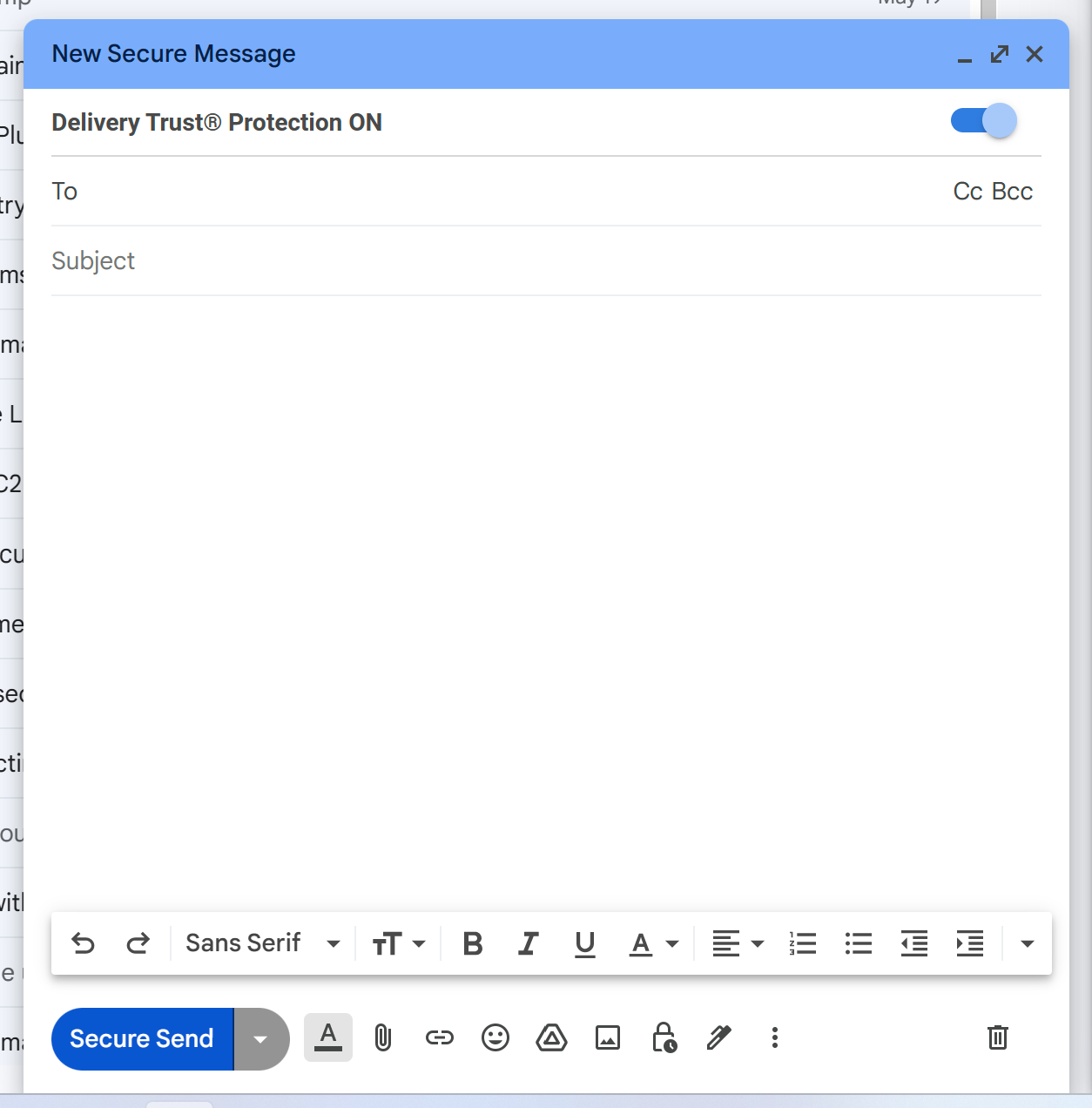
Protection ONTo improve the compose interface, we have reorganized the encryption feature, placing it in an easily accessible ON/OFF mode above the recipients. When protection mode is enabled, the send button will dynamically adjust to reflect the updated action, ensuring a more intuitive user experience. |
 |
|
|
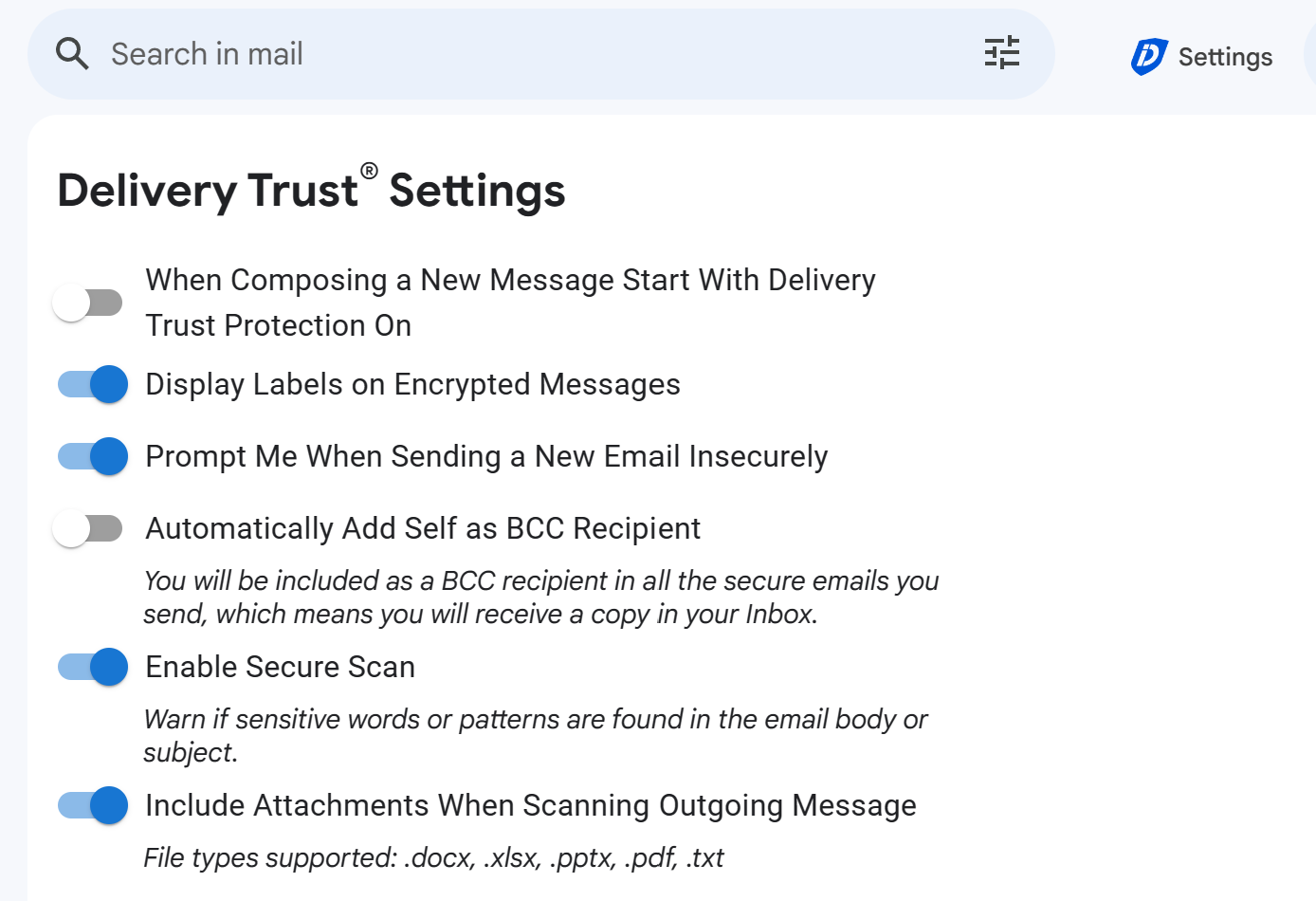
Delivery Trust® SettingsThe Delivery Trust® settings can now be conveniently accessed directly within Gmail. Simply utilize the new Settings button located in the top toolbar to easily access and manage your Delivery Trust® settings. |
Support Articles
Gmail Add-in: Compose a New Secure Email
Still need help?
- Give us a call at (888) 781-4080 or email us at support@identillect.com
- Click here to submit a support ticket
Was this helpful?