
New Outlook Add-in Installation: Personal Account
This installation support guide is intended for use only if you have a personal Microsoft account. You most likely have a personal Microsoft account if your email address ends with @outlook.com, @live.com, @hotmail.com, or @msn.com.
If you have a business Microsoft account, please follow the installation steps for Microosoft business accounts here.
Instructions
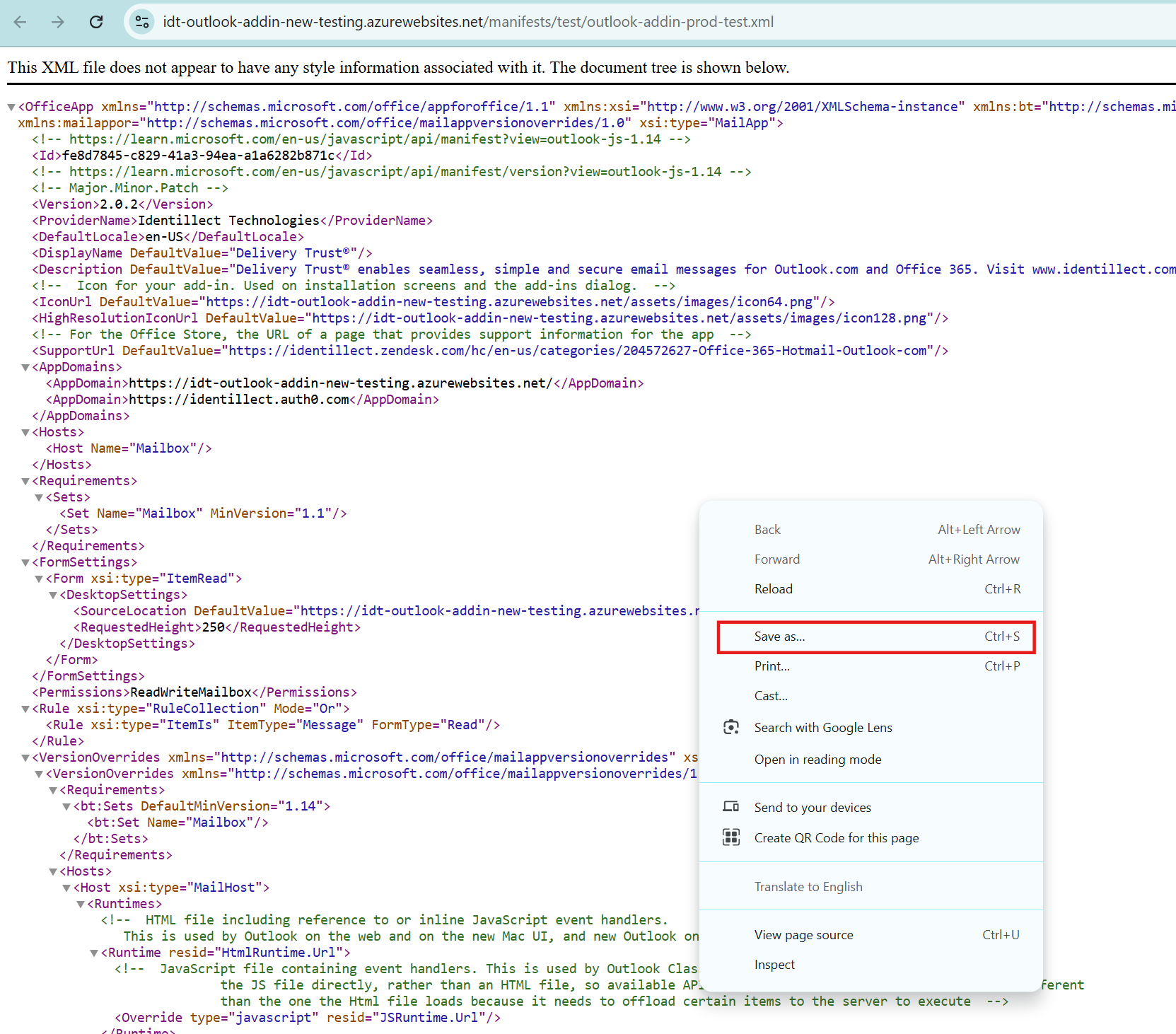
- Navigate to this link to save the XML file
- Somewhere on that page right-click and choose Save As
- Go to https://outlook.live.com/
- We will use the downloaded XML file in a future step.
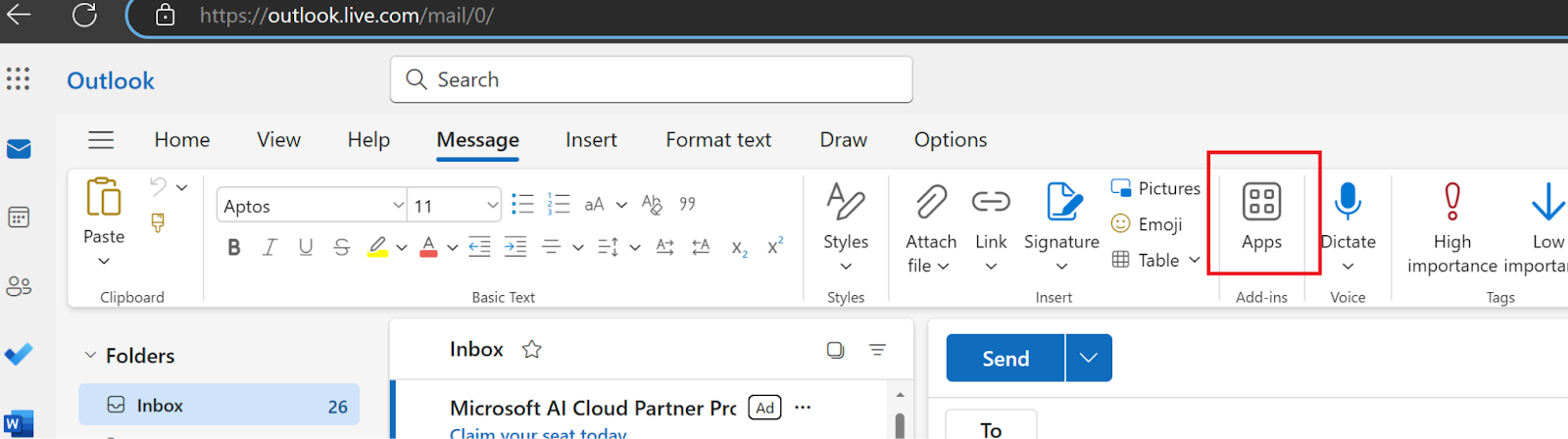
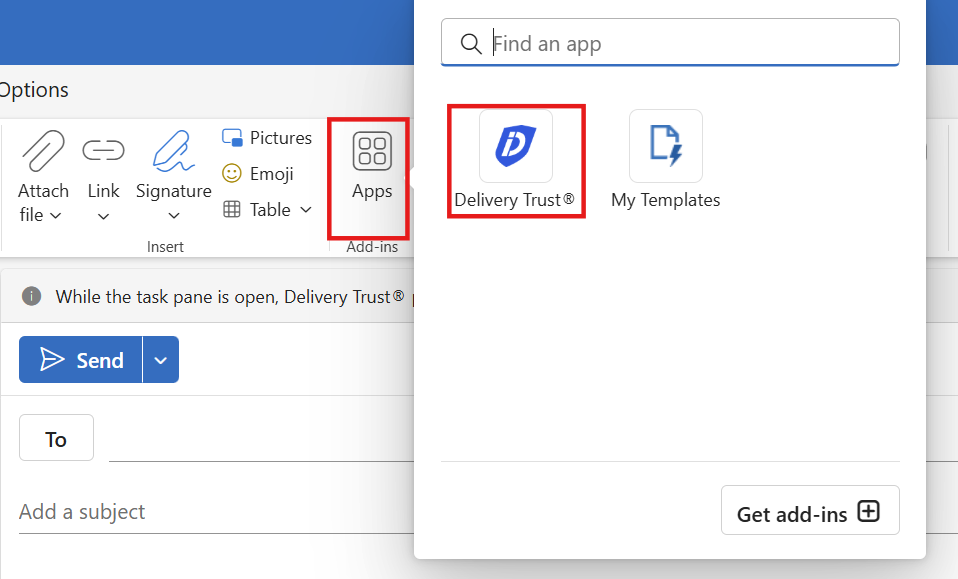
- From the Message ribbon tab, find the Apps icon and click it (Note: Use Classic Ribbon. Have to Compose an email to see the Apps icon)
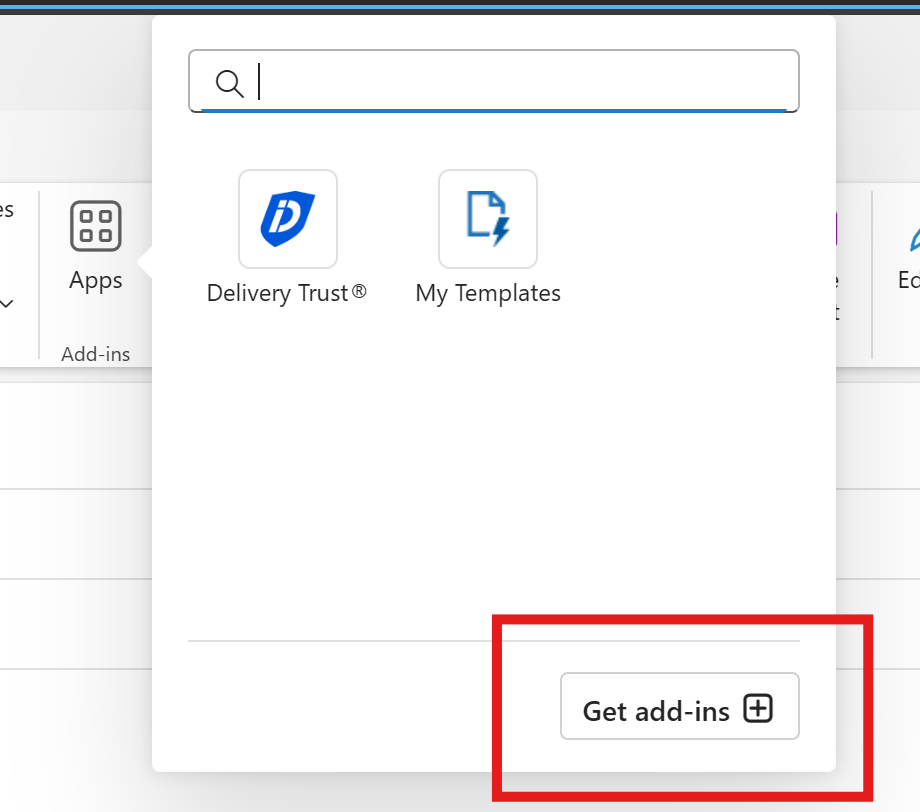
- Click Get add-ins
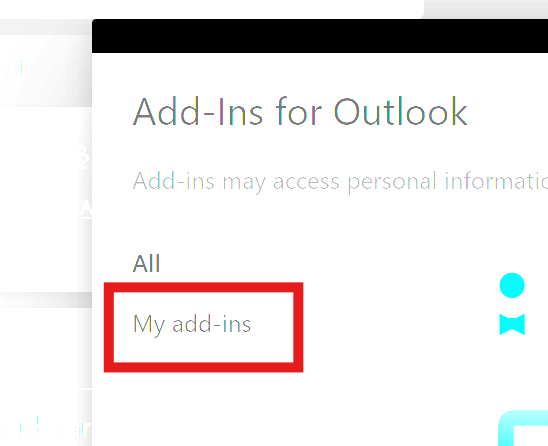
- Click My add-ins
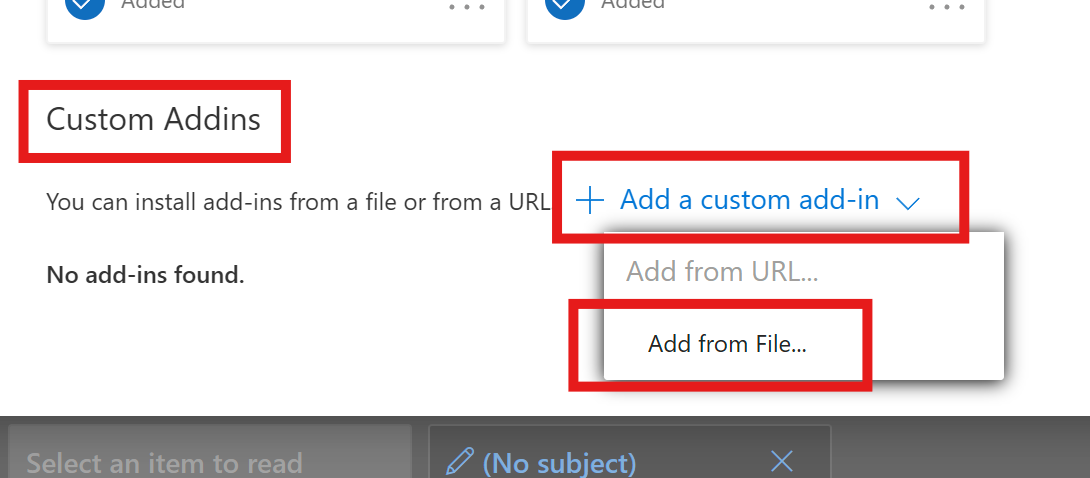
- Scroll down to Custom Addins and click on Add a custom add-in (from file)
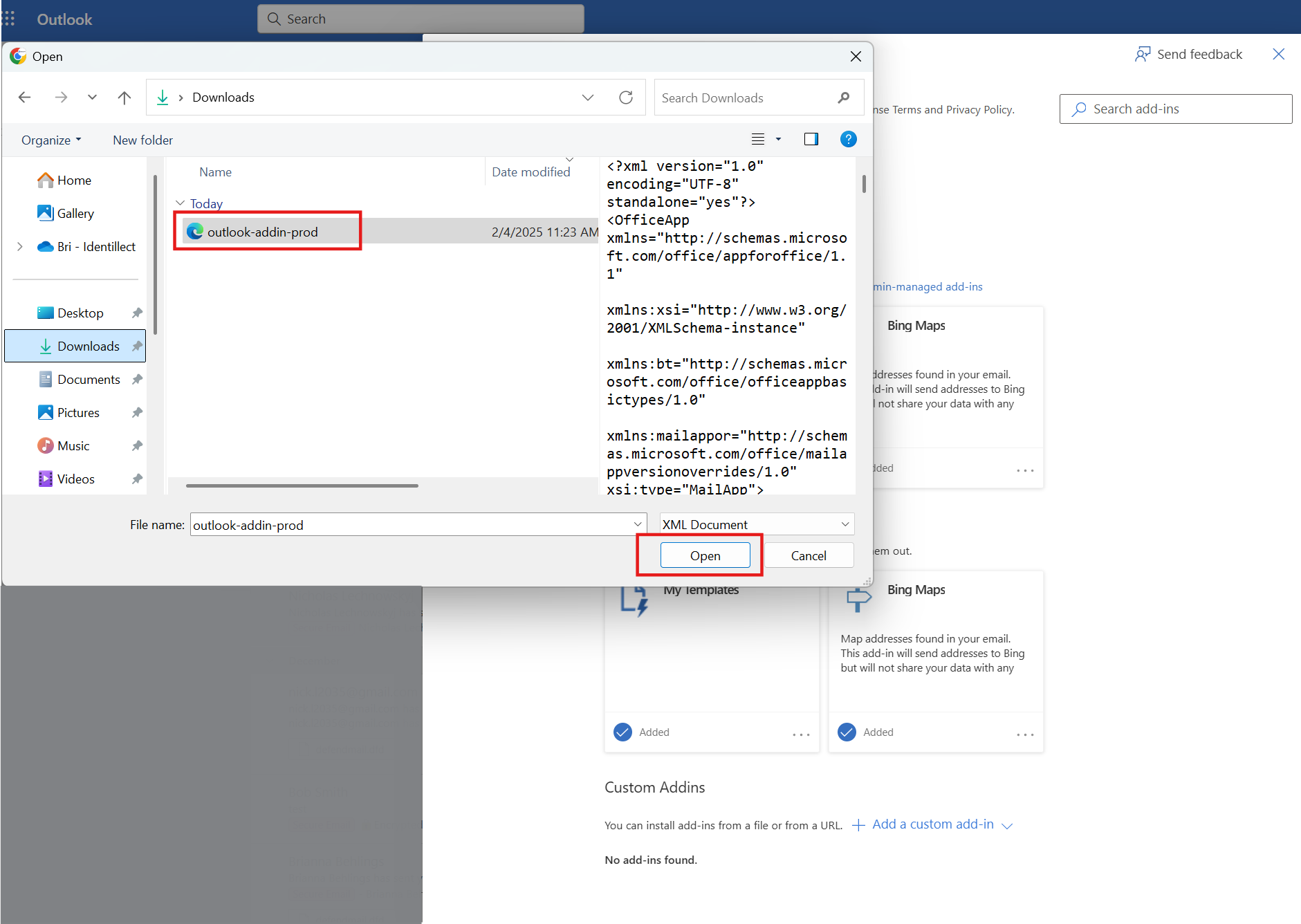
- A file picker dialog will appear. Choose the XML file you downloaded in Step 1
- After opening this file Outlook will display a Warning dialog. Click Install to continue.
- Compose a new message
- Click on the Apps icon and click on the Delivery Trust Icon to activate the DT panel
- If you do not see the app's icon, click on Message then the Apps icon
- If you do not see the app's icon, click on Message then the Apps icon
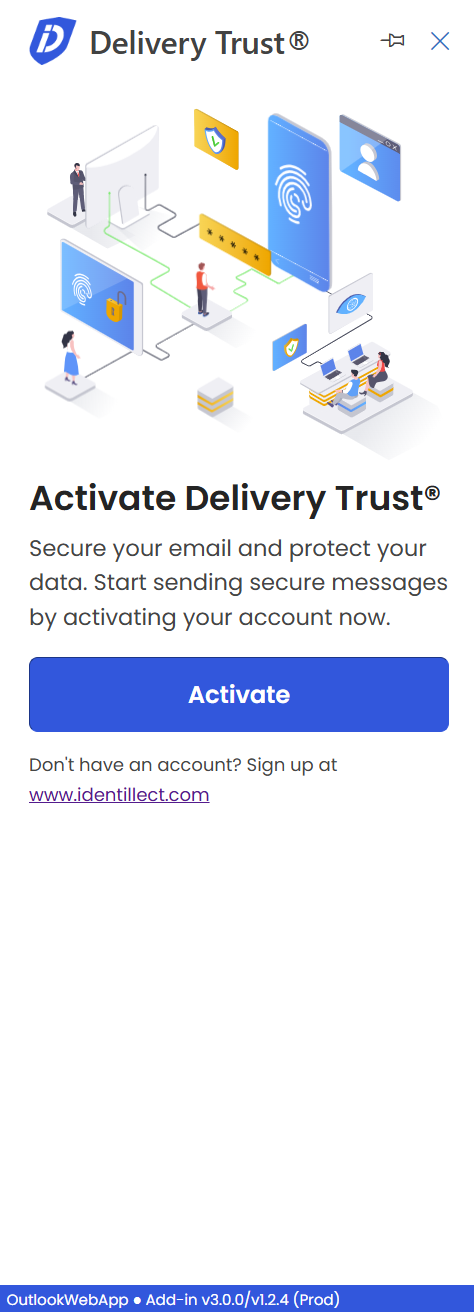
- Click on activate

Related Articles
New Outlook Add-In Uninstall: Personal
New Outlook Add-in: Compose a new secure email
Was this helpful?