
Print or download a secure message
You can print a secure message or save a copy of it, with its attachments, to your computer. In the Threaded message list, both actions cover the whole conversation.
Print a message
- Open the message.
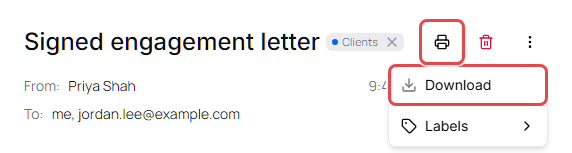
- Click the printer icon (Print) in the top-right corner of the message, next to the trash can. Your browser's print window opens. The printout shows the sender, the recipients, the date and the message text, followed by the names of any attachments. The attachments themselves aren't printed.
- Choose a printer and print.
When Print isn't available
- If the sender turned off printing for you, Print is greyed out. Point to it to see Printing restricted by the sender.
- When you print a conversation, messages you're not allowed to print show only the sender, the recipients and the date, with Printing has been disabled by the sender. in place of the message text and attachments.
- You can always print messages you sent.
Download a message
- Open the message.
-
Click More actions (⋮) in the top-right corner of the message, then click Download.
- The file is saved to your browser's downloads folder.
What you get depends on the message:
| Message | File |
|---|---|
| One message with no attachments | A PDF of the message |
| One message with attachments | A ZIP file with a PDF of the message, an HTML copy of it, and an Attachments folder |
| A conversation (Threaded message list) | A ZIP file with one folder per message (Email 1, Email 2, …) |
Files are named after the date and time of the message, for example 2026-09-14_093012.pdf.
Large downloads
The portal builds the file in your browser, so big downloads take a moment.
-
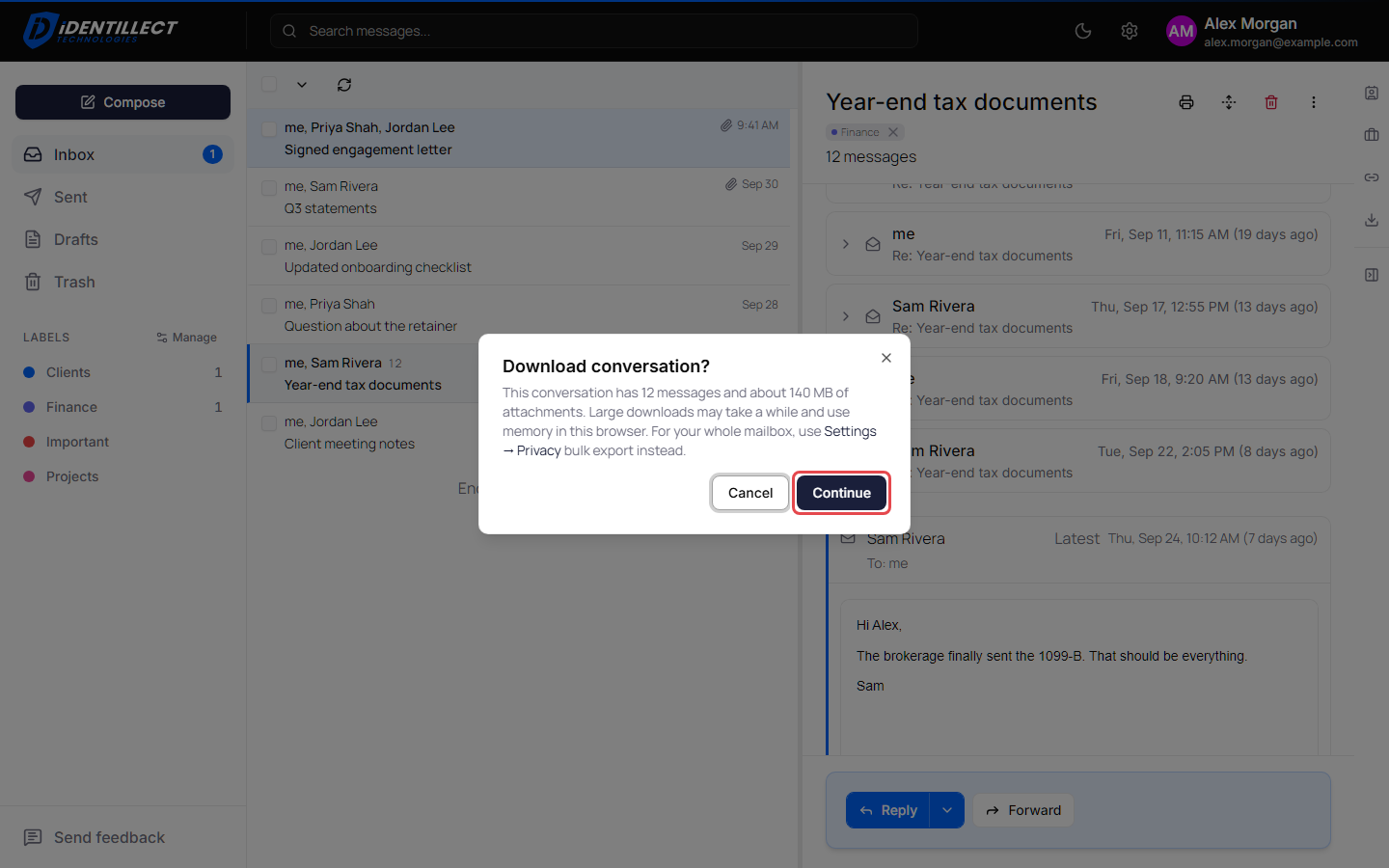
If a conversation has more than 10 messages, or its attachments add up to more than 100 MB, the portal asks first. Click Continue to go ahead.
- While the file is being prepared, a progress window shows each step. Click Cancel to stop.
- Attachments larger than 250 MB are left out. When something is left out, the portal says Download finished with some items skipped. and the ZIP file includes a
README.txtthat lists what was skipped.
When Download isn't available
- Download isn't offered for drafts.
- If the sender turned off email downloading for you, Download doesn't appear in More actions.
- If the sender turned off attachment downloading, the download contains the message without its attachments.
Note: When you download a message someone sent you, the download is recorded in that message's audit trail.
Save a single attachment
To save one file, point to it under Attachments and click the download icon on its right. See Read, reply to, and forward secure messages.
Export your whole mailbox
To keep a copy of all your messages and attachments, use a data export instead of downloading messages one by one.
- Click Open settings (the gear icon at the top of the page).
- In the Privacy section, under Download a copy of your messages, click Prepare my export.
- Come back when the card says Your export is ready, and click Download my export to save it as one zip file. Inside, each conversation has its own folder with a PDF of the conversation and its attachments. Preparing an export can take a while, but you don't need to keep the page or your browser open while you wait. A large mailbox can be many gigabytes, so the download itself can take a while too.
For more about data exports, see Manage your profile and account.