
Read, reply to, and forward secure messages
Your secure messages open right in the web portal. Delivery Trust decrypts each message in your browser, so you can read it, open its attachments, and answer it without leaving the page.
Open a message
- In the sidebar on the left, click Inbox (or Sent, Drafts or Trash). Unread messages are shown in bold, and the number next to Inbox is your unread count.
-
Click a message in the list. The message opens in the reading pane. Opening a message marks it as read.
- When you're done, click Close in the top-left corner of the reading pane. If you use the full-width layout, click Back instead.
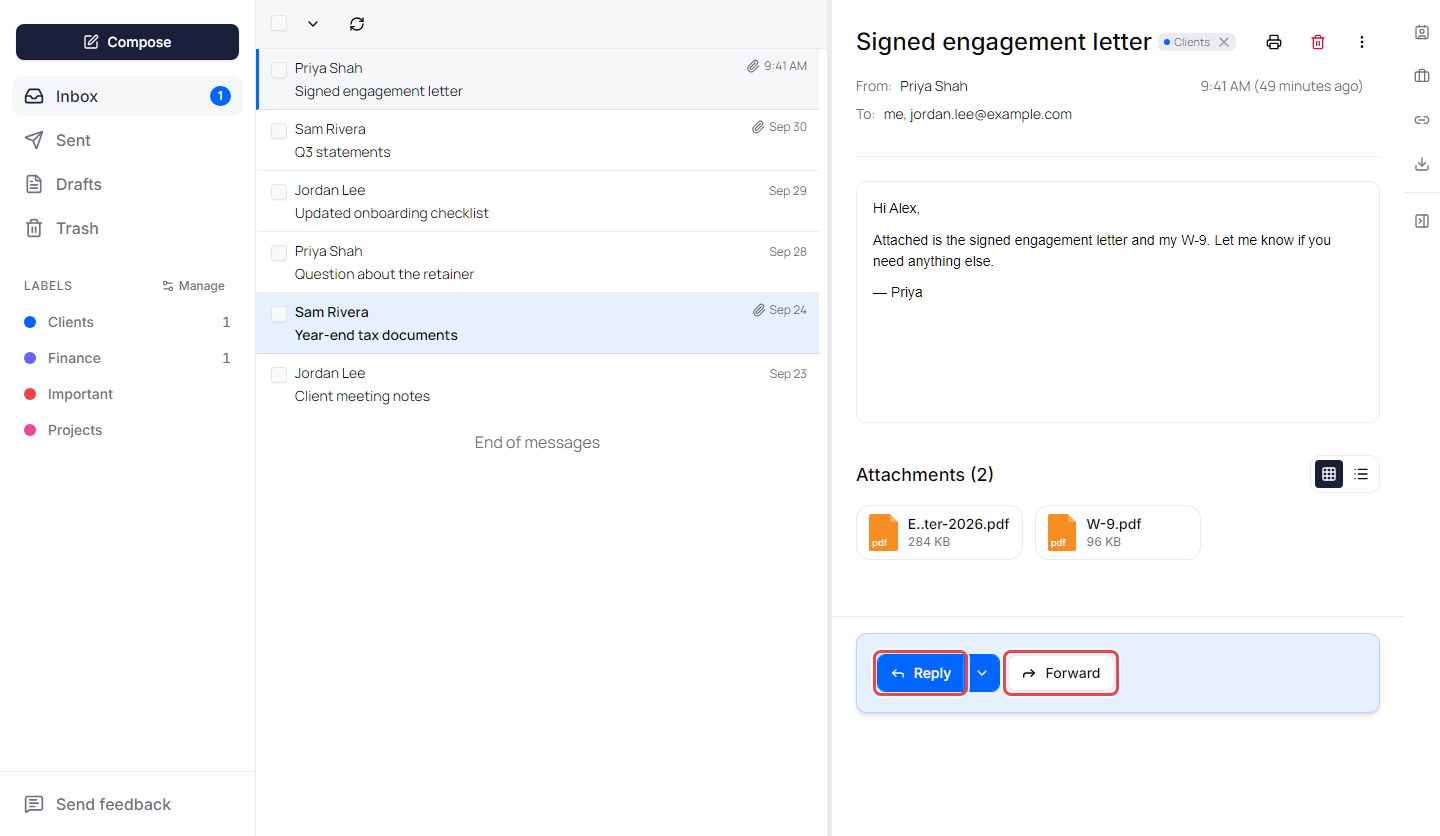
Above the message you see From:, To: and, when the sender copied people, Cc:. On a message you sent, Bcc: lists the people you blind-copied; the other recipients never see them. If you were blind-copied on a message, it shows Bcc: me.
Tip: You can show the message next to the list or full width, and group messages into conversations. Click Open settings (the gear icon at the top of the page), then under Appearance change Reading Pane Layout or Message list. See Appearance and notification settings.
Conversations
When Message list is set to Threaded, each row in the list is a conversation, and the number next to the name shows how many messages it holds. When you open it, the newest message is at the bottom and is marked Latest.
- To open every earlier message at once, click the Expand all icon in the top-right corner.
- If someone replies while the conversation is open, click Show new messages to load the reply.
- In a long conversation, click Jump to latest to scroll to the newest message.
Open attachments
Attachments are listed below the message under Attachments, with the number of files.
- Click an attachment to preview it. Use the arrows on the sides of the preview to move to the previous or next attachment. Files that can't be shown in the browser display No preview available.
- To save a file, point to it and click the download icon on its right, or click the download icon in the preview.
- To switch between tiles and a list, click Grid view or List view above the attachments.
If the download icon is greyed out (Download not available), the sender turned off attachment downloads for this message. You can still open the file in the preview.
To save the whole message, see Print or download a secure message.
Mark messages as read or unread
- Point to a message in the list and click Mark as read or Mark as unread on the right of the row.
- To change several at once, select their checkboxes, then click Mark as read or Mark as unread in the toolbar above the list.
Reply or reply all
- Open the message.
-
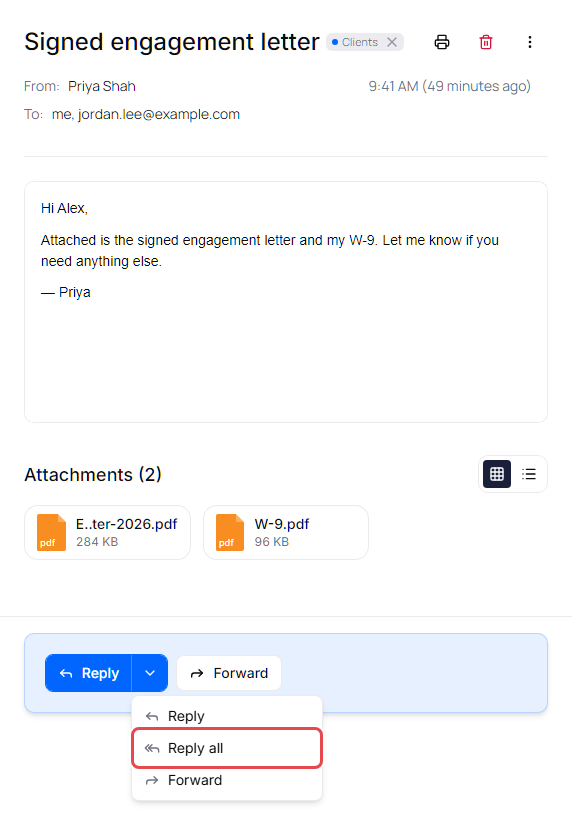
Click Reply in the reply bar at the bottom of the message. When the message fills the window, Reply also appears at the top. To answer everyone on the message, click the arrow next to Reply in the reply bar and choose Reply all.
- Type your reply. The recipients are filled in for you, and the original message is quoted below your text. Reply all keeps the original To recipients in To and the Cc recipients in CC. People who were blind-copied are never added.
- Click Send Secure Message (the button shows Send when the window is narrow).
Your reply is a secure message like any other, so you can set its security options before you send. See Compose and send a secure message.
- To write in a larger window, click Open in full compose window (the expand icon in the top-right corner of the reply).
- While you type, your reply is saved to Drafts.
- To throw away a reply or forward, click Discard draft (the trash can in its bottom-left corner). It's removed from Drafts. Click Undo in the Draft discarded message if you change your mind.
- Reply and forward unlock once the message has finished decrypting. Until then the portal shows Decrypting message… Reply and forward unlock when the body is ready.
Forward a message
- Open the message.
- Click Forward at the top of the reading pane or in the reply bar.
- Add the recipients. The original message's attachments are added for you; while that happens the portal shows Attaching files from the original message… and you can't send yet.
- Click Send Secure Message.
If Forward is greyed out, the sender doesn't allow forwarding. Point to the button to see Forwarding restricted by the sender. If the sender turned off attachment downloading, you can forward the message, but its attachments aren't included.
Messages you can no longer open
A sender can retract a message, make it expire, or limit how many times you can open it. When a message is no longer available to you, the portal shows why in place of the message:
| You see | Why |
|---|---|
| Message retracted: The sender retracted this message. | The sender took the message back. |
| Message expired: This message expired on the date and time | The time the sender allowed has passed. |
| View limit reached: You've opened this message the maximum number of times the sender allowed. | You opened the message as many times as the sender allowed. |
The subject, sender and date stay visible, but you can't read the message, open its attachments, print it, reply to it or forward it. With Message list set to Flat, the message is also tagged Retracted, Expired or View limit reached in the list. In a conversation, an earlier message you can't open shows the same tag, and Reply answers the newest message you can still open.
When the sender limited how many times you can open a message, each time you open it counts as one view, in the web portal or from the link in the notification email. Opening it again within 10 minutes counts once. The portal never loads such a message in the background, so pointing at it in the list doesn't use a view. Printing or downloading a whole conversation opens every message in it.
If you still need the message, ask the sender. They can give you more time or more views, or reinstate a retracted message, and it opens again. Messages you sent are never restricted for you.
More actions for messages you sent
On a message you sent, More actions (⋮) in the top-right corner can also offer Send again, Audit Trail and Security policies. See View a message's audit trail and Change security settings or retract a message.
If your organization uses the Email Integrity add-on, a badge or check can appear before the message. See Email integrity results.