
Reply to a secure message as a recipient
You can answer a secure message from the same page you read it on, without a Delivery Trust account. Your reply is encrypted in your browser and delivered securely, and you can attach files to it.
Send a reply
- Open the secure message from your notification email. See Open a secure message you received.
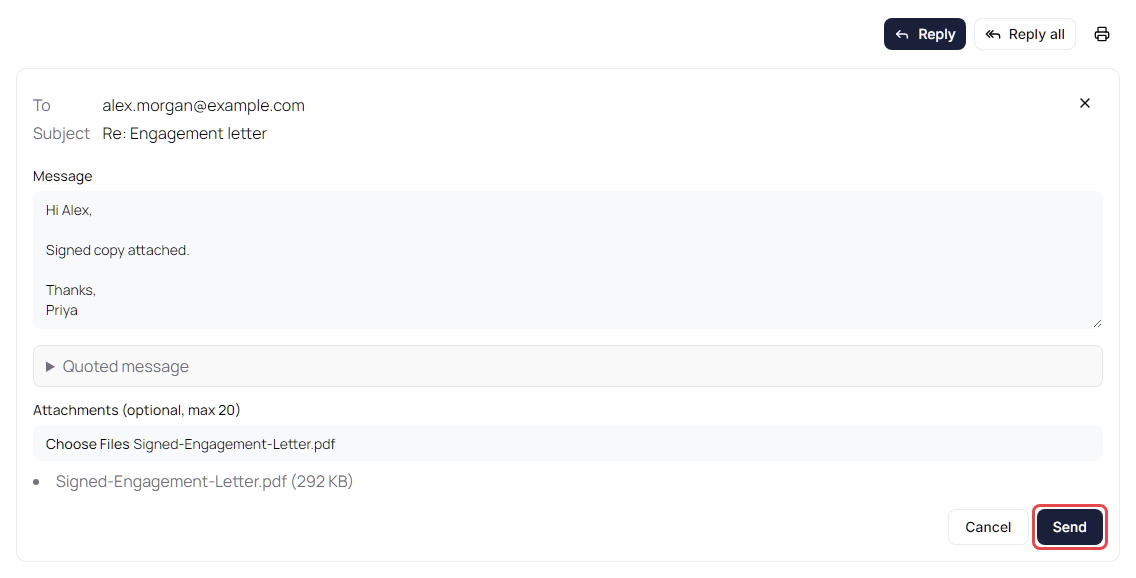
- Above the message, click Reply to answer the sender, or Reply all to answer everyone on the message. The reply form opens. At the top, To shows who gets your reply, Cc shows anyone copied (with Reply all), and Subject shows the reply's subject.
- Type your reply in Message. The original message is included below your reply. Click Quoted message to see it.
-
To attach files, click the file field under Attachments (optional, max 20) and choose up to 20 files. The files you chose are listed below the field with their sizes. If you choose more than 20, only the first 20 are kept and the page says, for example, 3 files weren't attached and You can add up to 20 files at a time.
- Click Send. While your reply is encrypted and uploaded, the button shows Uploading… and then Sending….
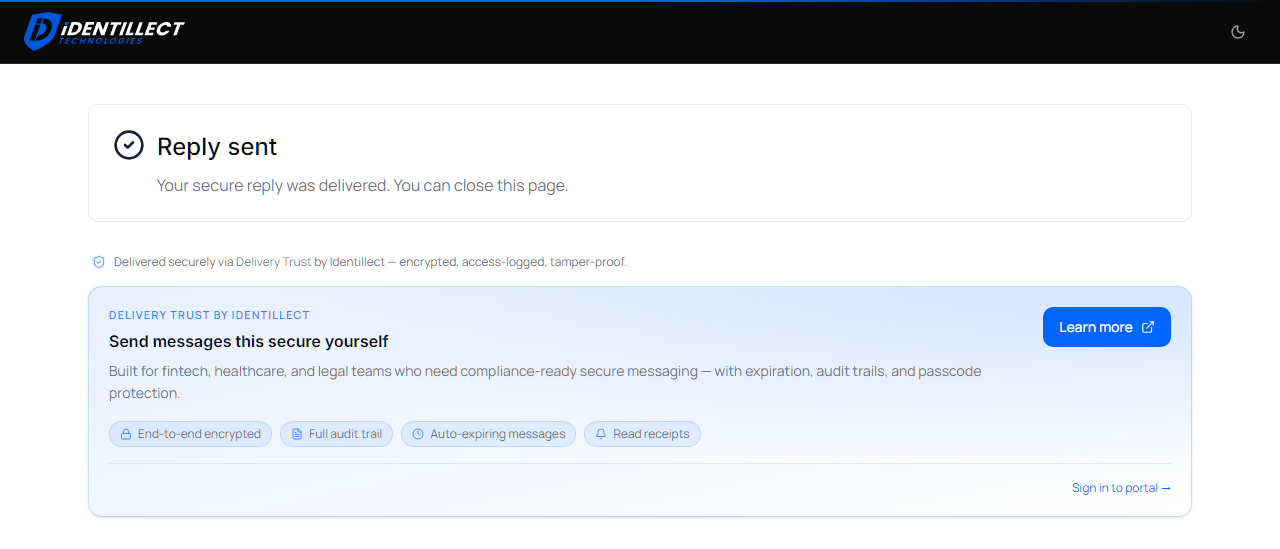
When the page shows Reply sent, your reply has been delivered and you can close the page.
To close the reply without sending, click Cancel or the X (Close reply) in its top-right corner.
If something goes wrong
- Send stays greyed out until you type a message or attach a file.
- If the page shows Send did not finish, click Retry send. This finishes the same reply, so the sender doesn't get it twice.
- If the page says replying isn't available, or the message no longer opens, contact the sender. See A recipient can't open a secure message.
Related articles
Was this helpful?