
Web Portal: How to Import Contacts
The web portal allows you to import existing contacts from Outlook or use our CVS template to upload a list of contacts. You can get the CVS template from the upload popup.
Video Tutorial
How to Import Contacts in Web Portal
Instructions
The contacts page is available from anywhere in the web portal by accessing the menu at the top of the screen. There you will find the menu items Compose, Inbox, Sent, Drafts, Trash and Contacts. Clicking on any of these menu items will immediately direct you to that page. In this case we are interested in the Contacts menu item.
1. Click on Contacts menu item

2. Click Import CSV located in the upper left corner
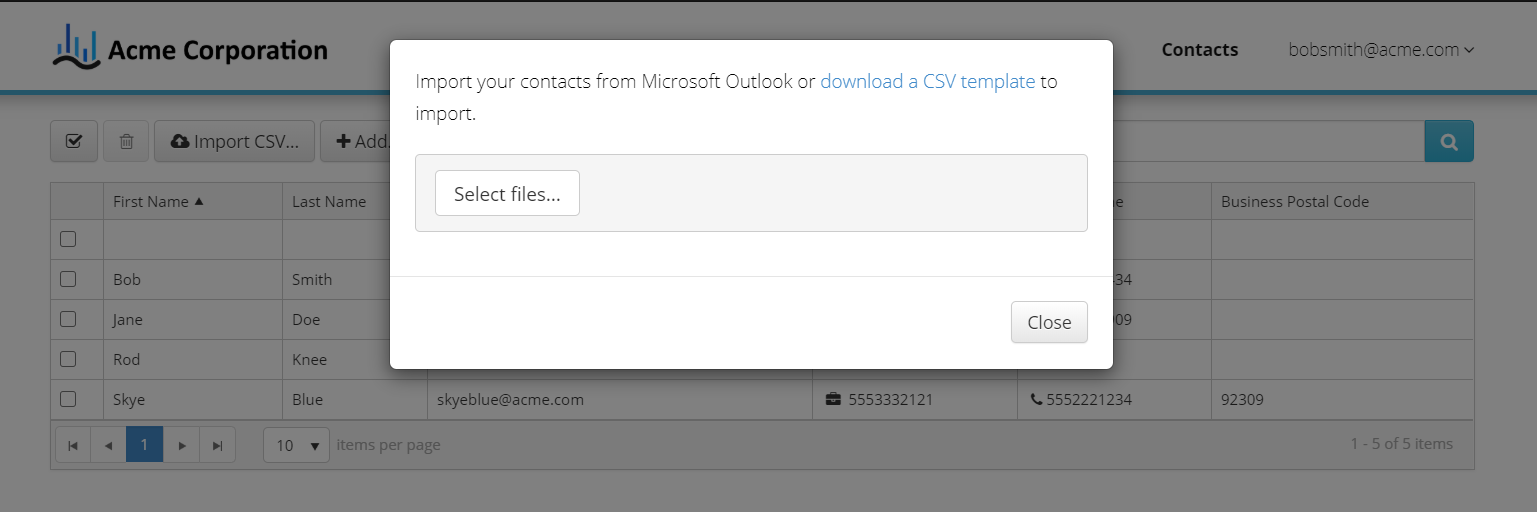
3. Click Select Files
NOTE: You can download the CVS template by clicking on the download a CVS template link in the top right corner of the popup.
4. Select the contacts file that you would like to import
5. Click Open (It will then upload and refresh automatically)
6. Once refreshed, you will see the imported contacts located in the list/contacts area
*Contacts information can be modified at any time by clicking on the contact in the list, edit/update info and click Save