
Accept an invitation to join an organization
When a business administrator adds you to their organization in Delivery Trust, you receive an invitation email. Accepting it creates your account (if you don't have one yet) and adds you to the organization, so you can send and receive secure messages under its plan.
Open the invitation
- Open the invitation email from Delivery Trust. It names the organization and the person who invited you.
-
Click the link in the email to accept.
The invitation page opens in your browser. What you see next depends on whether you already have a Delivery Trust account.
Note: Invitation links expire after 14 days. If yours has expired, the page says Invitation expired or invalid. Ask your administrator to send a new invitation.
If you're new to Delivery Trust
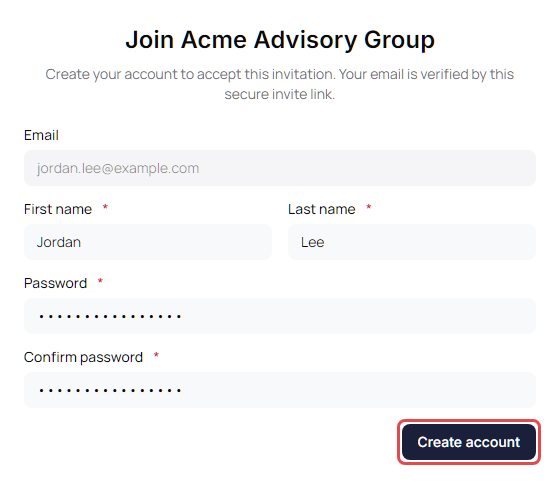
- On Join organization name, check your First name and Last name. Your Email is filled in from the invitation and can't be changed.
-
Enter a Password and type it again in Confirm password.
Your password must be at least 8 characters and include at least three of these: a lowercase letter, an uppercase letter, a number and a symbol.
-
Click Create account.
- On Almost there, confirm your name and click Accept invitation.
- On You're all set, click Continue to inbox, then sign in with the invited email address and the password you just created.
If you already have a Delivery Trust account
- If you aren't signed in, the page says an account already exists for your email address. Click Sign in with password and sign in with the invited email address. If you normally sign in with Google or Microsoft, use that button on the sign-in page instead.
- On Join organization name, check your First name and Last name.
-
Click Accept invitation.
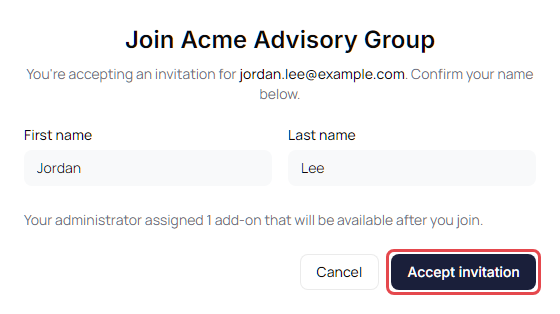
The portal says "You have joined the organization." and opens your Inbox. If your administrator has already assigned you add-ons, the page tells you how many, and they're available as soon as you join.
Messages you might see
- A box to confirm your personal subscription ends: if you pay for your own Delivery Trust subscription, select the box that says your personal subscription will be cancelled at the end of the current billing period. You can't accept until you do.
- A red message: something prevents you from joining (the message explains what). Contact the administrator who invited you.
-
This invitation isn't for your current account: you're signed in with a different email address than the one invited.
- If the invited address doesn't have an account yet, you can create it right there with the same Create account form. You stay signed in as yourself until you log out and sign in as the invited address.
- If the invited address already has an account, click Continue to inbox. When you're ready, log out and sign in as the invited address, then open the invitation link again. If that doesn't finish joining, ask your administrator to send you a new invitation.