
What's new in the web portal
The new Delivery Trust web portal at portal.identillect.com brings secure messaging into a familiar mail layout: folders on the left, your messages in the middle, and security settings right inside the compose window. The new portal is in beta, so you can switch back to the classic portal at any time.
Highlights
Sending secure messages
- Smart Security: in the compose window, Smart Security analyzes your message and applies suggested security settings. You review them before you send. See Let Smart Security suggest settings.
- AI writing tools: Help me write drafts a message for you, and Polish, Formalize, Friendly and Shorten rework what you've already written. See AI writing tools.
- Change security or retract after sending: adjust the security of a sent message, or retract it. See Change security or retract a sent message.
- Audit Trail: a timeline of what happened to a message after you sent it, such as when it was opened. See View a message's audit trail.
Reading and organizing
- Conversations: show your mail one row per conversation (Threaded) or one row per message (Flat).
- Labels: color-coded labels you can add to messages and open like folders. See Organize mail with labels.
- Search: one search box for messages and contacts, with quick filters. See Search and filter messages.
Contacts and your Secure Email Link
- Contacts: keep an address book and import contacts from a file. See Manage contacts and Import contacts.
- Secure Email Link: a personal link that lets anyone send you a secure message, even without an account. See Set up your Secure Email Link.
Make it yours
- Appearance: light or dark mode, a Standard or Glass theme with background pictures, and your choice of reading layout. See Appearance and notification settings.
- Desktop notifications for new messages, and Download a copy of your messages, which exports all your messages as one zip file. See Appearance and notification settings and Manage your profile and account.
For business administrators
If you're a business administrator, the Organization pages let you invite and manage users, brand the portal with your logo and color, assign add-ons, set an enterprise policy, view reports, and manage your subscription. See Invite and manage users, Set an enterprise policy and Reports and analytics.
Switch back to the classic portal
While the new portal is in beta, you can go back to the classic portal whenever you like.
- Click the gear icon (Open settings) in the top-right corner.
-
In the Appearance section, turn on Use classic portal.
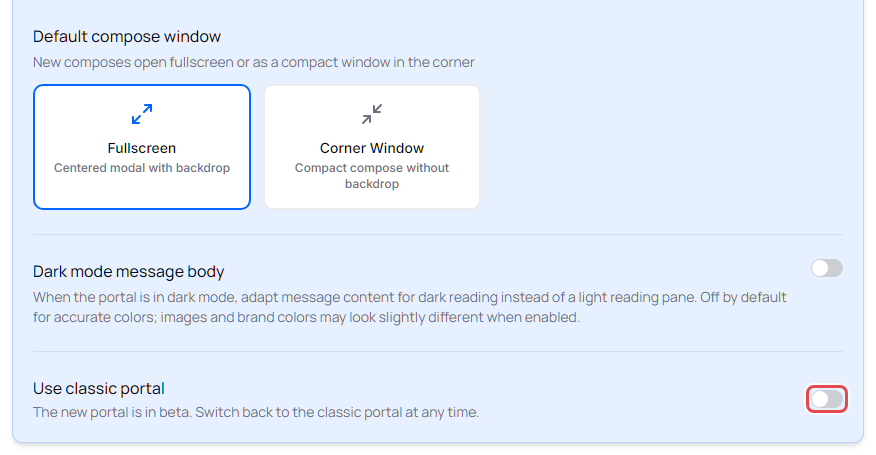
You're taken to the classic portal. To come back to the new portal, click your name in the top-right corner of the classic portal and choose Preferences, select Try the new portal (beta), and click Save Changes.
Note: The option to switch back is temporary and is available only while the new portal is in beta.
Tell us what you think
Click Send feedback at the bottom of the folder list. Choose Report a problem if something is broken, slow or confusing, or Share feedback to rate the new portal and share ideas. Your name, organization, the page you were on and browser details are included automatically, so you don't need to add them.