
Set up the portal the first time you sign in
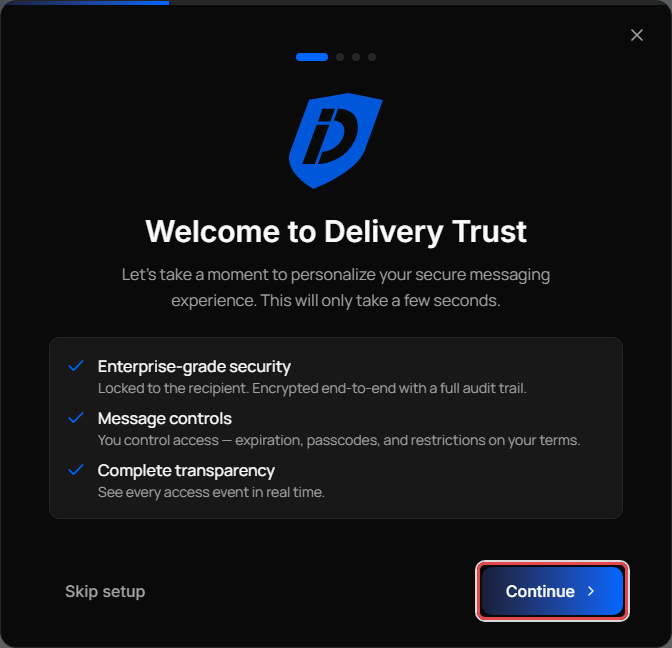
The first time you open the web portal on a browser, a short welcome guide helps you choose how your mail looks. It takes a few seconds, and you can change every choice later in Settings.
Go through the welcome guide
-
On Welcome to Delivery Trust, click Continue.
-
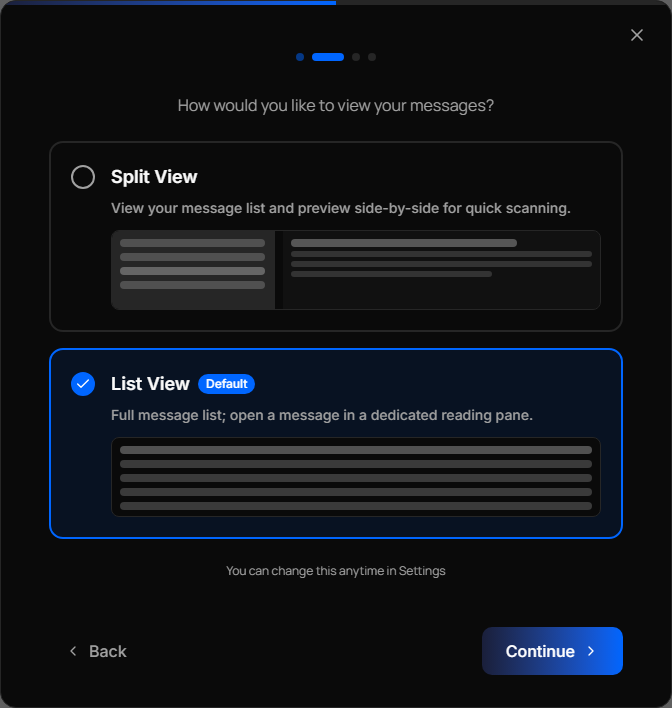
Choose your layout, then click Continue:
- Split View shows your message list and the selected message side by side.
- List View (the default) shows the full message list and opens a message in its own reading pane.
-
Choose how the message list groups mail, then click Continue:
- Threaded (the default) shows one row per conversation.
- Flat shows one row per message.
-
Choose how new messages open, then click Get Started:
- Fullscreen (the default) opens the compose window in the middle of the screen.
- Corner Window opens a compact compose window in the corner, so you can still see your mail.
Your Inbox opens with your choices applied.
Note: If you click Skip setup, close the guide or press Esc, the portal uses the default for each choice.
Why the welcome guide appeared again
The portal remembers your layout choices in your browser, not in your account. The welcome guide appears again when you sign in on a different computer or browser, use a private window, or clear your browser's data. Go through it again, or skip it and change the settings later.
Change your choices later
- Click the gear icon (Open settings) in the top-right corner.
- Go to the Appearance section and change Reading Pane Layout, Message list or Default compose window.
See Appearance and notification settings for every option.
Next steps
- Check that your name is right on your profile: Manage your profile and account.
- Add an email signature: Set up your email signature.
- Choose the security settings new messages start with: Set your default security settings.
- Send your first secure message: Compose and send a secure message.