
Delete and restore messages
When you delete a message, it moves to Trash, where you can restore it. Deleting a message from Trash removes it from your mailbox for good.
Move messages to Trash
- One message in the list: point to the message and click the trash icon (Move to Trash) on the right of the row.
- An open message: click the trash icon (Move to Trash) in the top-right corner of the message.
-
Several messages: select their checkboxes, then click the trash icon in the toolbar above the list.
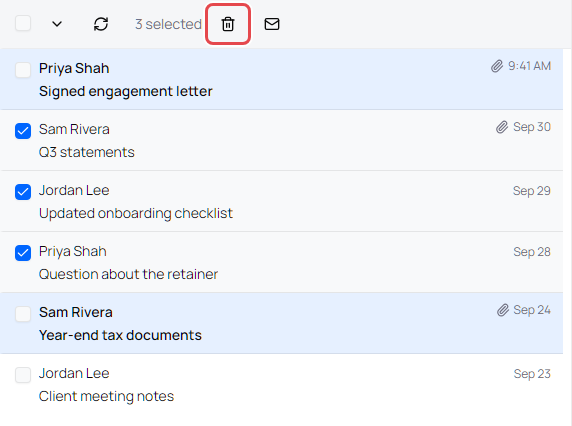
In the Threaded message list, these actions move the whole conversation.
Deleting a message removes it from your mailbox only. To stop recipients from opening a message you sent, retract it instead. See Change security settings or retract a message.
Select many messages at once
- Click the checkbox above the list (Select) to select every message on the page.
- Click the arrow next to it to select All, None, Read or Unread messages.
- When every message on the page is selected, a line above the list offers Select all messages in Inbox (the folder or label name changes with where you are). Use it to include messages that haven't loaded yet. The portal asks you to confirm before it moves them, for example Move to Trash.
Restore messages from Trash
- In the sidebar, click Trash.
-
Do one of the following:
- Point to a message and click the Restore icon on the right of the row.
- Open the message and click the Restore icon in its top-right corner.
- Select several messages and click the Restore icon in the toolbar above the list.
Restored messages go back to Inbox or Sent.
Delete messages permanently
- In the sidebar, click Trash.
-
Do one of the following:
- Point to a message and click the trash icon (Delete forever).
- Open the message and click the trash icon (Delete forever) in its top-right corner.
- Select several messages and click the trash icon (Delete forever) in the toolbar.
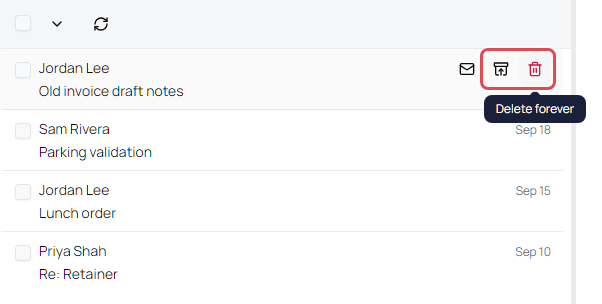
Important: Messages deleted from Trash can't be recovered.
If you can't delete from Trash
Your organization can turn off permanent deletion. In that case, messages in Trash don't show Delete forever when you point to them, and the delete buttons in the toolbar and on open messages are greyed out. Pointing to a greyed-out button shows Your administrator has turned off deleting messages from Trash. You can still move messages to Trash and restore them.
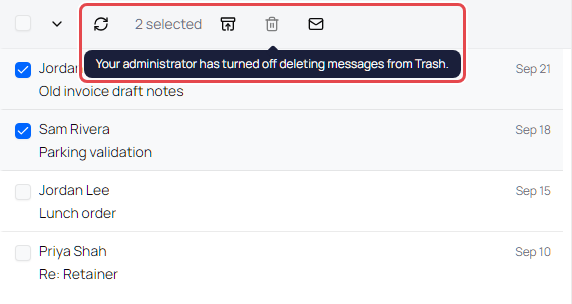
If you're a business administrator, you control this with Allow users to delete messages from Trash in the Mailbox section of Organization → Enterprise policy. See Set an enterprise policy for secure messages.
Delete a draft
Drafts don't go to Trash. In Drafts, point to a draft and click the trash icon (Discard draft), or open it and click Delete draft. The draft is deleted permanently.