
Extensions
HIVE: Extensions
This page controls the settings of a user’s extension as they relate to the SIP device behavior and voicemail options, along with the extension’s caller ID info.
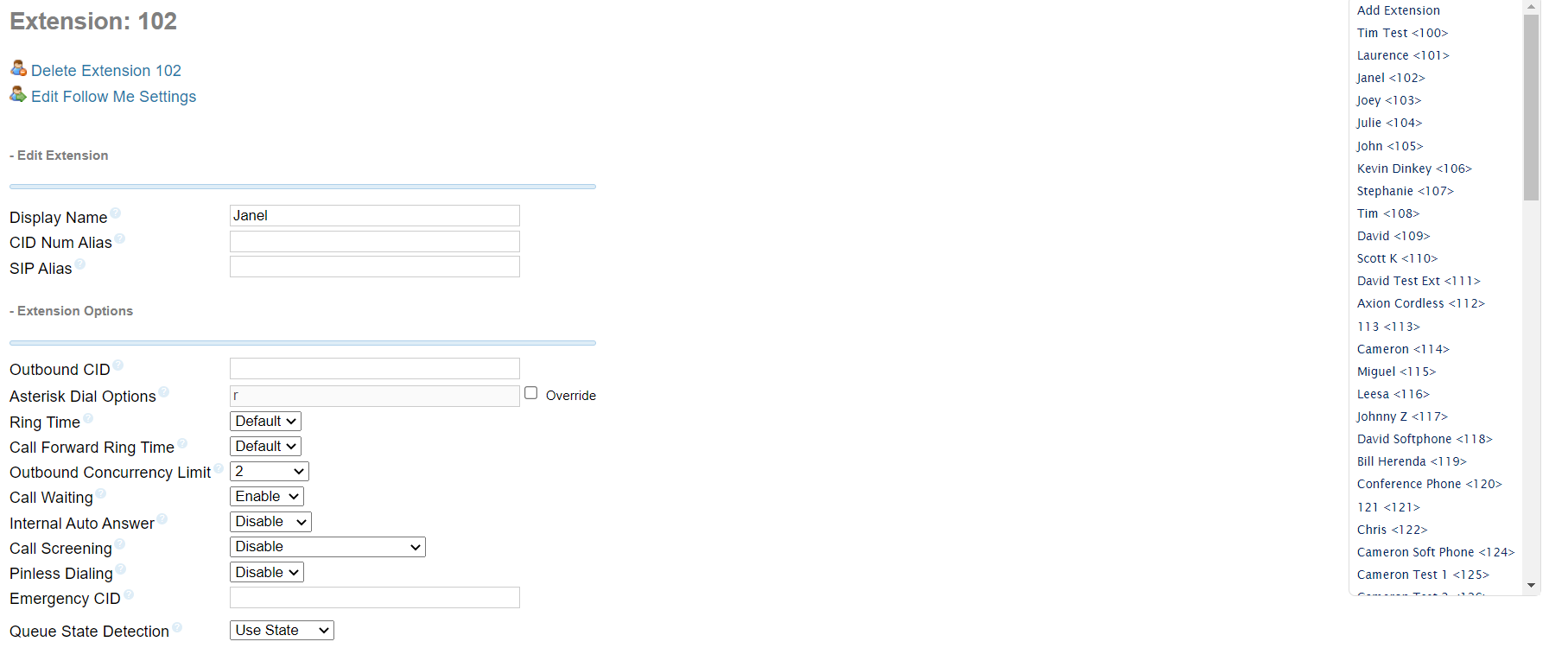
Extension List on right side of screen:
At the Top Right corner of the screen, you'll see a list of the extensions on the system. Clicking one will take you to that extension’s main settings page. The extensions will be in numerical order by the ‘User Extension’ number which is determined when the extension is initially created (including the defaults on installation). The ‘Display Name’ will be to the left of the extension number. Ex:
Reception <99>
Dr. Smith <100>
Jane Doe <999>
Extension settings are displayed on the left side of the screen:
Delete Extension : This button will remove the entire extension and any related settings from asterisk. This includes voicemail and follow me pages and will “break” any destination settings (e.g. ‘Set Destination’ on the Inbound Routes page) pointed to it, resulting in a ‘Bad Dest:’ notice on the page in question. If a broken destination has not been altered, it will be “repaired” if a new extension is created using the same ‘User Extension’ number. Used By: This section lists other modules that use this extension as a destination e.g. Inbound Routes, IVR options, Announcement. Please note that Time Conditions are not listed under this section, even if the extension is listed there.
Edit Follow Me Settings : Link to take you to the Applications > Follow Me page for the extension you're viewing
Edit Extension
User Extension: (Default: <blank>) This will be the extension number associated with this user and cannot be changed once saved. Default extensions are created on installation with 3-digit extension numbers, but they can be more or less digits. A warning will appear if you have entered a number that is already in use e.g. another extension, ring group or conference bridge. (no warning for parking spots) (NOTE: this field is only displayed during initial creation of an extension)
Display Name: (Default: <blank>) This is the name associated with this extension and can be edited any time. This will become the Caller ID Name for internal calls. This can be alphanumeric and some special characters are accepted (tested: ()-’&)
CID Number Alias: (Default: <blank>) The CID Number to use for internal calls, if different from the extension number. This is used to masquerade as a different user. A common example is a team of support people who would like their internal Caller ID to display the general support number (a ring group or queue). There will be no effect on external calls.
SIP Alias: (Default: <blank>) If you want to support direct sip dialing of users internally or through anonymous sip calls, you can supply a friendly name that can be used in addition to the user’s extension to call them.
(Axion does not support direct SIP dialing)
Extension Options
Outbound CID: (Default: <blank>) Overrides the Caller ID when dialing out a trunk. Any setting here will override the common outbound Caller ID set in the Trunks module. If you leave it blank, the system will use the route or trunk Caller ID, if set. **Be sure to input the full number (e.g. 1<area code><number>) **
Asterisk Dial Options: (Default: unchecked) You can use this field to override the system wide dial plan options found under Settings > Advanced Settings > Dialplan and Operational. This allows features not normally allowed and can lead to security risks
Asterisk Dial Options: **DO NOT OVERRIDE UNLESS YOU ARE VERY FAMILIAR WITH THE OPTIONS**
Ring Time: (Default: Default) Number of seconds to ring prior to going to the "no answer" destination (Maximum 120 seconds unless voicemail is deactivated). Default will use the global default value set in Advanced Settings. If no voicemail is configured, the extension will ring indefinitely.
Call Forward Ring Time: (Default: Default) Number of seconds to ring during a Call Forward, Call Forward Busy or Call Forward Unavailable call prior to continuing to voicemail or specified destination. Setting to Always will not return, it will just continue to ring. Default will use the current Ring Time. If voicemail is disabled and there is not destination specified, it will be forced into Always mode. (This setting has no effect on our system) Outbound Concurrency Limit: (Default: 2) Maximum number of external outbound simultaneous calls that an extension can make. This is also very useful as a Security Protection against a system that has been compromised. It will limit the number of simultaneous calls that can be made on the compromised extension. (Conference calls are still considered 2 calls counted toward this limit)
Call Waiting: (Default: Enable) Enable or disable call waiting for this user. If enabled, new calls will still ring on connected devices when the user is on an active call. They will see caller ID info and hear a periodic tone on the current call. The user can choose to accept the call on a new line or ignore the call. If disabled, new calls will go straight to voicemail or ring other users depending on the source of the call (direct/ring group)
Internal Auto Answer: (Default: Disable) If set to ‘Disable’, calls will ring according to ‘Ring Time’ setting. If set to ‘Intercom’, all internal inbound calls to this user will be auto-answered as if the ‘Intercom prefix’ feature code (*80) was used.
Call Screening: (Default: Disable) Call Screening requires external callers to say their name, which will be played back to the user and allow the user to accept or reject the call. Screening with memory only verifies a caller for their Caller ID once. Screening without memory always requires a caller to say their name. Either mode will always announce the caller based on the last introduction saved with that Caller ID. If any user on the system uses the memory option, when that user is called, the caller will be required to re-introduce themselves and all users on the system will have that new introduction associated with the caller's Caller ID. The user will be prompted for the following options when answering calls:
1– Immediately connect to cal
2– Send caller to voicemail
3– Send caller to “torture menus” (Music on Hold
4 – Send caller to a polite “Please do not call menu” (Number not in-service message)
Pinless Dialing: (Default: Disable) Enabling Pinless Dialing will allow this extension to bypass any pin codes normally required on outbound calls. (Please see the ‘Pin Sets’ article for more info)
Emergency CID: (Default: <blank>) This Caller ID will always be set when dialing out an Outbound Route flagged as Emergency. The Emergency CID overrides all other Caller ID settings
**Be sure to input the full number (e.g. 1<area code><number>) **
Queue State Detection: (Default: Use State) Defines how the user’s status will be used when determining availability for its membership in queues.
- Use State: Queues will honor the status that the extension reports and attempt calls accordingly.
- Ignore State: Queues will ignore the status the extension reports and always attempt a call. This can be useful if ‘Follow Me’ settings are causing issues for queues members
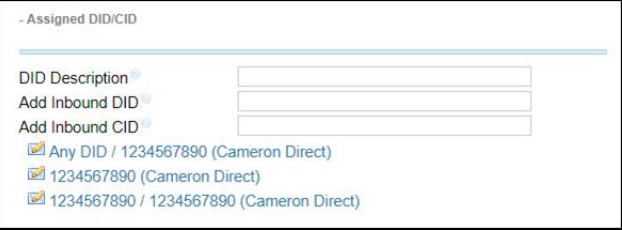
Assigned DID/CID
These fields can be used to create ‘Incoming Routes’ without leaving the extensions page. A list of inbound routes linked to this extension will be populated below the input fields.
DID Description: (Default:<blank>) Enter a name for the route you are creating here. (optional)
Add Inbound DID: (Default: <blank>) Enter the DID for the route here (optional)
Add Inbound CID: (Default: <blank>) Enter the CID for the route here. (optional)
(If you enter a CID with no DID, you will need to navigate to the inbound route page to activate the ‘CID Priority Route’ option
Device Options
**THESE OPTIONS SHOULD NOT BE MODIFIED UNLESS YOU KNOW WHAT YOU ARE DOING**
These option control aspects of
Secret: (Default: <random hexadecimal>) This is the password that the SIP device will need to use in order to register properly and make/receive calls. Our device passwords are generated by OpenSIPs and queried by the SBC. For this reason, we delete the auto generated password and leave this field blank. If this field is populated, the device trying to use this extension will not be able to register properly
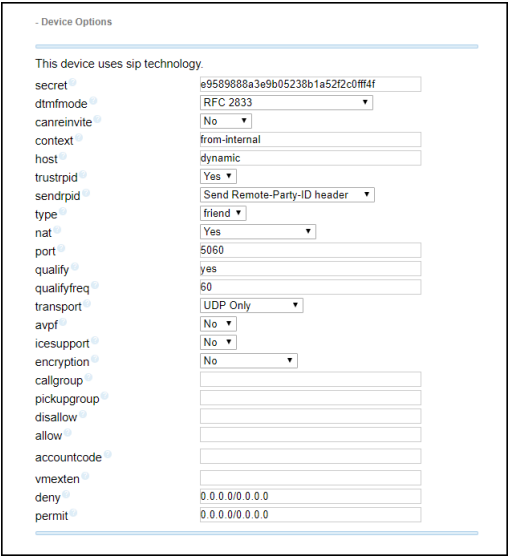
dtmfmode: (Default: RFC2833) Determines the DTMF signaling mode for this extension. This is for outbound DTMF tones.
- RFC 2833: Most common for SIP devices. (Works on our IVRs)
- In band audio: Common for DAHDI channels. (Works on our IVRs)
- Auto: (Works on our IVRs)
- SIP INFO (application/dtmf-relay): Does not work with our IVRs
- SIP INFO (application/dtmf): Does not work with our IVRs
canreinvite: (Default: No) Determines whether Asterisk will issue re-Invites to the device(s) registered to this extension. This can affect how audio and signaling is routed after a call is established
- No: Disallows sending re-Invites to the extension. This forces Asterisk to use separate legs for each audio stream.
- Yes: Allows sending re-Invites to the extension. If a call is established, Asterisk can send a subsequent invite to the extension creating a point to point audio stream.
- nonat: Allows re-Invites when a call is local, but not through NAT
- nonat: Allows re-Invites when a call is local, but not through NAT
context: (Default: from-internal) Determines the macro that will be used when this extension makes calls. Changing this can cause issue for internal calls.
host: (Default: dynamic) If this is not set to ’dynamic’ or sip domain of the system it is on, inbound calls will fail.
trustrpid: (Default: Yes)
- No:
- Yes:
sendrpid: (Default: No)
- No:
- Send Remote-Party-ID header:
- Send P-Asserted-Identity header:
type: (Default: friend)
- friend:
- peer:
- user:
nat: (Default: Yes)
- Yes:
- No – RFC3581:
- never – no RFC3581:
- route – NAT no rport:
port: (Default: 5060)
qualify: (Default: yes)
qualifyfreq: (Default: 60)
transport: (Default: UDP Only)
- All – TLS Primary:
- All – WS Primary:
- UDP Only:
- TCP Only:
- TLS Only:
- WS Only:
avpf: (Default: No)
- No:
- Yes:
icesupport: (Default: No)
- No:
- Yes:
encryption: (Default: No)
- No:
- Yes (SRTP Only):
callgroup: (Default: <blank>)
pickupgroup: (Default: <blank>)
disallow: (Default: <blank>)
allow: (Default: <blank>)
dial: (Default: SIP/<ext#>) This field appears only after the extension is created and is populated with the ‘User Extension’ number.
accountcode: (Default: <blank>)
mailbox: (Default: <ext#>@device)
vmexten: (Default: )
deny: (Default: 0.0.0.0/0.0.0.0)
permit: (Default: 0.0.0.0/0.0.0.0)
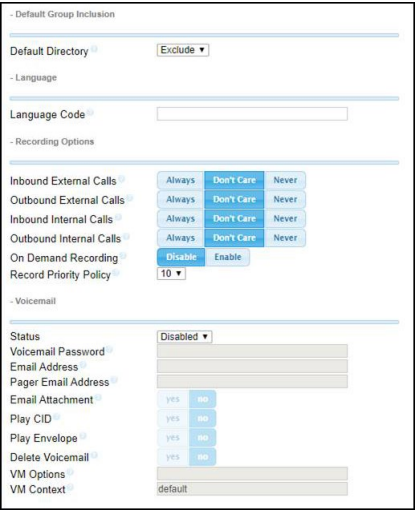
Default Group Inclusion
Default Directory: (Default: Exclude) You can include or exclude this extension/user from being part of the default directory when creating or editing.
Language
**Not Functional at this time**
Language Code: (Default: <blank>, English) You can enter language codes to force messages and prompts to be played in languages other than English
Recording Options
Inbound External Calls: (Default: Don’t Care) Calls from numbers outside of the Asterisk system to this extension.
- Always: Calls will be recorded unless a previous ‘Never’ setting prevents this.
- Don’t Care: The extension will record or not record as specified by previous modules routing the call.
- Never: This option will override previous module settings and not record this call; subsequent settings will be ignored.
Outbound External Calls: (Default: Don’t Care) Calls to numbers outside the Asterisk system from this extension. See above for options
Inbound Internal Calls: (Default: Don’t Care) Calls from numbers inside the Asterisk system to this extension. See above for options.
Outbound Internal Calls: (Default: Don’t Care) Calls to numbers outside the Asterisk system from this extension. See above for options.
On Demand Recording: (Default: Disable) When enabled, the user can dial ‘*1’ to toggle call recording if allowed. (Default Feature Code setting: Disabled)
Record Priority Policy: (Default: 10) Ranks extensions when there is a conflict in recording policies.
(Please see appendix for call examples and Recording Policy hierarchy)
Voicemail
Status: (Default: Disabled) Enable or disable the voicemail feature for this extension. If enabled, callers will be prompted according to the extension status (unavailable/busy/temporary) and then allowed to leave a message for the user.
If disabled, direct calls to this extension will ring indefinitely and direct call attempts to voicemail (*<ext. #>) will fail.
Voicemail Password: (Default: <blank>) Numerical password used to access the extension’s voicemail menu.
Email Address: (Default: <blank>) A notification that there is a voicemail for this extension will be sent to the address entered in this field. If there is an error reaching the address, the system will retry until the email is successfully sent.
(An SMS email in this field will work)
Pager Email Address: (Default: <blank>) An email to SMS notification will be sent to the address listed here. It will contain info about the voicemail message (e.g. time, date, length, Caller ID) but not a copy of the audio file. Typical format is <cell number>@<cell carrier specific URL>.
(A non-SMS email in this field will work)
Email Attachment: (Default: No) If ‘yes’, a copy of the voicemail audio file (.wav) will be attached to the email notification. If ‘no’, the notification will be sent without the audio file.
Play CID: (Default: No) If yes, the caller ID number of the sender will be read at the start of the message. This setting will take effect on all messages on the extension, even if they were left prior to it being activated, but not on an audio files sent via email.
Play Envelope: (Default: No) If yes, the Date/Time that the message was received will be read at the start of the message. This setting will take effect on all messages on the extension, even if they were left prior to it being activated, but not on an audio files sent via email.
Delete Voicemail: (Default: No) If yes, the voicemail message will be permanently deleted from the extension’s voicemail box.
**You must have a valid email address set and the ‘Email Attachment’ option enabled or voicemails will be deleted forever**
VM Options: (Default: <blank>) You can enter additional options for voicemail behavior here (e.g. maximum messages, time zone, caller review)
VM Context: (Default: default) **DO NOT ADJUST THIS VALUE**
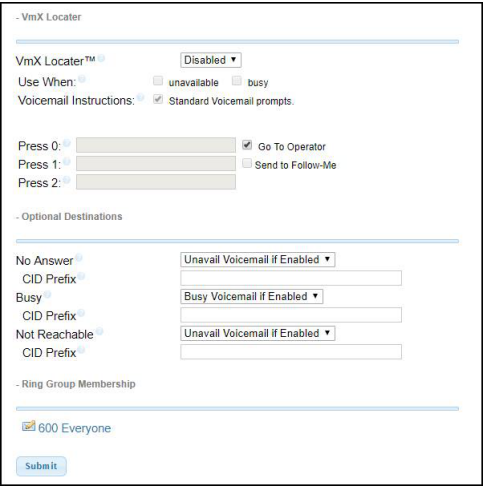
VmX Locater
VmX Locater: (Default: Disabled) This features allows callers who have reached this extension’s voicemail to dial options to reroute their calls instead of leaving a message. The option to dial ‘0’ to call the Operator is active whether this feature is enabled or disabled. The ‘Operator Extension’ settings can be found under Settings > Voicemail Admin > Dialplan Behavior and is system wide.
Use When: (Default: both unchecked)
You must have an outgoing message recorded for any option you have checked or the feature will not work.
- unavailable: Unanswered calls while not on a call, DND.
- busy: Unanswered calls while on an active call.
Voicemail Instructions: Uncheck to play only a beep after your greeting.
Press 0: (Default: <blank>)
- <number/ext>
- Go To Operator: Default: checked)
Press 1: (Default: <blank>)
Press 2: (Default: <blank>)
(The caller must choose one of these options BEFORE the standard message instructions begin playing)
Optional Destination
Options for where a call is sent in the event it goes unanswered. Generally, the default voicemails are used.
No Answer: (Default: Unavail Voicemail if Enabled) When the device is registered but a call is not answered.
CID Prefix: (Default: <blank>)
Busy: (Default: Unavail Voicemail if Enabled) When the device is on an active call and call waiting is disabled/ignored.
CID Prefix: (Default: <blank>)
Not Reachable: (Default: Unavail Voicemail if Enabled) When there is no device registered on the extension.
CID Prefix: (Default: <blank>)
Ring Group Membership
This section is a list of all the Ring Group that this extension is a member of. These are clickable links that will take you to the ‘Ring Group’ page