
Import contacts from Outlook or Google
You can add many contacts at once by importing an Outlook CSV file. Both Outlook and Google Contacts can export one. Each import can hold up to 2,000 contacts in a file of up to 5 MB.
Step 1: Export your contacts
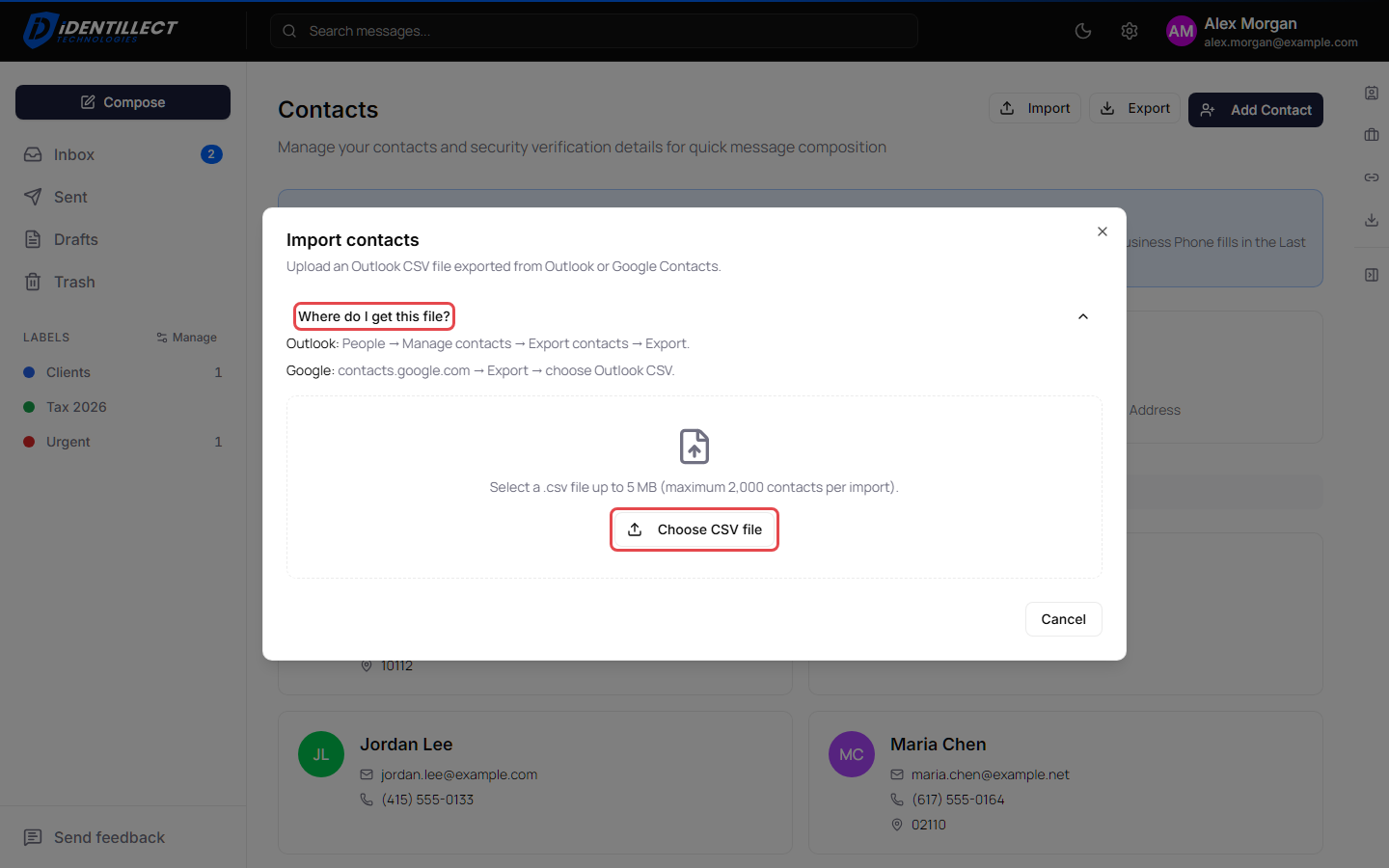
The Import contacts window in the portal has the same steps under Where do I get this file?
From Outlook
- In Outlook, go to People.
- Click Manage contacts, then Export contacts.
- Click Export. Outlook saves a CSV file to your computer.
From Google Contacts
- Go to
contacts.google.com. - Click Export.
- Choose Outlook CSV and export. Google saves a CSV file to your computer.
Step 2: Import the file
- Open Contacts: click your name in the top-right corner of the page, then click Contacts.
- Click Import (the upload icon) at the top of the page.
-
Click Choose CSV file and select the file you exported.
-
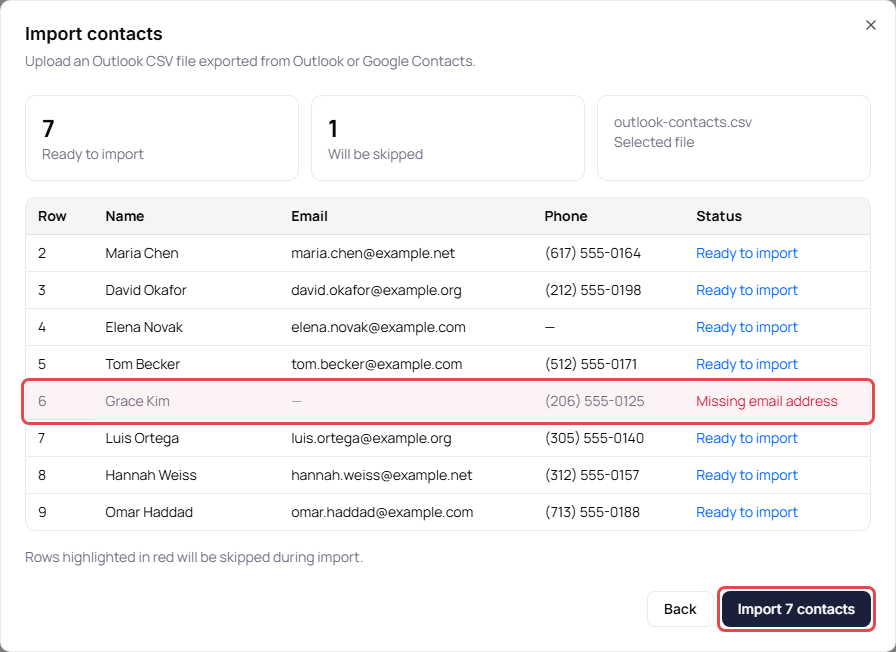
Check the preview. It shows how many contacts are Ready to import and how many Will be skipped, with the first 10 rows of the file. Rows that will be skipped are highlighted in red, with the reason.
- Click Import followed by the number of contacts, for example Import 7 contacts. The window shows the progress. Large imports can take a minute.
- When the import finishes, check the totals for Created, Updated and Skipped, then click Done.
To pick a different file before importing, click Back.
What gets imported
The portal reads these columns of an Outlook CSV file: First Name, Last Name, E-mail Address, Business Phone, Mobile Phone, Business Street, Business City, Business State and Business Postal Code.
- Every contact needs an email address. Rows without one are skipped with Missing email address.
- If a contact with the same email address already exists, it's updated instead of duplicated. Empty cells in the file don't erase details you already have.
- Rows with a value that's too long are skipped with Value too long.
- A phone number that isn't valid, for example one with letters such as ext 12, is left out. The rest of the contact is still imported.
Mobile Phone, Business Phone and Business Postal Code become the contact's verification details, which fill in automatically when you compose. See Manage your contacts.
If the file isn't accepted
| Message | What to do |
|---|---|
| File exceeds 5 MB — split your export and import in batches. | Split the file into smaller files and import each one. |
| A message that the file has more contacts than the maximum of 2,000 per import | Split the file so each part has 2,000 contacts or fewer. |
| Unrecognized CSV format. | Export again and choose the Outlook CSV format. |
| No importable contacts found. Each row needs an email address. | Add email addresses to the file, or export again. |