
Organize messages with labels
Labels are colored tags you add to messages, for example Clients or Finance. A message can have several labels, and you can click a label in the sidebar to see every message that has it.
Create a label
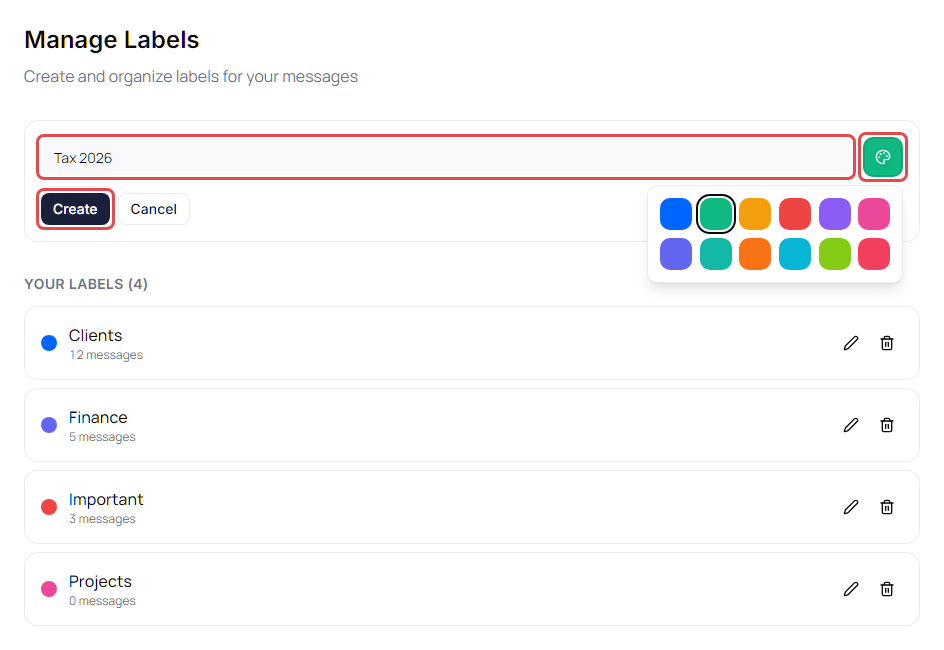
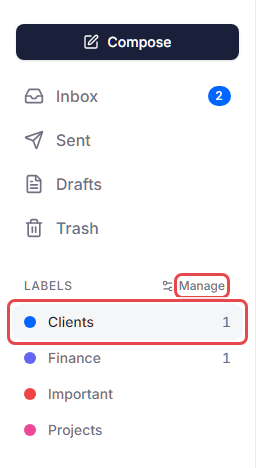
- In the sidebar, next to Labels, click Manage. The Manage Labels page lists your labels and how many messages each one is on.
- Click New Label.
- Type a name in Label name.
- Click the colored square (Choose color) and pick a color.
-
Click Create.
Edit or delete a label
On the Manage Labels page:
- To rename a label or change its color, click the pencil icon on its row, make your changes, and click Save.
- To delete a label, click the trash icon on its row. If the label is on any messages, the portal asks Delete this label? Click Delete to confirm. Deleting a label removes it from those messages; the messages themselves aren't deleted.
Add or remove labels on a message
- Open the message.
- Click More actions (⋮) in the top-right corner of the message, then point to Labels.
-
Select a label to add it. Clear a selected label to remove it.
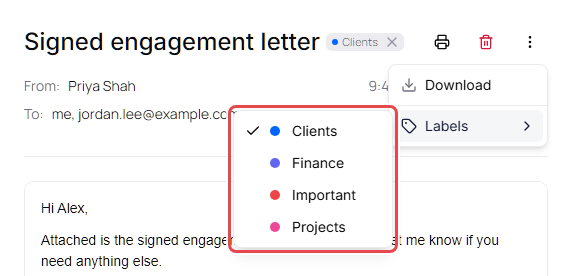
The labels on a message appear next to its subject. To remove one quickly, click the X on the label.
You can also drag a label from the sidebar and drop it on a message in the list. This works in your folders and label views, but not in search results.
Note: In the Threaded message list, a label you add to an open conversation applies to the whole conversation.
See messages with a label
Under Labels in the sidebar, click a label. The list shows only messages with that label. The number next to a label is how many of its messages are unread.
Change how labels look in the list
Labels in the message list can show as named badges or as small colored dots. Click Open settings (the gear icon at the top of the page), then under Appearance → Label Display, choose Badges or Dots. See Appearance and notification settings.