
Appearance and notification settings
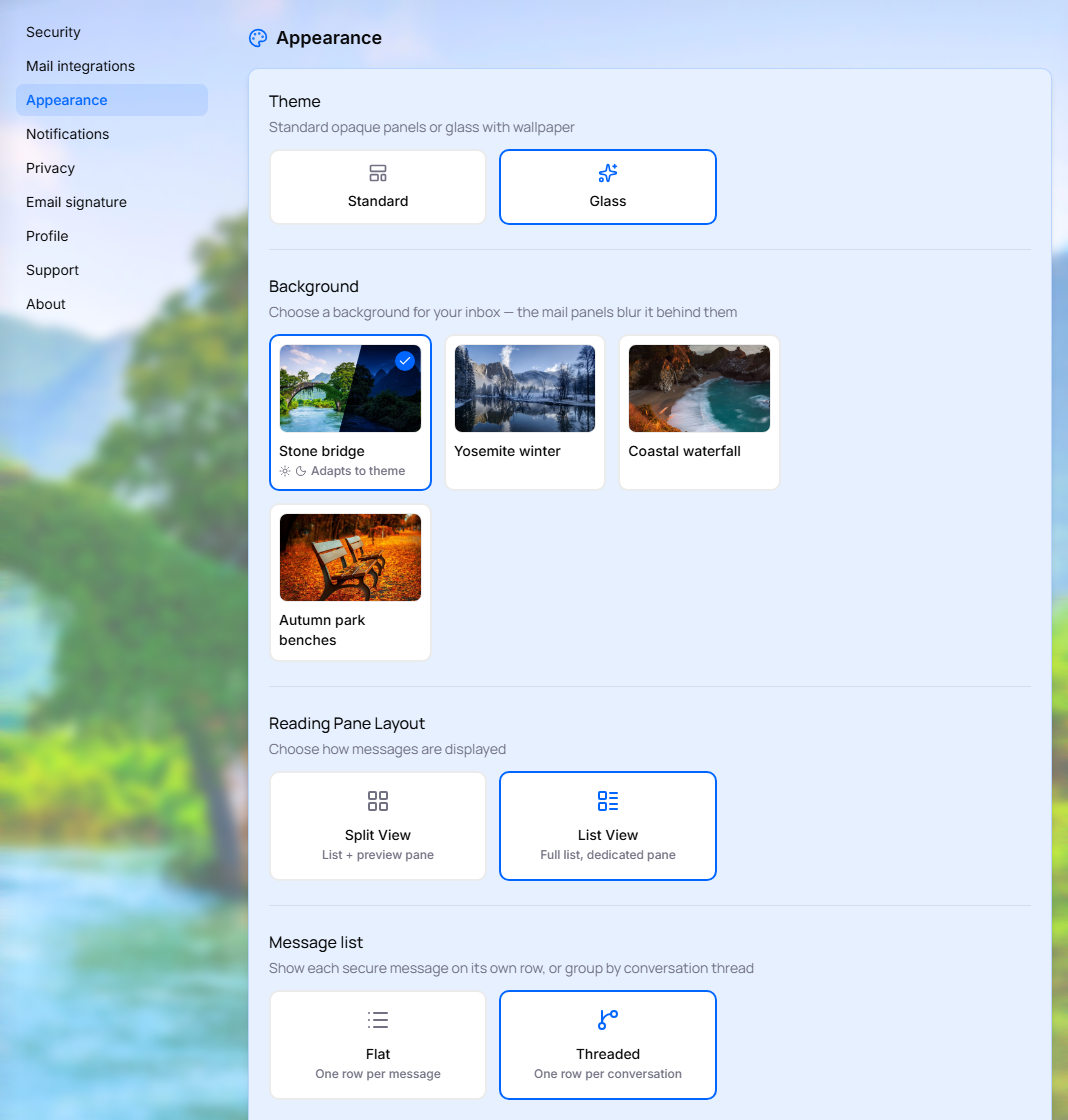
Choose how the web portal looks: light or dark, a plain or glass theme, how messages are laid out, and whether you get desktop alerts for new mail. Changes apply as soon as you click them; there's nothing to save.
Note: These settings are saved in your browser, not in your account. If you use the portal on another computer or browser, set them there too.
Open the appearance settings
- Click the gear icon (Open settings) in the top-right corner.
-
Click Appearance in the list of sections on the left. On a smaller screen, pick Appearance from the section menu at the top of the page.
Light or dark mode
Click the moon icon (Switch to dark mode) or the sun icon (Switch to light mode) in the header. Until you pick one, the portal follows your computer's light or dark setting.
Appearance options
| Setting | Options |
|---|---|
| Theme | Standard (default): solid panels. Glass: see-through panels over a background picture. |
| Background | Shown only with the Glass theme. Pick Stone bridge (default), Yosemite winter, Coastal waterfall or Autumn park benches. |
| Reading Pane Layout | Split View: the message list and the open message side by side. List View (default): the full message list; a message opens in its own pane. |
| Message list | Flat: one row per message. Threaded (default): one row per conversation. |
| Label Display | Badges: label names appear as chips on each message. Dots (default): a colored dot for each label. |
| Default compose window | Fullscreen (default): a centered window with the mail dimmed behind it. Corner Window: a compact window in the corner, without dimming. |
| Dark mode message body | Off by default. When the portal is in dark mode, turn this on to show message content in dark colors too. Leave it off to see messages in their original colors; images and brand colors may look slightly different when it's on. |
Tip: On a phone or a narrow window, the portal always shows the message list and the open message one at a time, whatever Reading Pane Layout you chose.
The last switch in the section, Use classic portal, takes you back to the classic portal. See Switch back to the classic portal.
Desktop notifications
Get an alert from your browser when a new message arrives in your Inbox while the portal tab isn't visible. This is separate from any email notifications your organization sends.
- In Settings, go to the Notifications section.
- Turn on Desktop notifications.
-
If your browser asks, click Allow.
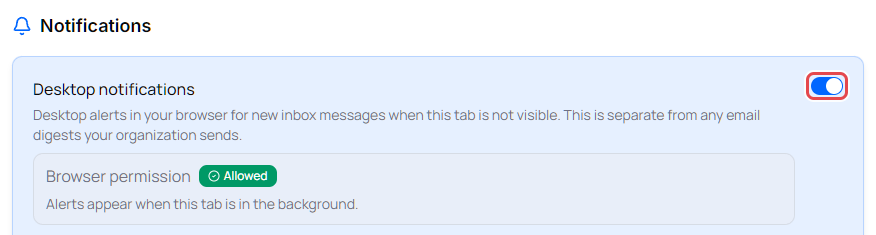
Under the switch, Browser permission shows whether your browser lets the portal send alerts:
| Status | What to do |
|---|---|
| Allowed | Nothing. Alerts appear when the portal tab is in the background. |
| Not prompted yet | Turn on the switch and allow notifications when your browser asks. |
| Blocked | The switch is greyed out. Unblock notifications for portal.identillect.com in your browser's site settings, then return to Settings. |
| Not supported | Your browser doesn't offer desktop notifications. |