
Search and filter your messages
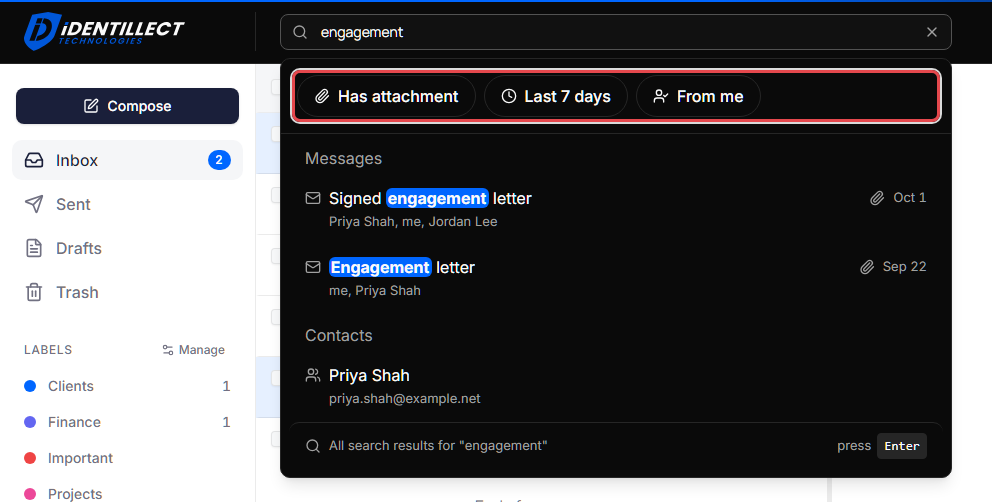
Use the search box at the top of the portal to find messages and contacts. Filters narrow the results to messages with attachments, recent messages, or messages you sent.
Search your mail
- Click the search box (Search messages...) at the top of the page. On a phone, tap the magnifying glass (Search) at the top of the screen first.
-
Type a word, a name or an email address. As you type, a panel below the box shows matching Messages and Contacts.
-
Do one of the following:
- Click a message to open it. Click Back above the message to return to where you were.
- Click a contact to open it on the Contacts page.
- Press Enter, or click All search results for "…" at the bottom of the panel, to see every matching message in the message list, newest first, under Search results for "…".
A message you open from the full results keeps your search, so Back returns you to the results.
To leave the search and go back to your mailbox, click Clear search (the X at the right of the search box), or click a folder or label in the sidebar. The search box empties when you leave the results.
Filter the results
The filters appear at the top of the search panel. Click a filter to turn it on, and click it again to turn it off. You can combine them.
| Filter | Shows |
|---|---|
| Has attachment | Only messages with attachments |
| Last 7 days | Only messages from the past 7 days |
| From me | Only messages you sent |
The filters apply to both the results in the panel and the full list you get when you press Enter.
Use recent searches
When you click in the search box, your recent searches are listed below it.
- Click a recent search to run it again.
- Click the X on its right to remove it from the list.
A search is added to the list when you press Enter or open the full results.
Other ways to narrow the list
- By label: under Labels in the sidebar, click a label to see only the messages that have it. See Organize messages with labels.
- By read state: click the arrow next to the select-all checkbox above the message list and choose Read or Unread. This selects those messages so you can act on them together; the other messages stay in the list.