
View invoices and cancel your subscription
If you're a business administrator, you can see and download your organization's invoices on the Subscription & Billing tab. To cancel your subscription, you contact Identillect, and the team completes the request with you.
View and download invoices
- Click your name or initials in the top-right corner, click Organization, then open the Subscription & Billing tab.
-
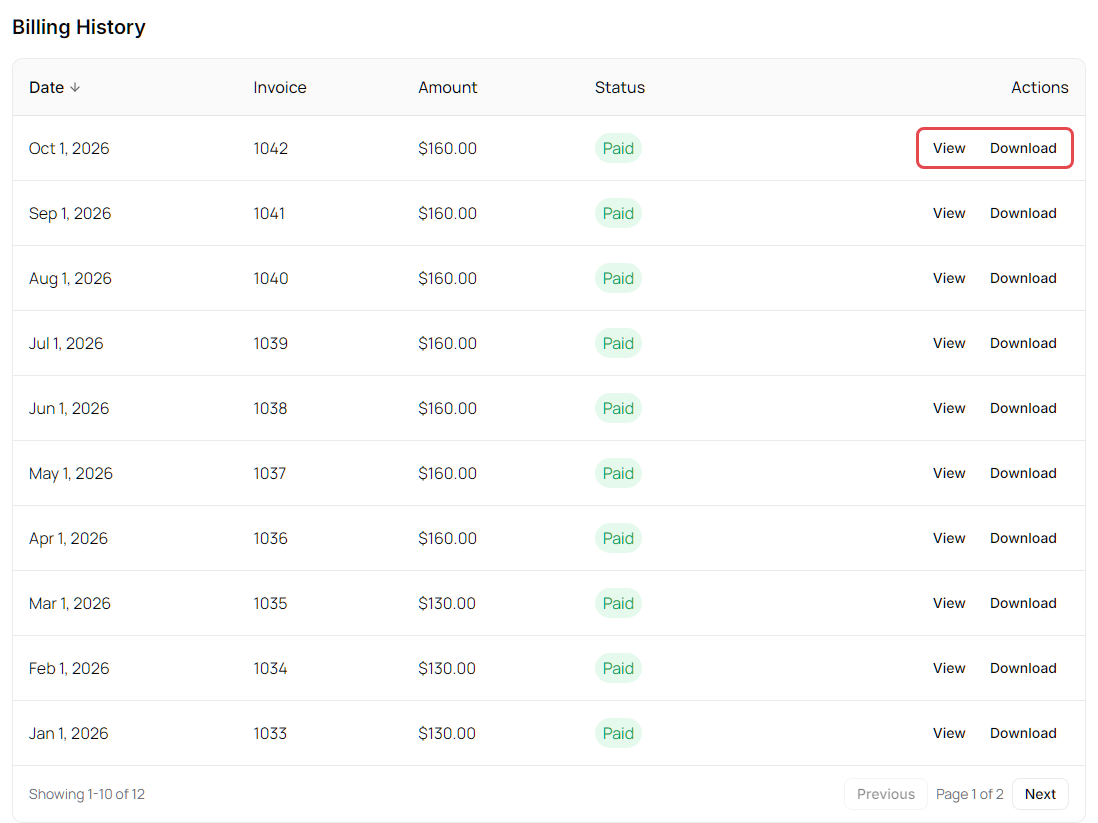
Scroll down to Billing History. Each invoice shows its Date, Invoice number, Amount and Status. The newest invoices are first; click Date to reverse the order. With more than 10 invoices, use Previous and Next to see the rest.
| Status | Meaning | |---|---| | Paid (green) | The invoice is paid. | | Past due (amber) | The payment wasn't collected on time. Check or update your card under Payment Method. | | Failed (red) | The payment couldn't be collected. Check or update your card under Payment Method. | | Pending, Processing, Void or Closed (grey) | The payment hasn't gone through yet (Pending, Processing), or the invoice was voided or closed. |
-
Next to an invoice:
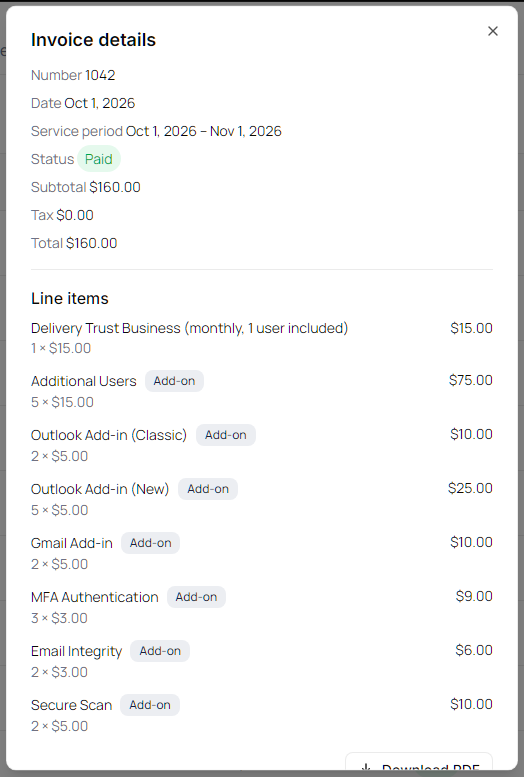
- Click View to open Invoice details: the number, date, the Service period the invoice covers, status (the same colored badge), subtotal, tax, total and line items. Each line item shows its quantity and unit price (for example 7 × $5.00), and add-ons are marked Add-on. A line that covers a different period, such as a prorated charge, shows its own dates. Click Download PDF at the bottom of the window to save the invoice as a PDF.
- Click Download to save the invoice as a PDF without opening it.
Cancel your subscription
Cancellations are handled by Identillect support.
- On Subscription & Billing, under Current Plan, click Cancel subscription.
-
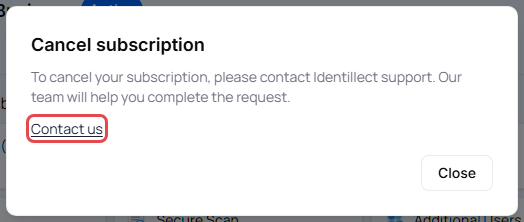
The Cancel subscription window explains that support will help you complete the request. Click Contact us to open Identillect's contact page, or Close.
You can also reach the billing team directly: click Contact billing at the top right of Subscription & Billing, then call 888-781-4080, email billing@identillect.com, or click Submit a ticket to open a request at identillect.zendesk.com.
Once a cancellation is set up, your plan shows Cancellation scheduled.
When the subscription ends
Everyone in your organization can still read their messages, but sending secure messages needs an active subscription:
- A Subscription Expired banner appears at the top of the mailbox. Business administrators can click Renew Subscription to go to Subscription & Billing.
- Clicking Compose opens Subscription required.
- Members who aren't administrators are asked to contact their organization admin to renew.