
View your plan and change your subscription
If you're a business administrator, the Subscription & Billing tab shows your organization's plan, add-ons and next renewal. From there you can add licenses and seats, apply a coupon, and switch between monthly and annual billing. Other members who try to open billing see "Contact your organization admin for access to subscription and billing."
Check your current plan
- Click your name or initials in the top-right corner, click Organization, then open the Subscription & Billing tab.
-
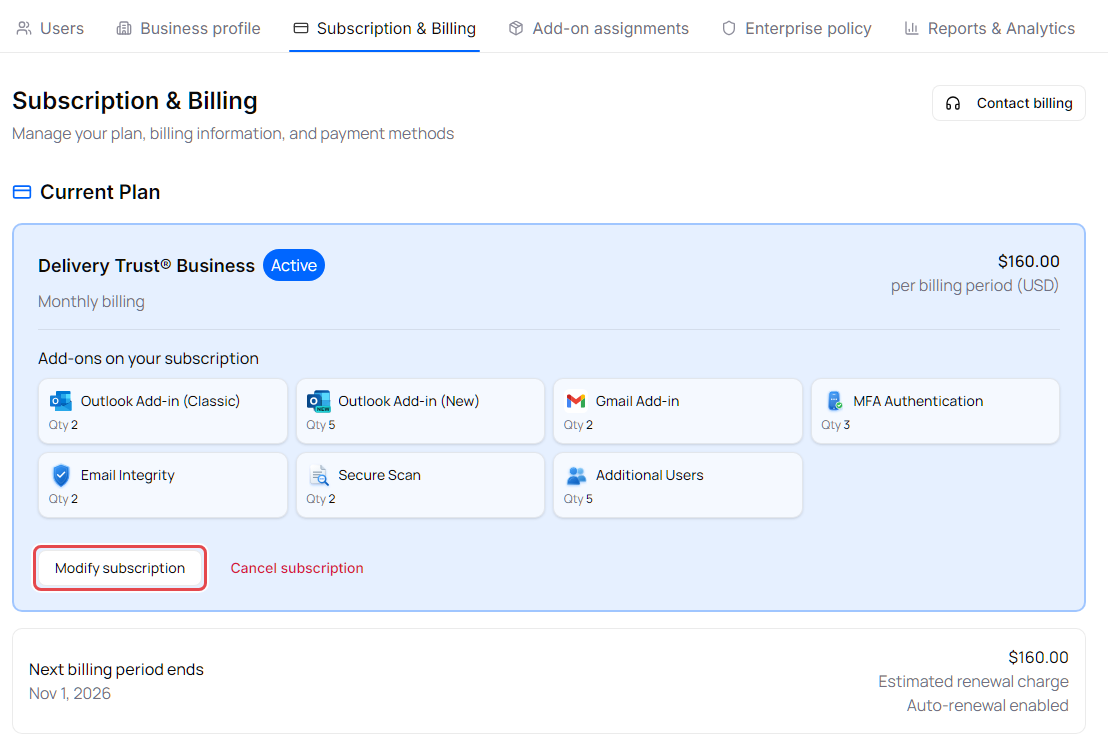
Under Current Plan, you see:
- The plan name, its status, and whether you pay with Monthly billing or Annual billing.
- The amount per billing period.
- Add-ons on your subscription, with the quantity of each.
- Next billing period ends, the Estimated renewal charge, and whether auto-renewal is on.
| Status | Meaning |
|---|---|
| Active | Your subscription is running normally. |
| Trial | Your subscription is in its trial period. While the trial runs, Trial can also appear next to another status, such as Active. |
| Past due | We weren't able to collect your last payment. Check or update your card under Payment Method. |
| Cancellation scheduled | Your subscription is set to be canceled. |
| Canceled or Expired | Your subscription has ended. |
You can change or cancel a subscription only while it's Active, Trial or Past due.
Note: Your plan includes one user. Each additional person in your organization, including pending invitations, needs an Additional Users seat. Suspended users don't use a seat.
Add licenses, seats or add-ons
- Under Current Plan, click Modify subscription.
-
Under Add-ons, change what you need:
- On your subscription: click + or − to change the quantity. Each card shows how many are in use and the price. Click Reset to undo a change.
- Available add-ons: click Add to subscription.
- Check the Change summary. It shows what's Due today (proration), any Credit today, and the Total of your Next renewal.
-
Click Review and apply changes, check the summary again, and click Confirm change. The card on file is charged for anything due today, and the portal confirms "Subscription updated."
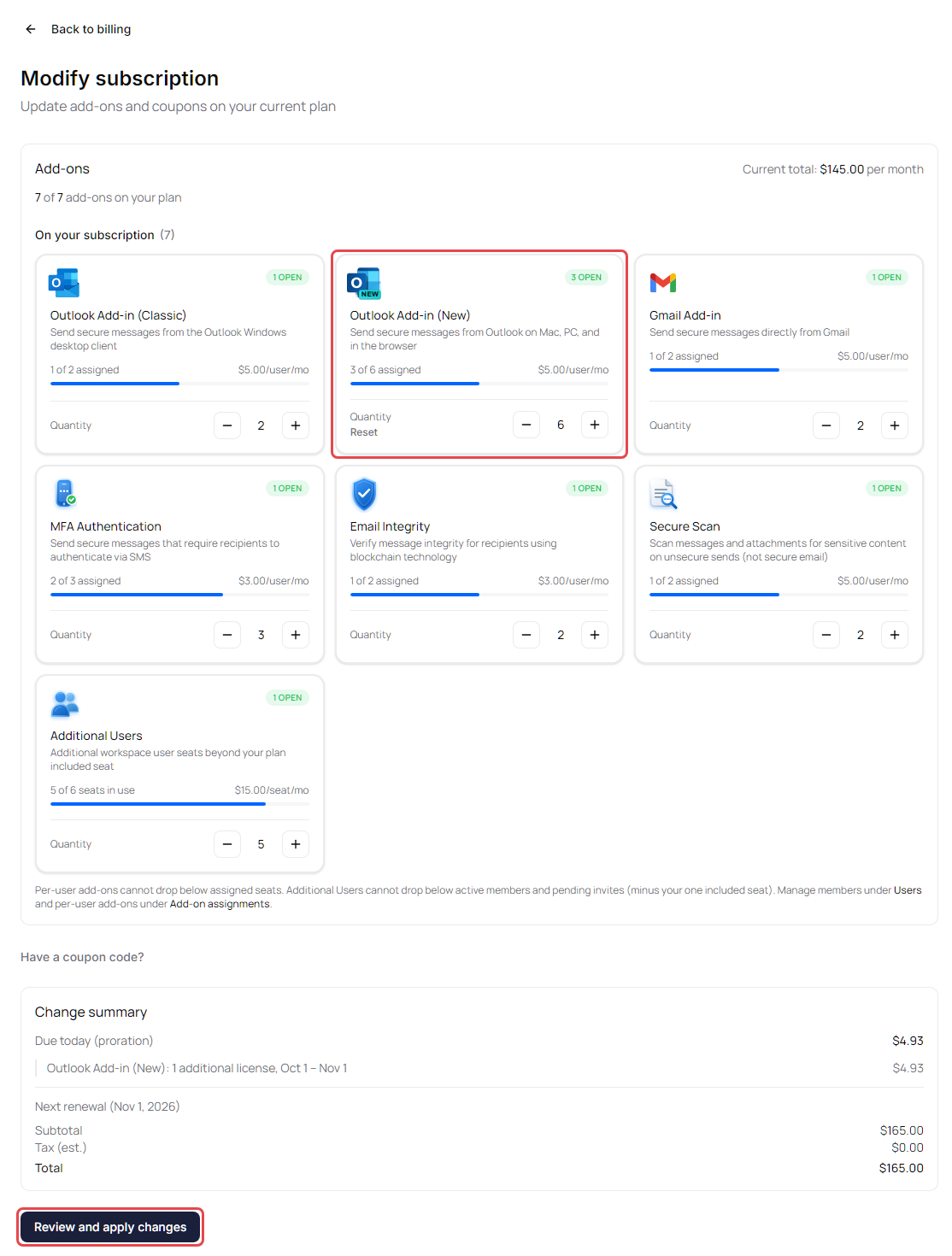
You can't go below what's in use. For a per-user add-on, unassign users on Add-on assignments first. For Additional Users, suspend or remove users, or cancel pending invitations, on Users first.
If you leave the page with changes you haven't applied, the portal asks Leave without applying changes? Click Stay to keep editing.
Tip: On the Add-on assignments tab, Buy licenses opens this page with that add-on highlighted. See Assign add-ons to users.
Apply a coupon
- Click Modify subscription.
- Click Have a coupon code? and enter it under Coupon code. The portal checks the code and shows the discount, or why it can't be used.
- Click Review and apply changes, then Confirm change.
To take a coupon off, click Remove current coupon, then review and apply the change.
Switch between monthly and annual billing
You stay on the same plan and only change how often you're billed.
- Under Available Plans, click Switch to annual billing (or Switch to monthly billing).
- Review the proration and click Continue.
- Click Confirm change. The card on file is charged for anything due today, and the portal confirms "Billing cadence updated."
Questions about your plan
Click Contact billing at the top right of Subscription & Billing to call 888-781-4080, email billing@identillect.com, or submit a ticket.