
Create an organization for your business
Delivery Trust billing for teams belongs to an organization. If you use the web portal on your own and aren't part of an organization yet, you can create one, choose a plan, and then invite your team. The person who creates the organization becomes its first business administrator.
Note: If you already belong to an organization, you can't create another one. Ask your organization's business administrator for access. If you need to be restored as an administrator of an organization you used to manage, contact Identillect support.
Open the Create your organization page
The page opens from the web portal's subscription prompts:
- If you click Compose without an active subscription, the Subscription required window opens. Click Set up subscription.
- If the Subscription Expired banner appears at the top of your mailbox, click Renew Subscription.
You can also type portal.identillect.com/subscription in your browser's address bar.
Create the organization
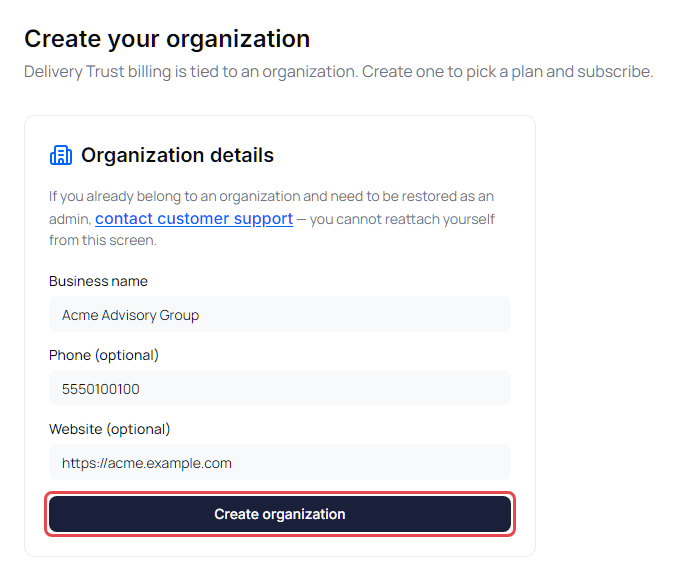
- On Create your organization, enter your Business name.
- Optionally enter a Phone (optional) number (digits only, 10 to 15 digits) and a Website (optional) address that starts with
https://orhttp://. -
Click Create organization. The portal confirms that the organization was created and opens Organization → Subscription & Billing.
You can change these details later on the Business profile tab. See Update your business profile and branding.
Choose a plan and subscribe
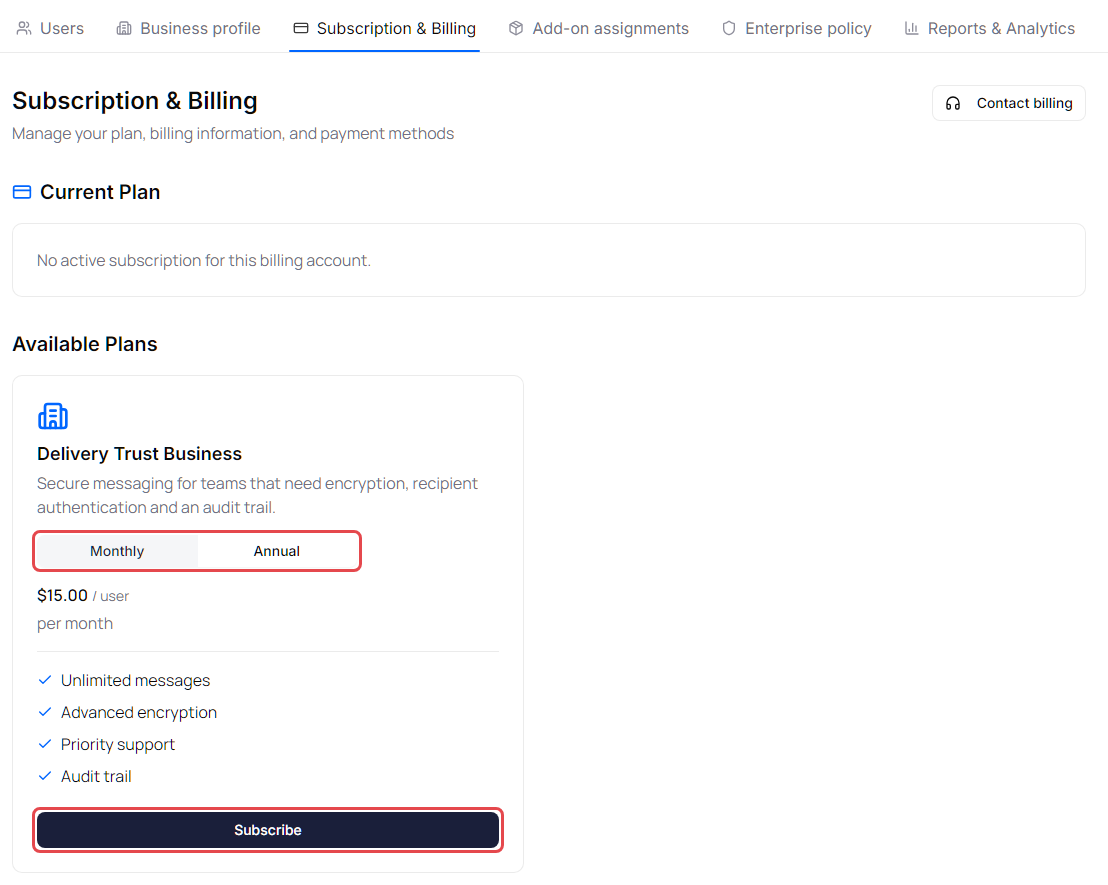
- On Subscription & Billing, under Available Plans, choose Monthly or Annual if both are offered. The price is shown per user.
- Click Subscribe.
-
If your organization has no card on file yet, the Add payment method window opens. Enter your card and billing address, then click Save. See Add or update your payment method. The subscription starts after the card is saved, and the portal confirms "Subscription activated."
Tip: Have a coupon code? Subscribe first, then add the coupon under Modify subscription. See View your plan and change your subscription.
Open the Organization pages later
Business administrators manage the organization from the Organization pages:
- Click your name or initials in the top-right corner.
- Click Organization.
On wider screens you can also click the Organization icon in the quick actions bar on the right edge of the mailbox, or Open Organization on the Settings page.
The pages are grouped in tabs: Users, Business profile, Subscription & Billing, Add-on assignments, Enterprise policy and Reports & Analytics. On a narrow screen, swipe the tab row sideways (or use the arrows at its edges) to see the rest.
If someone who isn't a business administrator opens these pages, the portal returns them to the inbox with the message "Contact your organization admin for access to that page."