
Assign add-ons to users
Add-ons are paid features your organization buys with its subscription. Each add-on comes with a number of licenses, and as a business administrator you decide which users get them. A user only gets an add-on's features after you assign it to them.
To buy add-ons or more licenses, see View your plan and change your subscription.
What each add-on gives a user
| Add-on | What the user gets |
|---|---|
| Outlook Add-in (Classic) | Send secure messages from the Outlook Windows desktop client. |
| Outlook Add-in (New) | Send secure messages from Outlook on Mac, PC and in the browser. |
| Gmail Add-in | Send secure messages directly from Gmail. |
| MFA Authentication | The SMS passcode authentication method when composing: recipients get a one-time code by text message. |
| Email Integrity | The Enforce email integrity option when composing, which blocks viewing if the message fails tamper or authenticity checks. |
| Secure Scan | Scans messages and attachments for sensitive content when the user sends regular (not secure) email. Requires a mail add-in. Learn more in Secure Scan. |
Users who have a mail add-in see Get Add-ins in their profile menu, with download links. See Get the Outlook and Gmail add-ins.
Additional Users isn't assigned here: it adds user seats to your subscription. Manage it under Subscription & Billing.
Assign licenses on the Add-on assignments tab
- Click your name or initials in the top-right corner, click Organization, then open the Add-on assignments tab.
- Under Your Add-ons, click the add-on you want to manage. Each card shows how many licenses are assigned, how many are open, or Full.
-
In the user list, click Assign next to each person who should have it. Assigned users show Assigned. To take a license back, point to Assigned and click Remove.
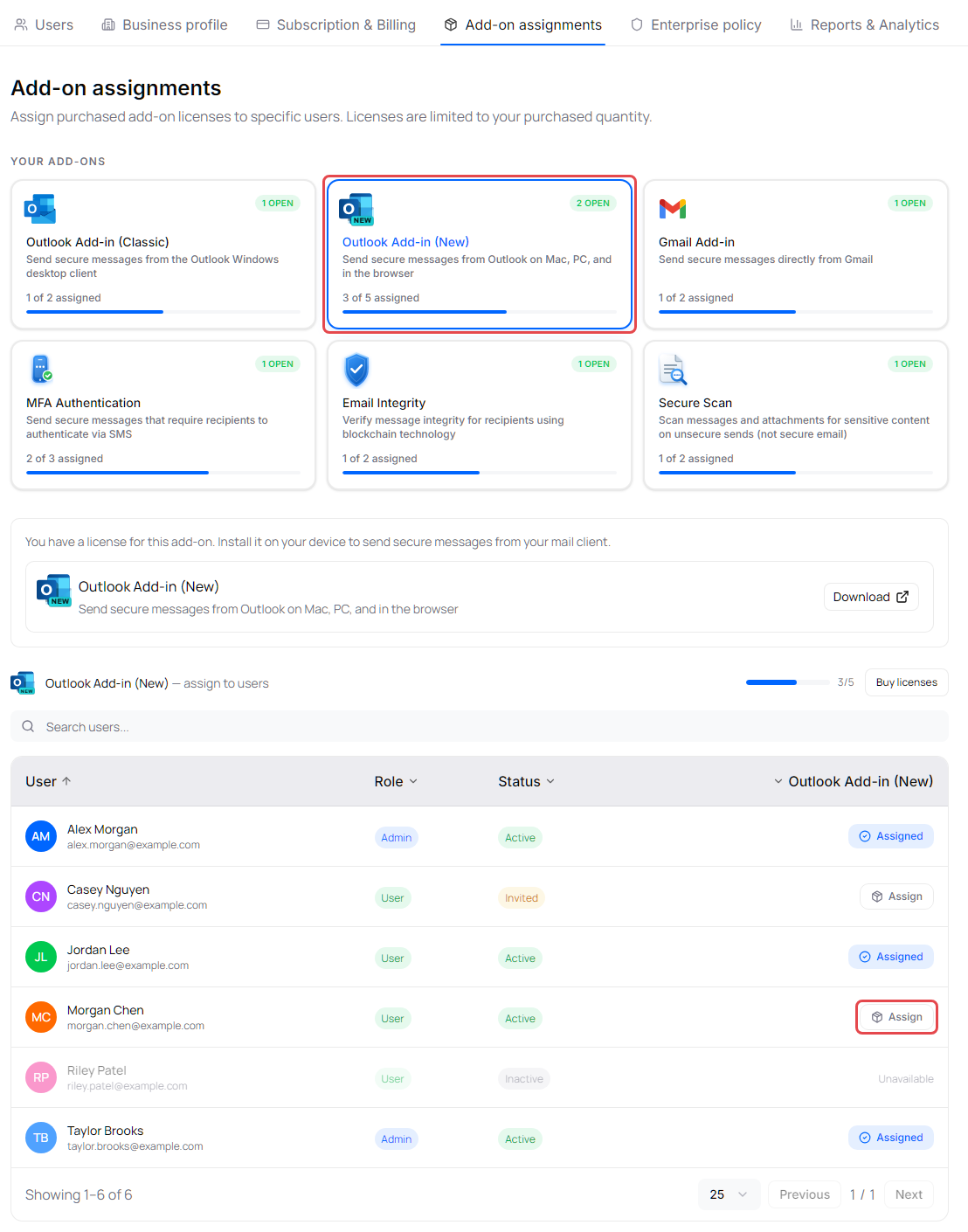
Changes save automatically, and the portal confirms "Add-on assignments updated".
To find people quickly, use Search users... or the filters in the Role, Status and add-on column headings (for example, show only users who are Not assigned).
- Unavailable means the person can't get this add-on right now, for example because they're suspended, or because they don't have a mail add-in yet (Secure Scan).
- No licenses and All licenses assigned mean every license is in use. Remove one from someone else, or click Buy licenses to add more to your subscription.
If you assign yourself a mail add-in, the tab also shows install options so you can set it up on your own device.
Assign add-ons to one person
- On the Users tab, click the three-dot menu at the end of the person's row.
- Click Manage add-ons.
- Click the add-ons to turn them on or off for this person. Each one shows how many of its licenses are in use.
-
Click Save.
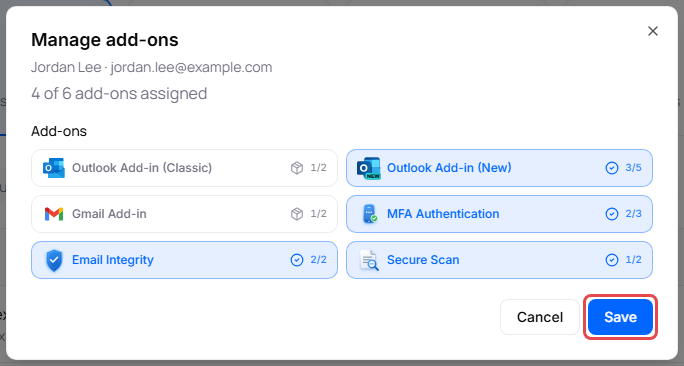
You can also choose add-ons when you invite someone. See Invite and manage users.
Rules to know
- Secure Scan needs a mail add-in. Removing a person's Outlook Add-in (Classic), or their last mail add-in, also removes Secure Scan.
- When you suspend a user, their add-ons go back to the organization. Unsuspending them doesn't give the add-ons back; assign them again.
- You can't assign more licenses than you've purchased.