
Web Portal: How to Edit Your Profile
Your profile is where you can add or edit your First Name, Last Name, Time Zone, Landing Page and Email Signature. This information can be edited in the Profile screen of the web portal.
Video Tutorial
Instructions
Your profile information is contained in the Profile page and can be accessed either from the sidebar or the dropdown menu at the top right of you screen.
1. Click on the Profile tab on the left side of the screen and you will be directed to the Profile page. Alternately, if you mouse over the email address on the right top of the screen you will be presented with a drop down menu from which you can select the Profile menu item.
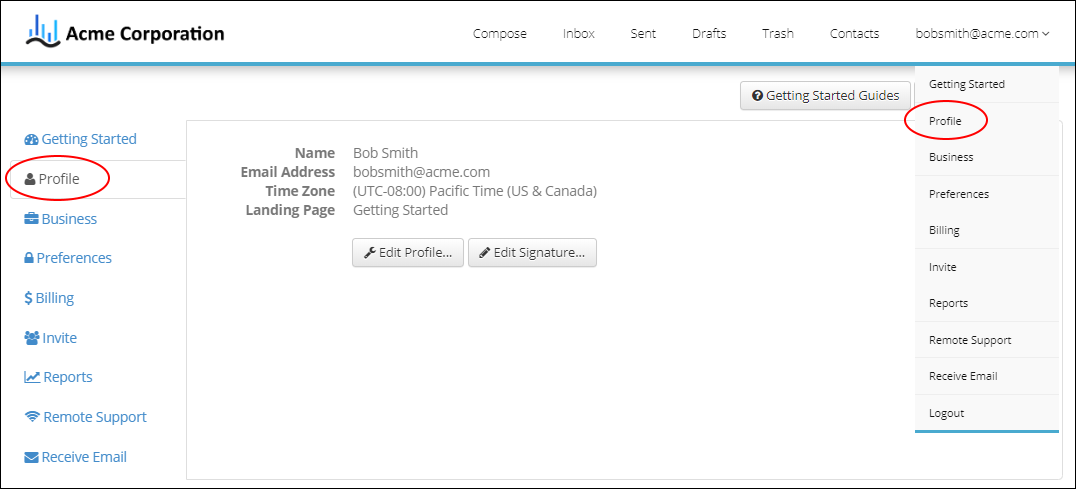
2. Once you are on the profile page you will have the option to edit your profile or edit your signature.
Edit your profile
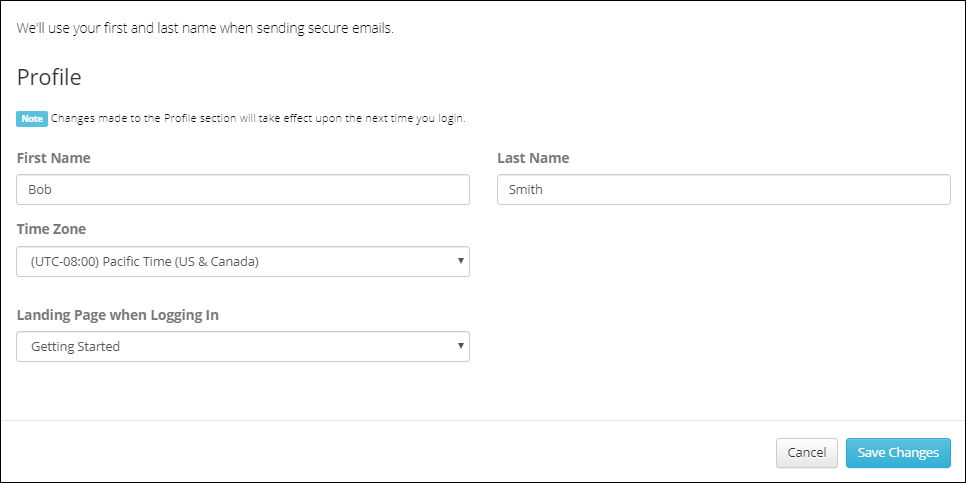
To edit you profile click on the Edit Profile button to bring up the Profile popup where you can modify your first name, last name, time zone or landing page. The landing page is the page that you will be directed once you log in.
Edit your signature
Once in the Profile screen click on the Edit Signature button. This will bring up the Email Signature popup where you can use the editor to either create a new signature or edit your existing signature. If you want to add a link to a website you can click on the 
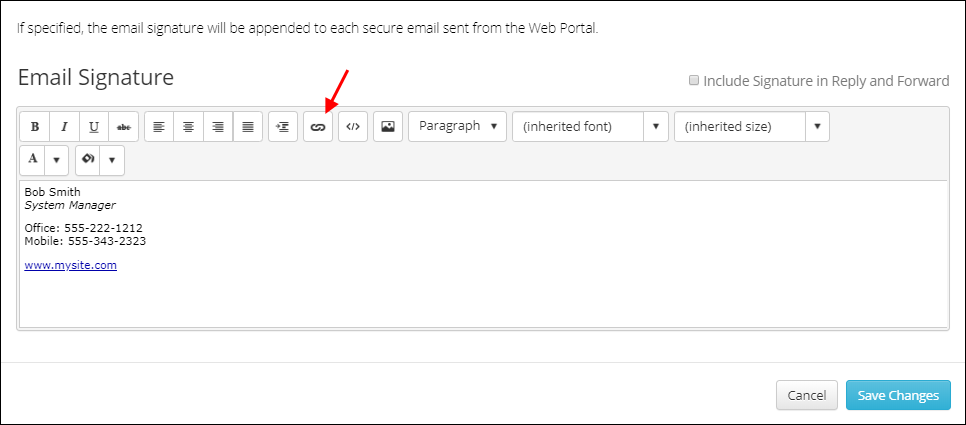
3. Once you are done making changes click on the Save Changes button to save and exit.
*NOTE: Some changes will require you to log out then back in in to be viewed.