Web Portal: Sending More Than 25 Attachments
When sending an email you are able to send 1GB worth of attachments. However, there's a limit of 25 separate attachments. If you have more than 25 separate attachments it's recommended you compress your files into a Zip file (or some other compression tool) and send the single file instead.
Instructions
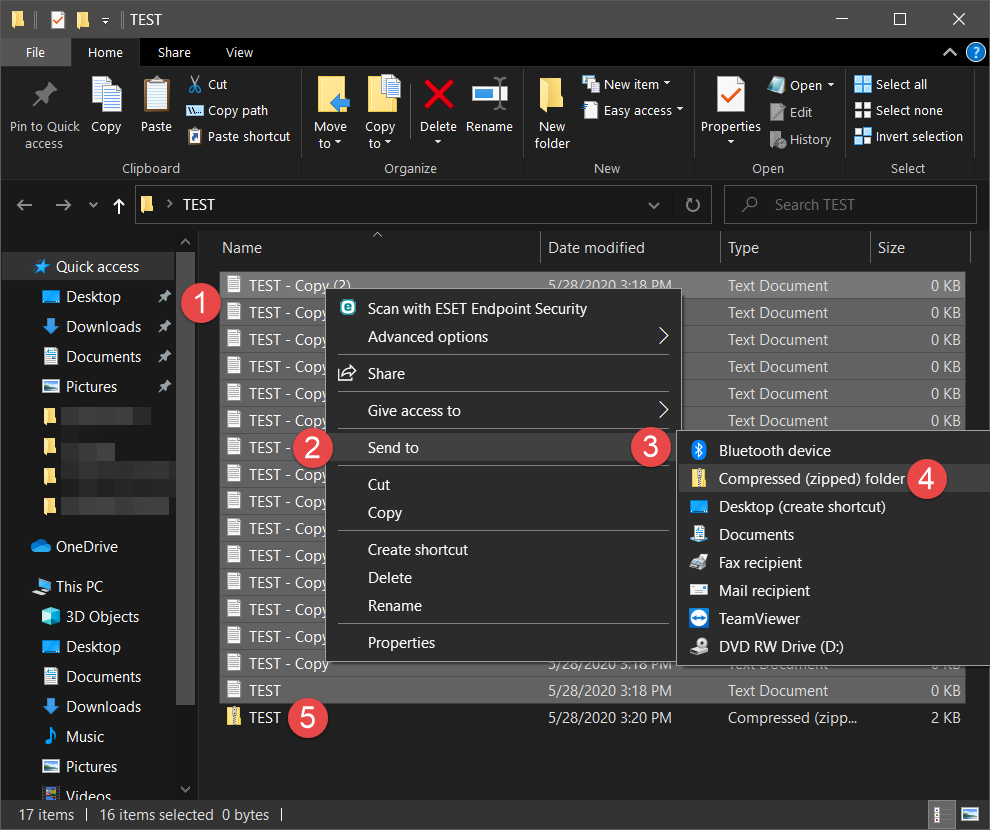
1. Locate the folder with the desired files, select the files that you are attempting to send. You can do this by holding CTRL on your keyboard and clicking each file. NOTE: If the files are in separate locations on your computer, we recommend placing a copy of the files in a new folder.
2. Once you have selected the targeted files, right click on any of the selected files.
3. In the right click menu, from there, go down and click on Send to.
4. In that sub-menu, click on Compressed (zipped) folder.
5. Once complete, you will see a new file .zip file in the folder the above was completed in. This zipped (compressed) folder contains all the files you had selected.
6. Attach this new zipped (compressed) folder to the email you had previously attempted to attach the individual files to.