
Add or update your payment method
Your organization keeps one card on file for its subscription charges. If you're a business administrator, you add, replace or remove it under Payment Method on the Subscription & Billing tab.
Add a card
- Click your name or initials in the top-right corner, click Organization, then open the Subscription & Billing tab.
- Under Payment Method, click Add card.
- In the Add payment method window, check the First name and Last name of the cardholder.
- Enter the card number, expiration date and security code (CVV) in the card field.
- Enter the billing address: Street address, Address line 2 (optional), City, State / province, Postal code and Country.
- Read the statement above the buttons: by adding the card, you agree that Identillect or its agents may charge it according to the EULA.
- Click Save. The portal confirms "Payment method added."
The card field is provided by our payment processor, so your full card number isn't stored in the web portal. Under Payment Method, the card shows only its type and last four digits, for example Visa •••• 4242. If you click Subscribe before a card is on file, this same window opens first.
Replace the card

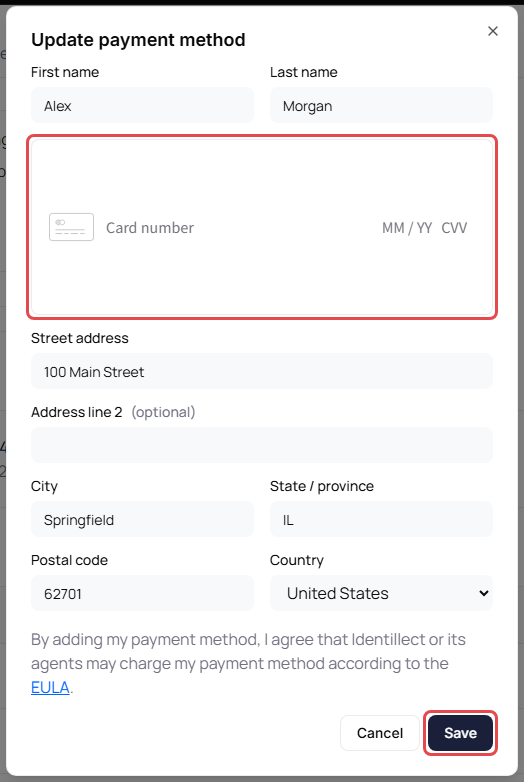
- Under Payment Method, click Update card.
-
In Update payment method, enter the new card and billing address, then click Save. The new card replaces the old one, and the portal confirms "Payment method updated."
Remove the card
- Under Payment Method, click Remove.
- In Remove card on file?, click Remove. The card is no longer available for future charges.
Important: Your subscription renews with the card on file. If you remove your card, add a new one before the date shown under Next billing period ends.
Note: Billing changes, including the card on file, aren't available while you're viewing the portal as another user.