
Let Smart Security suggest settings
Smart Security reviews the message you're writing and suggests security settings that fit it. For example, a message with financial details gets stricter settings, such as a short expiration, a view limit and download restrictions, than a routine note. You can review and change every suggestion before you send.
Get suggestions
- Write your message. Smart Security needs a subject or some message text first; until then the button is greyed out.
-
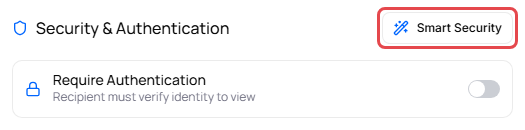
In the Security & Authentication panel, click Smart Security (in the top-right corner of the panel).
- Wait while the button shows Analyzing.... The suggested settings are then applied to the panel, and Smart Security recommendations applied appears at the top.
- Review the settings. Change anything you like, then send.
Smart Security looks at the subject, the message text, the recipients' addresses, and the names and sizes of your attachments. It doesn't open the attachments.
Understand the suggestion
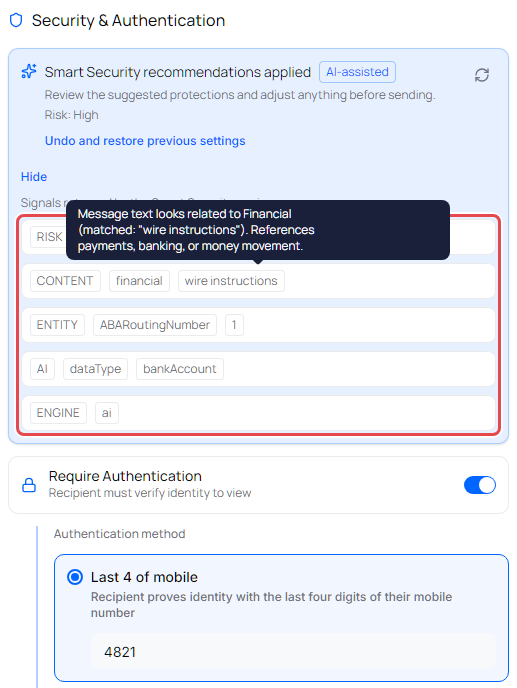
- AI-assisted means an AI review of the message was combined with rule-based checks. Rules only means only the rule-based checks ran this time, for example because the AI review didn't finish in time. Rule-based checks can't tell an account number from an order number, so with Rules only, anything that looks like an account, card or Social Security number gets at least Risk: Medium.
- Risk: High, Risk: Medium or Risk: Low is how sensitive Smart Security rated the message.
- Click Why these settings were suggested to see the signals it found, such as financial or health information, or text that looks like a card, Social Security, bank account or routing number. Point to a signal for a plain-language explanation. Click Hide to collapse the list.
- Protected settings that were kept lists settings your administrator locked. Smart Security never changes them.
What Smart Security changes
- It sets the switches under Additional Security Controls, Expires on and View limit, and opens that section when it turns something on.
- It can turn on Require Authentication and choose a method, but it never turns authentication off. For a low-risk message, your authentication choice stays as it was.
- It keeps verification details you already typed or that came from your contacts.
- It suggests SMS passcode only if you have the MFA Authentication add-on. With several recipients sharing the same settings, it uses a method that works for everyone, such as a password.
- If you change a setting while it's analyzing, your change wins.
Undo or refresh
- Undo and restore previous settings puts back the settings you had before you clicked Smart Security.
- If you edit the message, recipients or attachments afterward, the portal shows Your message changed since this analysis. Refresh to update the suggestions. Click the refresh icon (Refresh Smart Security suggestions) to analyze the message again.
If it doesn't work
- Enter a subject or message body to generate Smart Security suggestions.: add a subject or some text, then try again.
- Couldn't generate smart security suggestions. You can still set policies manually.: set the controls yourself. See Require recipients to authenticate and Additional security controls.
Related articles
Was this helpful?