
Notification emails that couldn't be delivered
When you send a secure message, Delivery Trust emails each recipient a notification with a secure link to open it. If that notification email bounces or is rejected, the recipient may never learn about your message. The portal flags these failures so you can fix the problem and send the notification again.
Spot a delivery failure
- In your Sent folder, a warning triangle appears next to the message. Point to it to see, for example, Delivery failed to 1 recipient. It's red for a permanent failure and amber when every failure is a soft bounce.
- When you open the message, a banner lists each address that failed: Notification email could not be delivered to:, followed by the address, the status, the reason and the time.
- The message's audit trail shows a Delivery failed event. See View a message's audit trail.
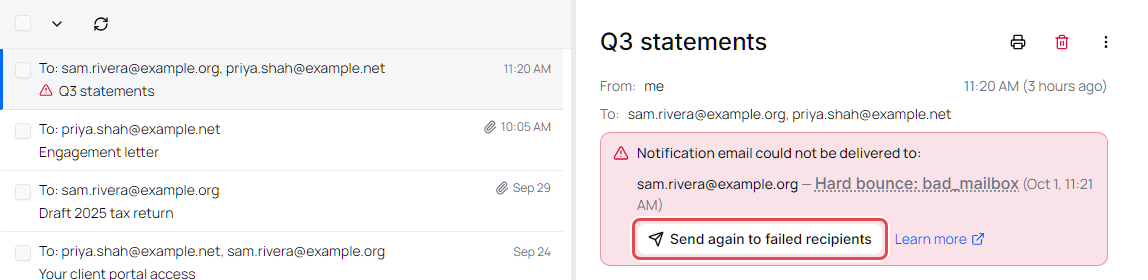
Failures can take a few minutes to appear after you send.
See what went wrong
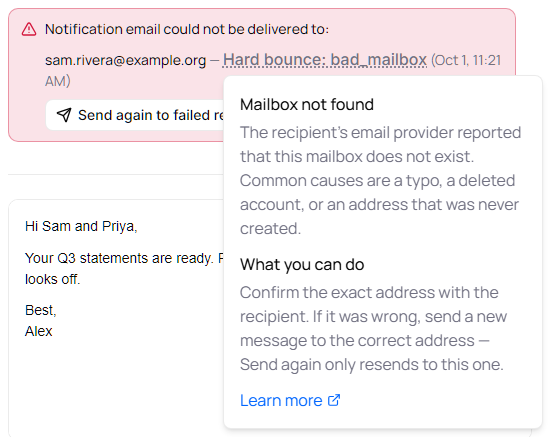
In the banner, click the status next to the address (for example Hard bounce: bad_mailbox). A box explains the problem and suggests What you can do. Click Learn more in the box to open this article at the matching reason below.
The Learn more link at the bottom of the banner opens this article too.
| Status | Meaning |
|---|---|
| Soft bounce | A temporary problem at the recipient's mail provider. It often clears on its own. |
| Hard bounce | A permanent problem with the address. |
| Rejected | The notification wasn't sent, for example because the address bounced or complained before. |
For a soft bounce, the banner adds: Soft bounces are often temporary. Delivery may be retried automatically — use Send again if the recipient still has not received the notification.
Send the notification again
- In the banner, click Send again to failed recipients. You can also click More actions (⋮) in the top-right corner of the message, then Send again.
-
The Send this email again window lists every recipient with their status, such as Not viewed yet, Viewed 2 times or the delivery failure. Recipients who haven't opened the message or whose notification failed are already selected. People you copied are marked Cc or Bcc. Change the selection if you need to.
- Click Send again. The portal shows Notification sent again. (or how many recipients it was sent to).
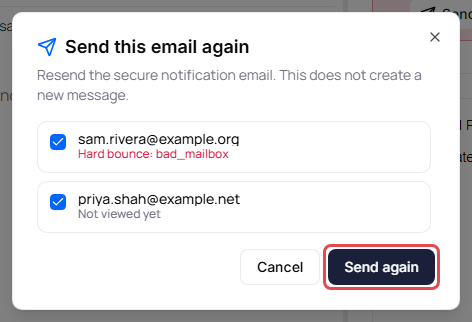
Send again resends the same notification to the same address. It doesn't create a new message, and you can't change the address. If the address was wrong, compose a new secure message to the correct address. See Compose and send a secure message.
Note: Send again isn't available while you're viewing the portal as another user.
Reasons and what to do
The banner shows the reason your recipient's mail provider gave. Find it below.
Mailbox not found
Shown as bad_mailbox. The recipient's email provider says this mailbox doesn't exist. Usually the address has a typo, the account was deleted, or it was never created.
What to do: Confirm the exact address with the recipient. If it was wrong, send a new secure message to the correct address. If it was right, click Send again.
Invalid email domain
Shown as invalid_domain. The part of the address after the @ can't receive email: the domain doesn't exist, is misconfigured, or doesn't accept mail.
What to do: Check the domain's spelling (for example gmail.com, not gmal.com). Send a new secure message to the corrected address.
Mailbox full
Shown as mailbox_full. The recipient's inbox is over its storage limit, so their provider temporarily refused the notification.
What to do: Ask the recipient to free up space in their inbox, then click Send again. This is often temporary.
Delivery failed
Shown as general. The recipient's mail server rejected the notification without a more specific reason. It may be temporary or permanent.
What to do: Click Send again once. If it fails again, confirm the address with the recipient (if it was wrong, send a new secure message to the correct address) or contact Identillect support.
Blocked after a hard bounce
Shown as hard-bounce. An earlier permanent delivery failure to this address is temporarily blocking new notifications.
What to do: If the address was wrong, send a new secure message to the correct address. If the address should work, wait a few days and try Send again, or contact Identillect support.
Blocked after a soft bounce
Shown as soft-bounce. A recent temporary delivery problem with this address is briefly holding back new notifications.
What to do: Wait a little, make sure the recipient can receive email, then click Send again.
Marked as spam
Shown as spam. The recipient marked an earlier notification as spam, so further notifications to that address are blocked.
What to do: Ask the recipient whether they want these notifications. They may need to mark the earlier email as not spam before you try again.
Recipient unsubscribed
Shown as unsub. The recipient opted out of these emails, so notifications won't be delivered.
What to do: Don't keep resending. Only try again after the recipient has opted back in.
Address blocked
Shown as custom. The address is on a rejection list and can't receive notifications right now.
What to do: Contact Identillect support to review why the address is blocked.
Invalid email address
Shown as invalid. The address isn't in a valid format, so the notification couldn't be sent.
What to do: Send a new secure message to the corrected address.
Sender configuration issue
Shown as invalid-sender. The notification couldn't be sent because of a problem with the sending setup, not with the recipient.
What to do: Contact Identillect support. Sending again won't help until the setup is fixed.
Sending domain not authenticated
Shown as unsigned. The domain the notification was sent from isn't fully set up for email delivery.
What to do: Contact Identillect support. This has to be fixed on the sending side.
Blocked by a delivery rule
Shown as rule. A delivery policy blocked the notification before it was sent.
What to do: Contact Identillect support to find out why.
Test send limit reached
Shown as test-mode-limit. A daily sending limit for a test environment was reached.
What to do: Wait for the limit to reset, or contact Identillect support if you didn't expect this.
Hard bounce
A Hard bounce with no specific reason, or a reason not listed above. The recipient's mail provider reported a permanent failure for this address. This is also what What this means explains when the banner says Notification email could not be delivered to one or more recipients.
What to do: Confirm the address with the recipient. If it was wrong, send a new secure message to the correct address.
Soft bounce
A Soft bounce with no specific reason, or a reason not listed above. The notification hit a temporary problem at the recipient's mail provider, such as a full inbox or a busy server.
What to do: Ask the recipient to check their inbox space and spam folder, then click Send again. Soft bounces often clear on their own.
Rejected
Rejected with no specific reason, or a reason not listed above. The notification was blocked, for example because of an earlier bounce, a spam complaint, an unsubscribe or a sending policy.
What to do: Confirm the address and that the recipient still wants these notifications. If a correct address keeps being rejected, contact Identillect support.