
Write and refine messages with AI
Help me write drafts a message for you from a short description. It can also rework what you've already written: polish it, make it more formal or friendlier, shorten it, or change it the way you describe. The new text goes straight into your message, and you can undo it.
Draft a message
- In the compose window, click Help me write (the wand icon at the bottom of the window). You can also type
/in an empty message box. - In the Describe your message box, say what the message should cover in at least 3 words, for example "Thank Priya for the signed engagement letter and confirm Tuesday's kickoff call".
-
Press Enter or click Submit (the arrow). To start a new line in your description, press Shift+Enter.
- While the text is being written, the box shows Generating.... To cancel, click Stop or press Esc.
- The new text appears in your message, and the subject may be filled in or updated too. Edit them like any other text.
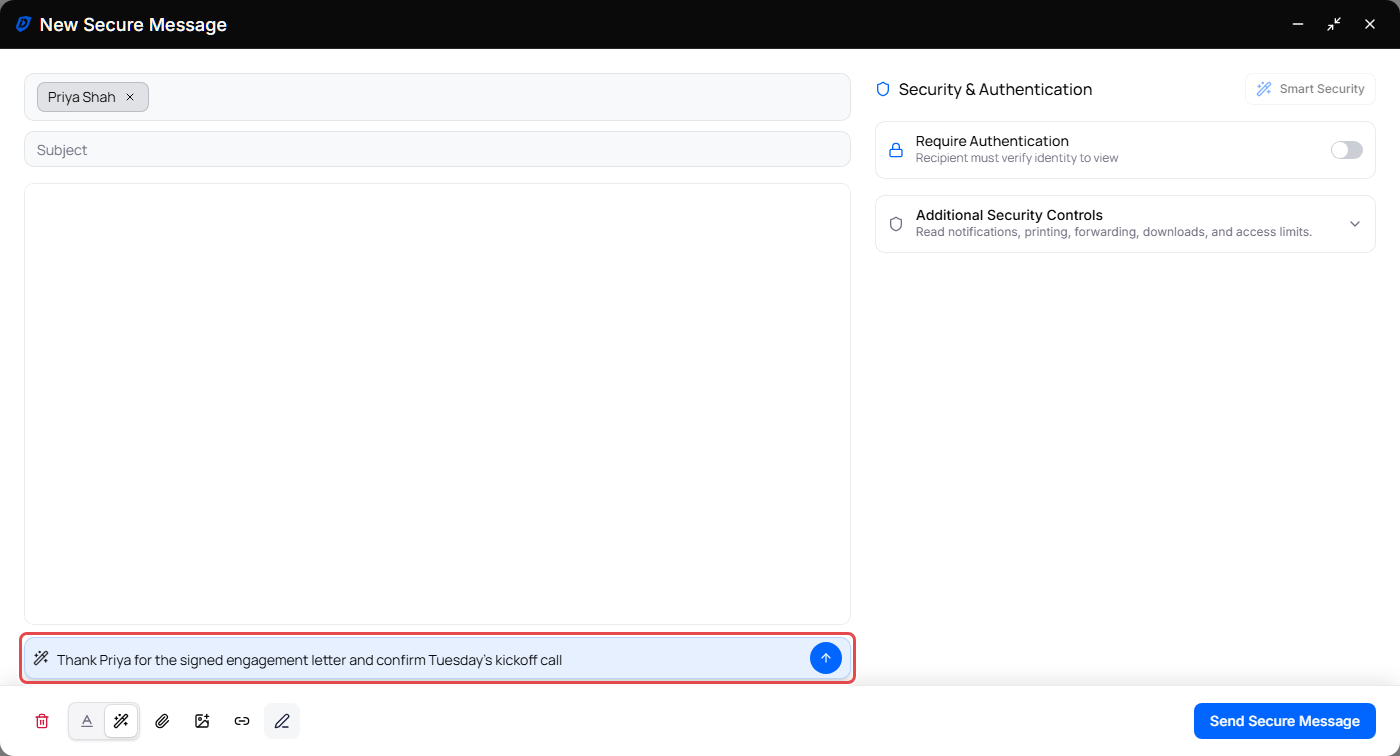
If your description is too short, the portal shows More details needed. Provide at least 3 words.
When you reply, Help me write takes the earlier messages in the conversation into account.
Rework what you wrote
Once your message has at least 12 words, Help me write switches to editing it:
- Type an instruction in the Describe your change box, such as "mention the Friday deadline", and press Enter.
- Or leave the box empty and click one of the buttons on its right:
| Button | What it does |
|---|---|
| Polish | Polish wording and clarity. |
| Formalize | Make more formal. |
| Friendly | Make warmer and more friendly. |
| Shorten | Shorten while keeping key details. |
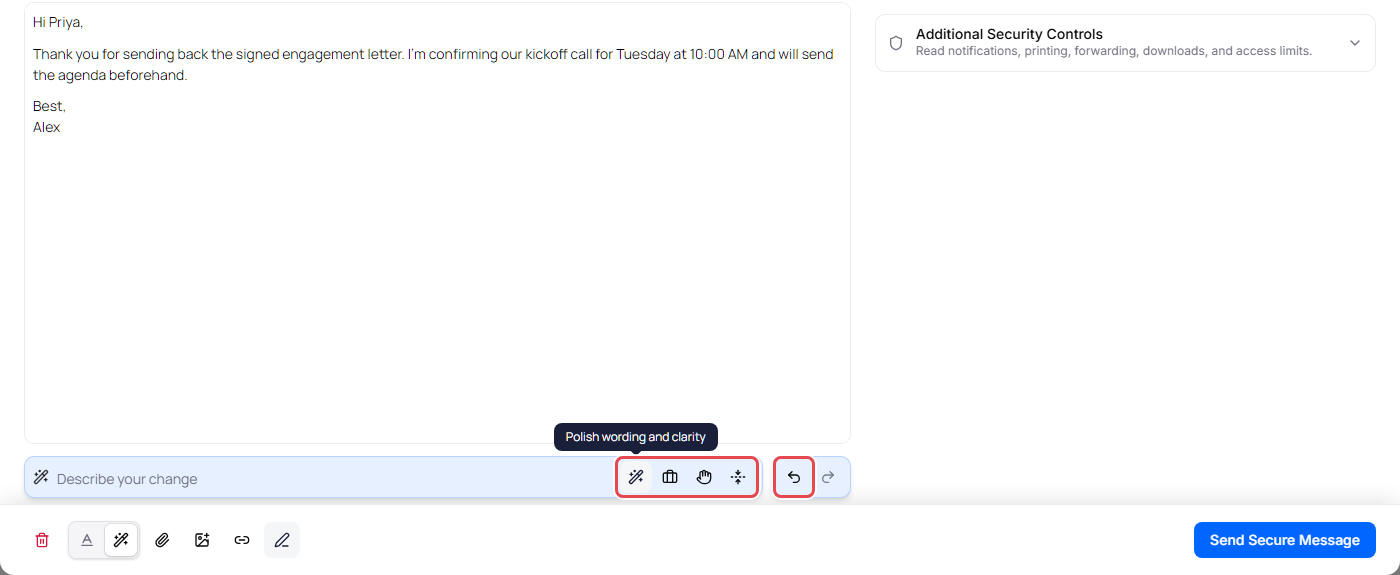
The buttons rework the message text and keep the subject you typed. Links stay on the same words where those words are kept, and inline images stay in the message. If a link's words were reworded away, the portal tells you so you can undo. Bold, italic, underlined and struck-through text keeps its formatting.
If there's nothing to improve, the portal tells you, for example This message is already polished. or This message is already as short as it can be while keeping the key details.
Undo a change
After Help me write changes your message, Undo and Redo buttons appear beside the Help me write box. Click Undo to go back to your previous text and subject. If you changed the subject yourself after Help me write, Undo leaves your subject as it is.
Close Help me write
Click Help me write at the bottom of the window again (Hide Help me write), or press Esc in the Help me write box.
Important: Always read the text before you send. AI-written text can contain mistakes, and it can't check facts such as dates, amounts or names.
You can't send while Help me write is still generating.