
Sign in and out
You sign in to the web portal with your Delivery Trust account. The portal keeps you signed in on that browser until you log out, so log out when you're done on a shared computer.
Sign in
-
Go to
portal.identillect.com.You're taken to the Delivery Trust sign-in page.
-
Enter your Email address and Password, then click Continue.
If your account uses Google or Microsoft to sign in, click Continue with Google, Continue with Microsoft Account or Continue with Microsoft Business Account (Entra ID) instead, and sign in with that account.
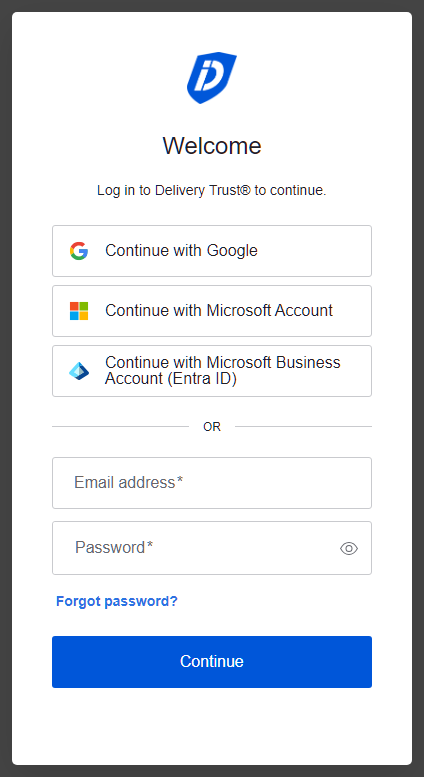
After you sign in, the portal opens your Inbox. If you opened a portal link (for example, a link to a message), you land on that page instead.
Tip: The first time you sign in on a browser, the portal asks a few quick questions about your layout. See Set up the portal the first time you sign in.
If you're asked for a code
When two-step verification (also called multi-factor authentication, or MFA) is on for your account, the sign-in page asks for a second step after your password: a code from your authenticator app or a code sent to your phone by text message. Enter the code to finish signing in. It's on when you turned it on in your profile, or when your organization requires it.
If your organization requires two-step verification and you haven't set it up yet, the sign-in page asks you to set it up after you enter your password:
- Choose an authenticator app or text messages.
- Follow the steps on the screen: scan the QR code with your authenticator app, or enter your mobile number.
- Enter the code you get to finish signing in.
If you sign in with Google or Microsoft, your organization's requirement doesn't apply: that account's own security settings do. Two-step verification you turned on yourself in your profile applies to every sign-in.
If you lost your phone or can't get codes, ask your business administrator to reset your two-step verification, or contact support. To turn two-step verification on or off yourself, see Manage your profile and account.
Log out
- Click your name or picture in the top-right corner.
-
Click Log out.
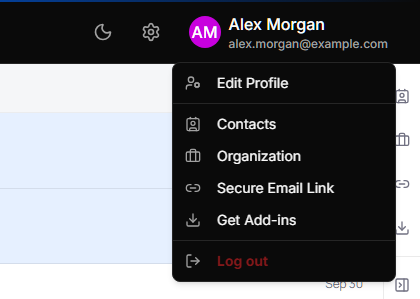
You're signed out and returned to the sign-in page.
Forgot your password
- On the sign-in page, click Forgot password?.
- Enter your Email address and click Continue.
- Open the email you receive and follow its instructions to choose a new password.
If you sign in with Google or Microsoft, reset your password with that provider instead.
If the portal asks you to sign in again
For your security, the portal sometimes needs you to sign in again, for example after you've been away for a long time. Sign in as usual and the portal brings you back to the page you were on.
If the portal shows "This is taking longer than usual" while it starts, click Try again to reload the page, or Sign in again to go back to the sign-in page.
Change your email address or password
Your name is on your Profile page, but your email address and password are managed by your sign-in provider. Use Forgot password? on the sign-in page to change your password, or ask your administrator. See Manage your profile and account.