
View reports and analytics
Reports & Analytics shows how your organization uses Delivery Trust: how many secure messages your team sends, who sends them, where they send from, and how many get read. If you're a business administrator, you can also export the numbers to share or analyze elsewhere.
Open the reports
- Click your name or initials in the top-right corner, then click Organization.
- Open the Reports & Analytics tab.
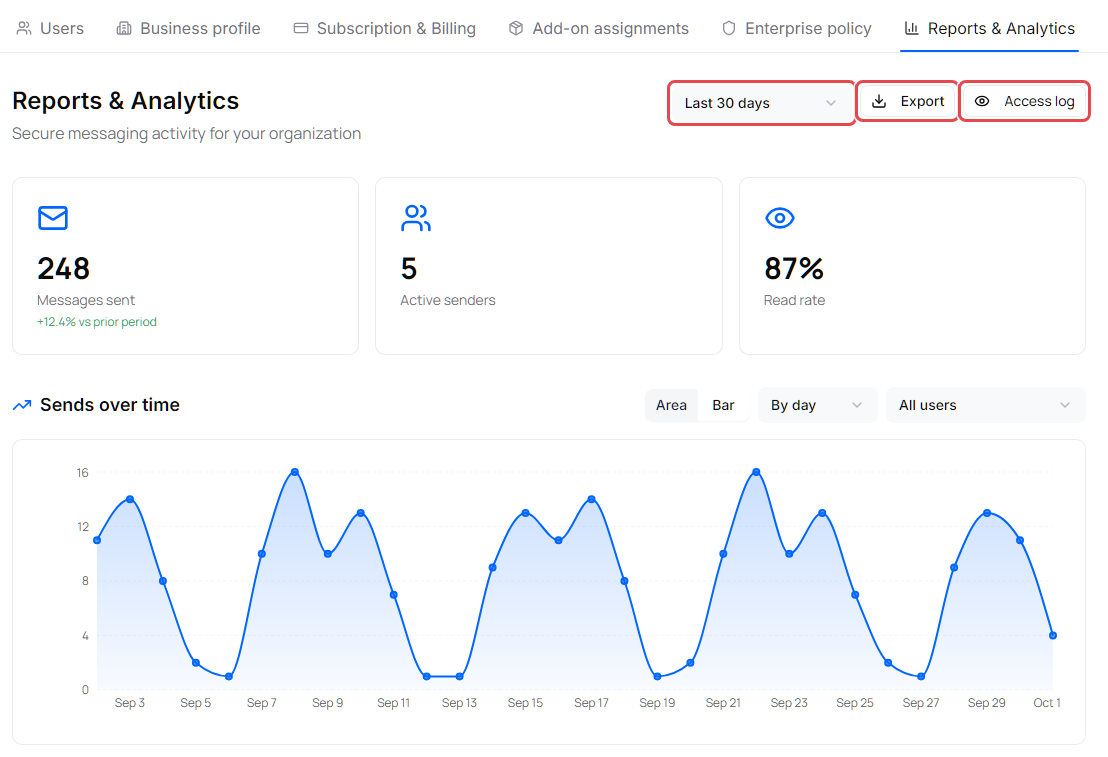
- Choose a period in the list at the top right: Last 7 days, Last 30 days (the default), Last 90 days, Current year or All time.
What the numbers mean
| Card | Shows |
|---|---|
| Messages sent | Secure messages your organization's members sent in the period. Below it, the change compared with the previous period of the same length (for example "+12.4% vs prior period"). |
| Active senders | How many people sent at least one secure message in the period. |
| Read rate | The share of messages sent in the period that at least one recipient has opened. |
Note: Days are counted in Coordinated Universal Time (UTC), so a day's totals may start and end at a different hour than your local midnight.
Charts and tables
- Sends over time: choose Area or Bar, group by By day, By month or By year, and show All users or one person.
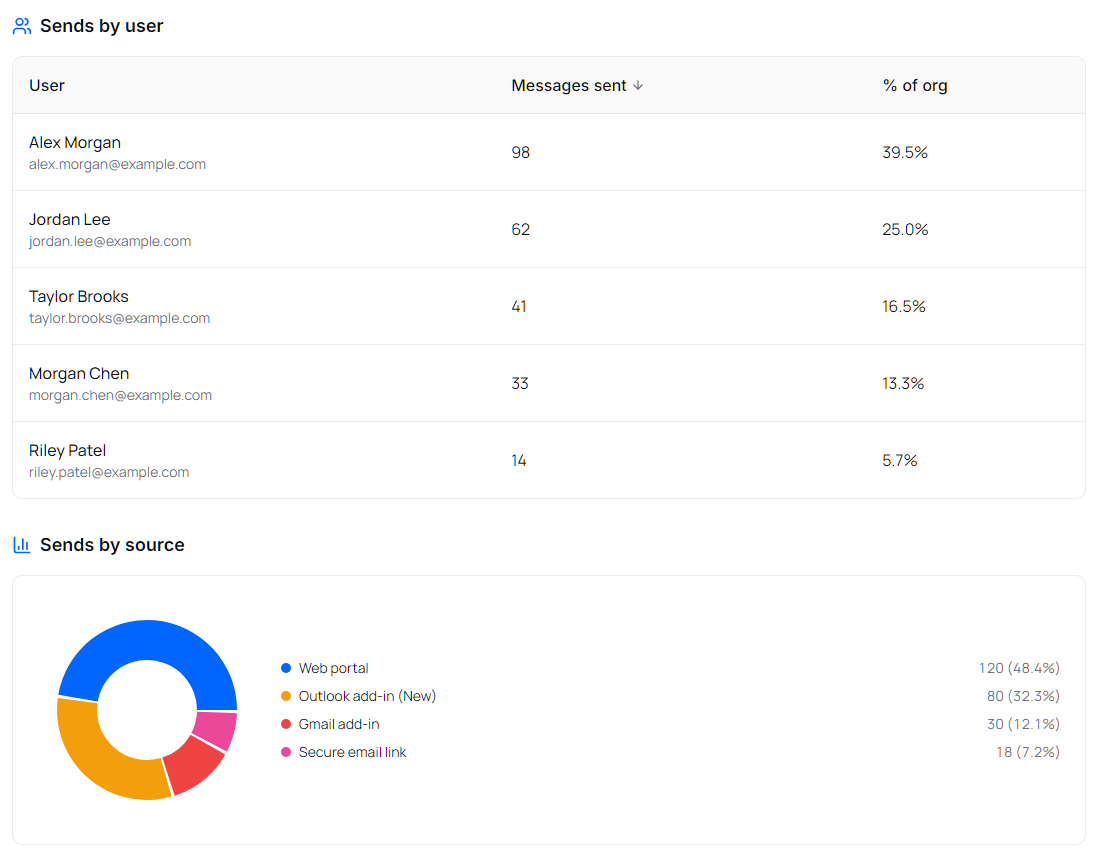
- Sends by user: each person's Messages sent and their % of org. Click a column heading to sort.
- Sends by source: where messages were sent from, such as Web portal, Outlook add-in (Classic), Outlook add-in (New), Gmail add-in or Secure email link.
Export the reports
Click Export at the top right (point to it to see ZIP of CSV files). The portal downloads a ZIP file with three CSV files (sends over time, sends by user and sends by source) for the selected period. The sends-over-time file uses the same grouping and user you chose for the chart.
See who viewed the portal as a user
Click Access log at the top right to see every time Identillect staff viewed the portal as one of your users. See See when Identillect staff viewed the portal as one of your users.