
Get the Outlook and Gmail add-ins
The Delivery Trust add-ins let you send secure messages from Outlook or Gmail without opening the web portal. When your business administrator assigns you an add-in, the portal shows where to download it.
Which add-in you need
| Add-in | Use it with |
|---|---|
| Outlook Add-in (Classic) | The Outlook desktop app for Windows. |
| Outlook Add-in (New) | Outlook on Mac, PC and in the browser. |
| Gmail Add-in | Gmail. |
Download an add-in
-
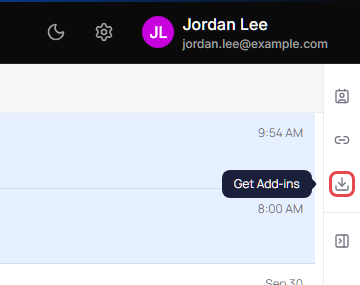
Click Get Add-ins (download icon) in the quick actions on the right edge of the mail screen. You can also click your name in the top-right corner and choose Get Add-ins.
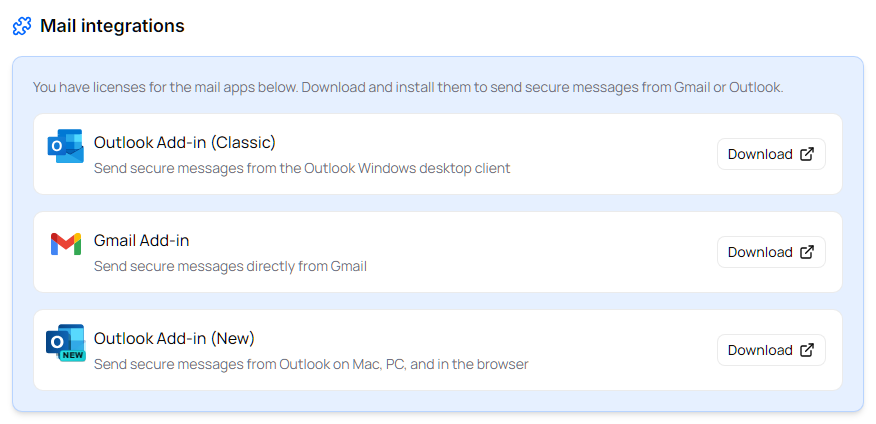
The Mail integrations section of Settings opens. It lists each add-in you have a license for.
-
Click Download next to the add-in you want.
The download or install page opens in a new browser tab.
-
Follow the installation steps for your add-in:
- Outlook Add-in (Classic): Outlook Add-in help
- Outlook Add-in (New): New Outlook / O365 Add-In help
- Gmail Add-in: Gmail Add-in help
Don't see Get Add-ins?
Get Add-ins and the Mail integrations section appear only when your business administrator has assigned you at least one add-in. Ask your administrator to assign one to you.
If you're a business administrator, assign the add-in to yourself first. See Assign add-ons to users.