
Open a secure message you received
When someone sends you a secure message with Delivery Trust, you get a notification email with a link to the message. You don't need an account: the message opens in your web browser.
Open the message
- In the notification email, click the link to the secure message. A secure message page opens in your browser with the subject, From and Sent.
-
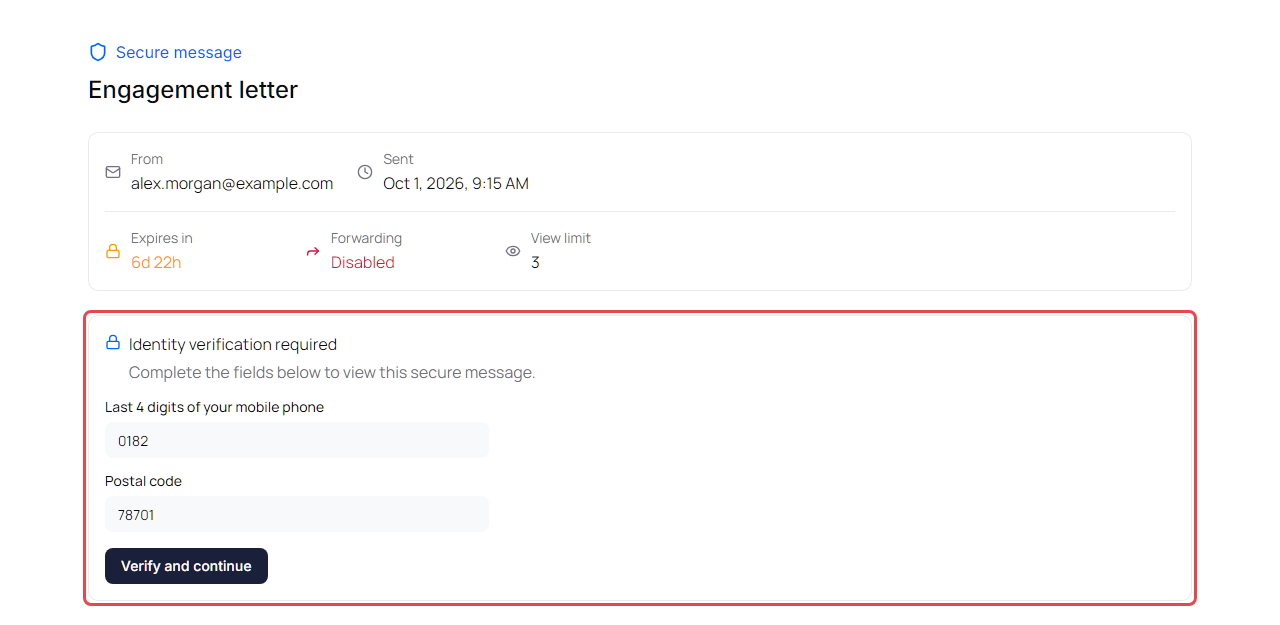
If the page shows Identity verification required, fill in the fields the sender asked for and click Verify and continue. See Verify your identity below.
-
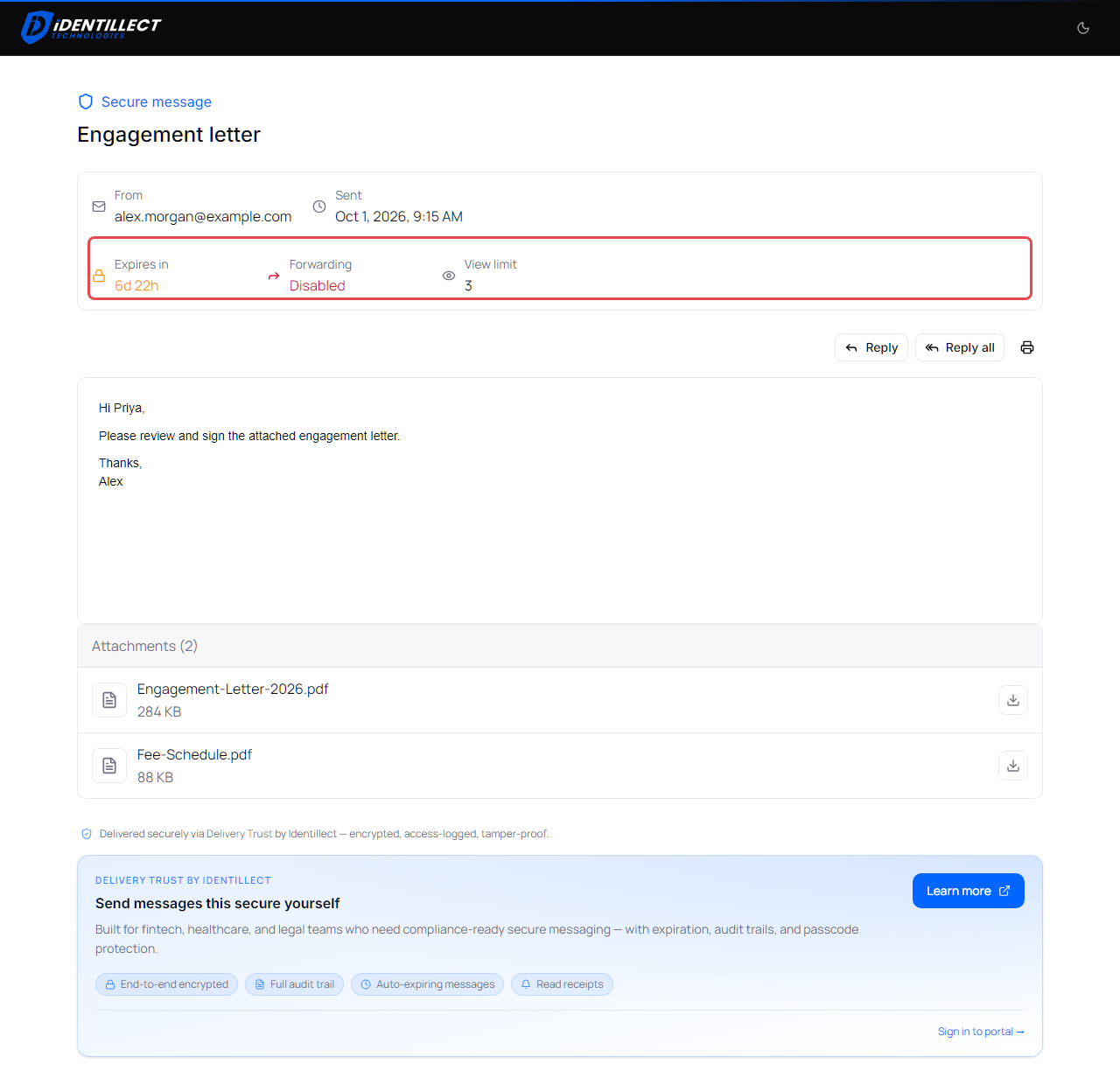
Wait while the page shows Decrypting message…. The message then appears on the page.
Some messages open straight away, because the sender didn't ask for verification.
If the page asks for your email address
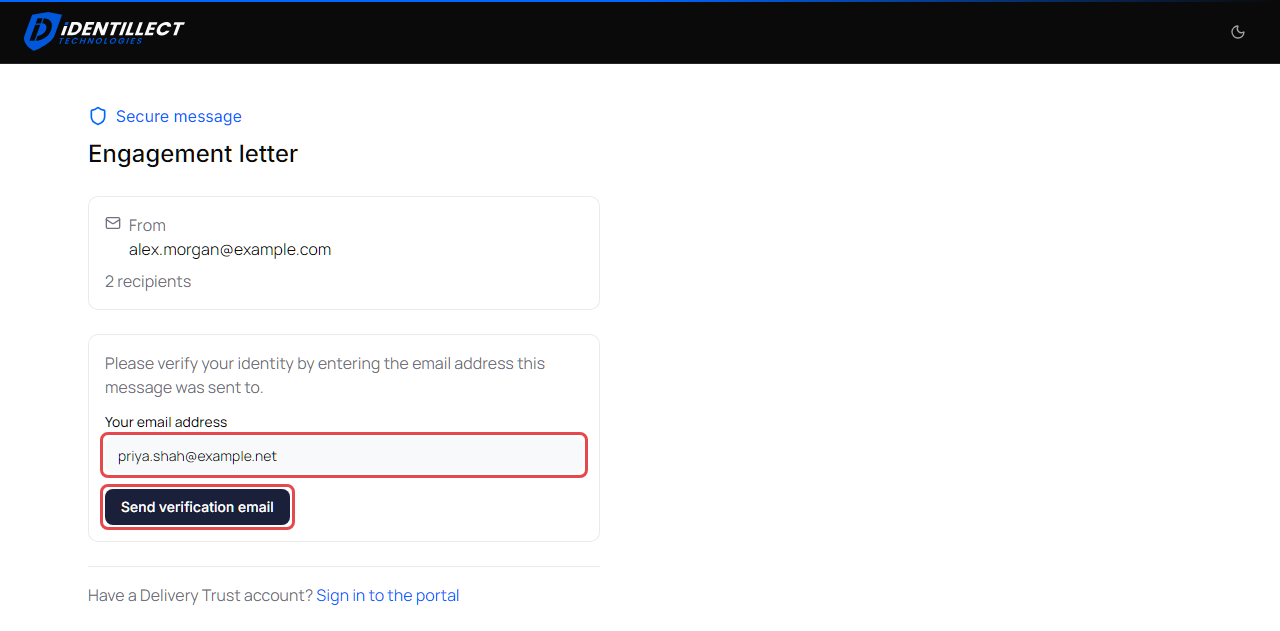
Some links ask for Your email address before they show the message.
- Enter the email address the message was sent to.
- Click Send verification email. The page shows Success! We've emailed a verification link to your address.
- Open that email and click its link to continue. If you can't find it, check your spam or junk folder.
Verify your identity
The sender chooses what you need to enter. You might see one or more of these fields:
| Field | What to enter |
|---|---|
| Last 4 digits of your mobile phone | The last 4 digits of your mobile number |
| Last 4 digits of your business phone | The last 4 digits of your business phone number |
| Postal code | Your postal or ZIP code |
| Password | The password the sender gave you (usually shared by phone or another channel) |
| A question | The answer to the sender's security question |
If the sender asked for a text message code:
- Read the consent text and select I have read and agree to the terms above.
- Click Send verification code. A code is texted to the phone number shown in the consent text, and the page says We sent a code to that number.
- Enter the code in Verification code and click Verify and continue.
If the code doesn't arrive, you can ask for a new one. After each text the button shows Resend code in 30s and counts down; when it reads Resend code, click it. The page says We sent a new code to the number, followed by Earlier codes no longer work. Use the code from the newest text.
If verification fails, check the details with the sender. See A recipient can't open a secure message.
Message integrity check
If the sender's organization checks message integrity, the page verifies the message before showing it. When it shows Message verified, click Continue to message. See Email integrity results.
What you see on the page
-
Expires in: how long the message stays available, for example
2d 5h. - Restrictions the sender set, each marked Disabled: Forwarding, Printing, Email download or Attachment download. You may also see a View limit.
- Attachments: click the download icon next to a file to save it. A file with a dash instead of the icon can't be downloaded.
- Show quoted message: shows earlier messages in the conversation.
- The printer icon (Print message) prints the message. It isn't shown when the sender turned off printing.
- Reply and Reply all. See Reply to a secure message as a recipient.
To switch between a light and dark page, click the sun or moon icon in the top-right corner.
If you have a Delivery Trust account
If you're signed in to the web portal with the email address the message was sent to, the link can open the message in your portal inbox instead. The page briefly shows Opening message in your inbox…. The sender's expiry, view limit and retraction apply there too. See Read, reply to, and forward secure messages. To sign in, click Sign in to portal → at the bottom of the secure message page.
Links in older notification emails
Links in notification emails sent before the new portal still work. They take you to the same secure message page.