
Update your business profile and branding
The Business profile tab holds your organization's name, contact details and address, plus the logo and color that brand the web portal for your team and for the people you send secure messages to. If you're a business administrator, you can change them; other members can only view them.
Update your company details
- Click your name or initials in the top-right corner, click Organization, then open the Business profile tab.
-
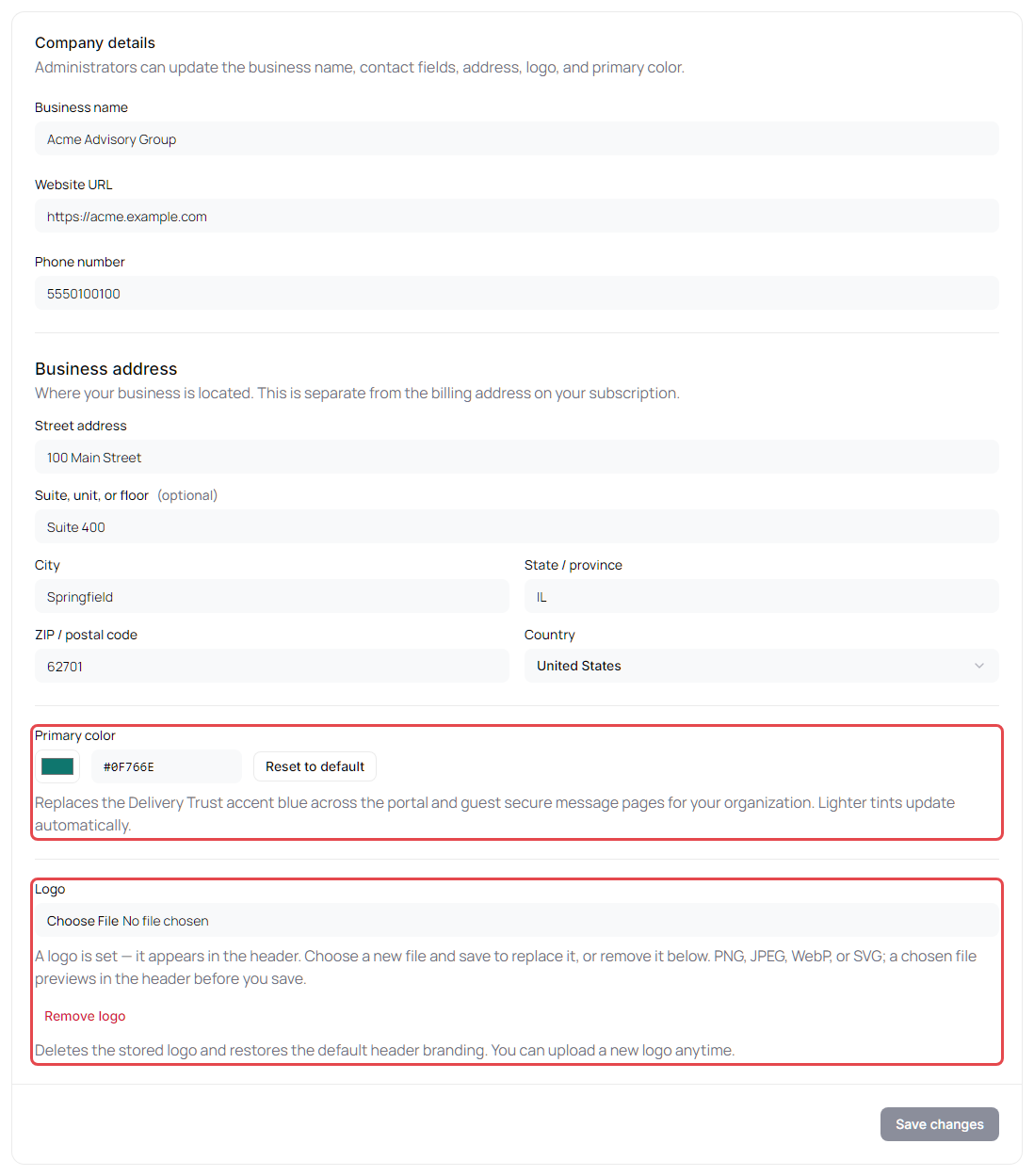
Under Company details, update any of these fields:
| Field | Notes | |---|---| | Business name | Required. If another business already uses the same name, the portal warns you, but you can still save it. | | Website URL | Must start with
https://orhttp://. | | Phone number | Digits only, 10 to 15 digits. | | Business address | Street address, Suite, unit, or floor (optional), City, State / province, ZIP / postal code and Country. This is where your business is located; it's separate from the billing address on your subscription. | - Click Save changes at the bottom of the card.
Set your brand color
Your Primary color replaces the Delivery Trust accent blue across the web portal for everyone in your organization, and on the pages recipients use to open your secure messages and to send you messages through your Secure Email Link. Lighter tints update automatically.
- Under Primary color, click the color swatch and pick a color, or type a hex value such as
#0F766Ein the box next to it. - Click Save changes.
To go back to the standard Delivery Trust blue, click Reset to default, then Save changes.
Add your logo
Your logo replaces the default branding in the web portal's header for everyone in your organization. It also appears in the notification emails recipients receive, on the page where they open your secure messages, and in the emails that invite people to join your organization.
- Under Logo, choose an image file: PNG, JPEG, WebP or SVG. The header shows a preview right away. To pick a different file, click Clear logo selection.
- Click Save changes to upload the logo and apply it for your organization.
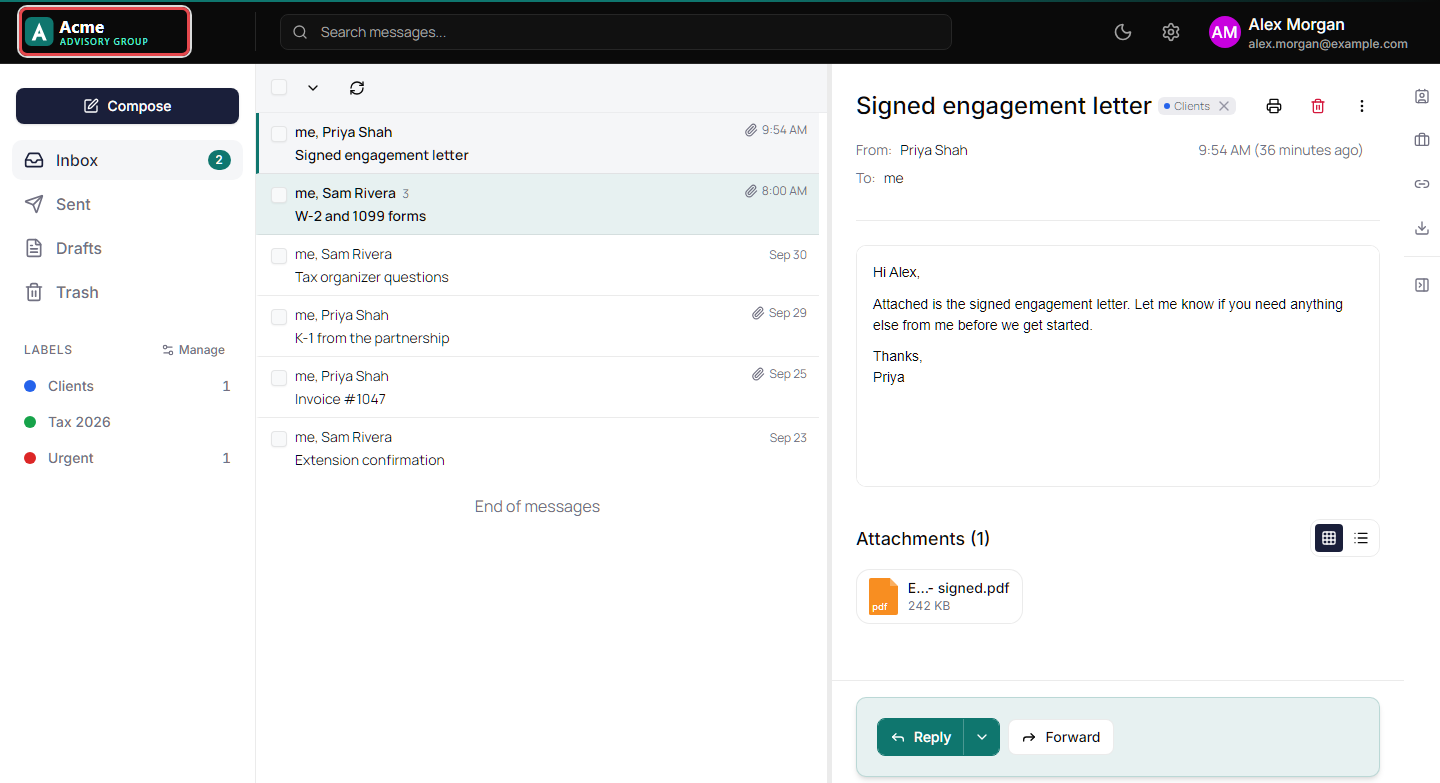
To replace the logo, choose a new file and save. To remove it, click Remove logo, then confirm with Remove logo. The default header branding comes back for everyone in your organization.