
A recipient can't open a secure message
When a recipient can't open your secure message, the page they reach usually says why. Find the message they see below, then follow the fix. Most fixes are made by you, the sender, from the sent message's Security policies. For the recipient's own steps, see Open a secure message.
Messages the recipient may see
| The recipient sees | Why | What to do |
|---|---|---|
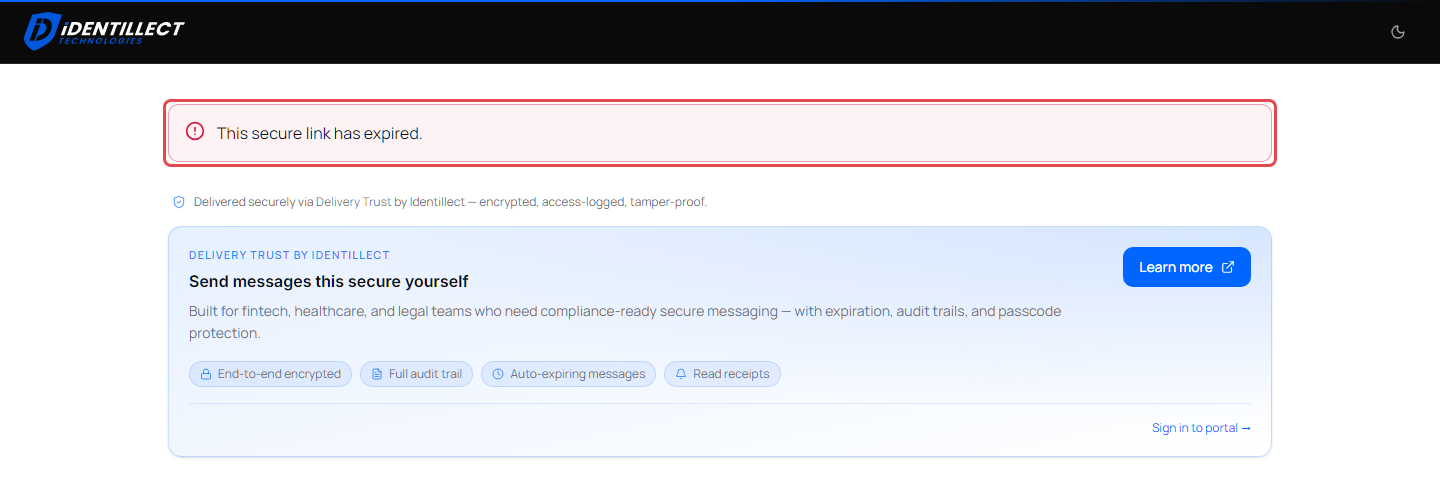
| This secure link has expired. | The message's Expires on time has passed, or the link is no longer valid. | Give them more time: in Security policies, choose a longer Expires on period or No limit, then click Update. If they still see this message, send them a new secure message. |
| This secure link has reached its view limit. | They opened the message as many times as the View limit allows. | In Security policies, choose a higher View limit or Unlimited, then click Update. |
| This message has been retracted. | You retracted the message. | If that was a mistake, click Reinstate email in Security policies. |
| This message is temporarily locked due to too many failed attempts. | Verification failed 5 times. | The lock lifts after 15 minutes. See Verification fails below. |
| Too many attempts. Please wait a minute and try again. | Too many tries from their connection in a short time. The wait time in the message varies. | Wait the time shown, then try again. |
| Invalid link — missing access code. or This link is invalid or no longer available. | The link is incomplete or was changed, for example cut off when copied, or it doesn't belong to this recipient. | Ask them to click the link in the notification email instead of copying it. If that doesn't help, send the notification again (More actions > Send again). |
| Unable to load secure message. | A temporary problem, or your Delivery Trust subscription isn't active. | Ask them to try again later. Check your subscription; see View your plan and change your subscription. |
| Verification failed | The message failed its email integrity check, so its content is blocked. | See Email integrity results. |
To open Security policies: open the message in your Sent folder, click More actions (⋮), then Security policies. Changes apply to the recipient you pick, and they can use the same link again. See Change security settings or retract a message.
Verification fails
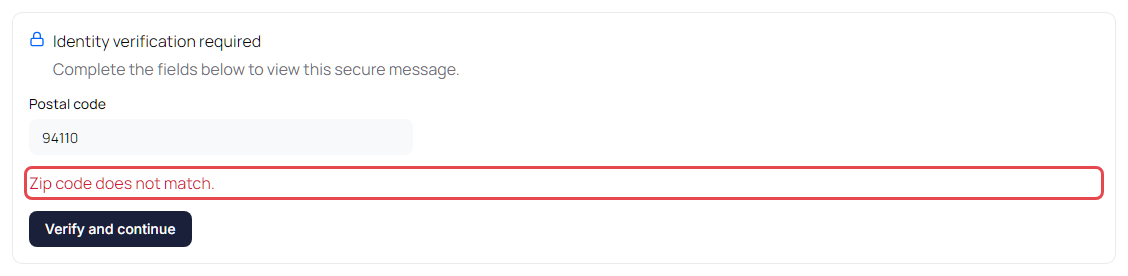
If you turned on Require Authentication, the recipient sees Identity verification required and must fill in the fields, then click Verify and continue. A wrong answer shows one of these:
| Error | What the recipient entered |
|---|---|
| Mobile number does not match. | Last 4 digits of your mobile phone |
| Business phone does not match. | Last 4 digits of your business phone |
| Zip code does not match. | Postal code |
| Password does not match. | Password |
| Answer does not match. | The answer to your security question |
| Passcode does not match. | The text message code |
After 5 wrong tries the message locks for 15 minutes. Once the lock ends, another wrong answer locks it again right away, so help the recipient get the details right before they try again:
- Open the message in your Sent folder, click More actions (⋮), then Security policies.
- Choose the recipient and click the Authentication tab to see exactly what you set, for example the last 4 digits of the mobile number.
- If the detail you set is wrong, you can't edit it after sending. Retract the message and send a new one with the right details. See Require recipients to authenticate.
Tip: For a password, the recipient must type it exactly as you set it. Share it with them by phone or another channel, not in the same email.
The text message code doesn't arrive
For SMS passcode messages:
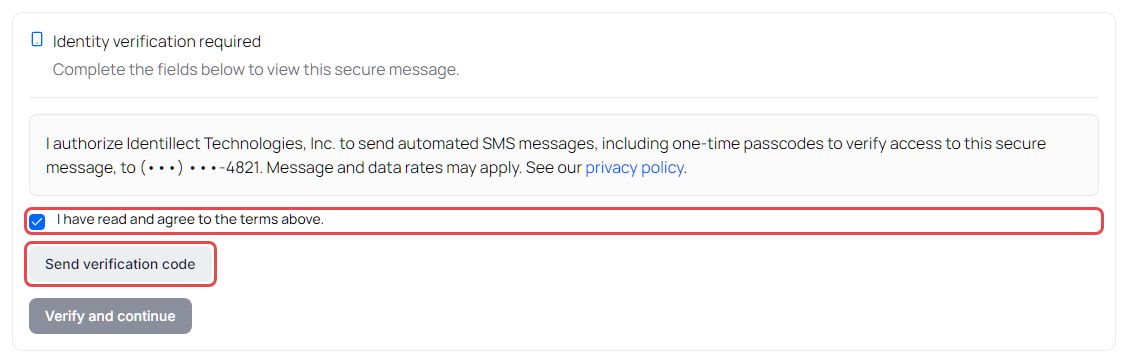
- The recipient must check I have read and agree to the terms above. under the text message terms. Until they do, Send verification code is greyed out.
- They click Send verification code. The page says We sent a code to the number, and they type the 6-digit code in Verification code.
If the code doesn't come:
- The terms show the number the code goes to, partly hidden. If it isn't the recipient's number, send a new message with the right number.
- The text comes from Identillect Technologies and reads "Your access code is" followed by the code.
- After the first text, the button shows Resend code in 30s and counts down. When it reads Resend code, the recipient can click it to get a new code. The page then says We sent a new code to the number and Earlier codes no longer work. Only the newest code works.
- If they ask for codes too often, the page shows Too many attempts. and how long to wait, and the button stays greyed out until then.
- Unable to send verification code.: the text couldn't be sent. Wait a few minutes and try again.
- Please request a passcode before continuing.: they need to click Send verification code first.
The recipient has a Delivery Trust account
If the recipient is signed in to the web portal with the address you sent to, the link shows Opening message in your inbox… and opens the message in their own inbox, where they read it as usual. If you turned on Force recipient to web portal, the link stays on the secure message page instead, and they answer the verification questions there.
Retraction, Expires on and View limit apply in their inbox too. Instead of the message they see one of these, and the fixes above work the same way:
| The recipient sees in their inbox | Why |
|---|---|
| Message retracted: The sender retracted this message. | You retracted the message. |
| Message expired: This message expired on the date and time | The Expires on time has passed. |
| View limit reached: You've opened this message the maximum number of times the sender allowed. | They opened it as many times as the View limit allows. |
The recipient never got the notification email
Ask them to check their spam or junk folder. Then open the message in your Sent folder: if the notification bounced, a banner says so and explains why. See Notification emails that couldn't be delivered.