
Why are some options greyed out?
An option in the web portal can be greyed out, or missing altogether, for a few reasons: your organization's administrator locked it, it needs an add-on you don't have, the sender of a message restricted it, or the portal is waiting for something to finish. Point to a greyed-out control: most of them show the reason.
Locked by your administrator
If you're part of an organization, your business administrator can lock security settings with an enterprise policy. A locked setting is greyed out in the compose window. Point to it to see:
- Required by your administrator: the setting is always on, or always uses this choice.
- Disabled by your administrator: the setting is always off, or this choice isn't allowed.
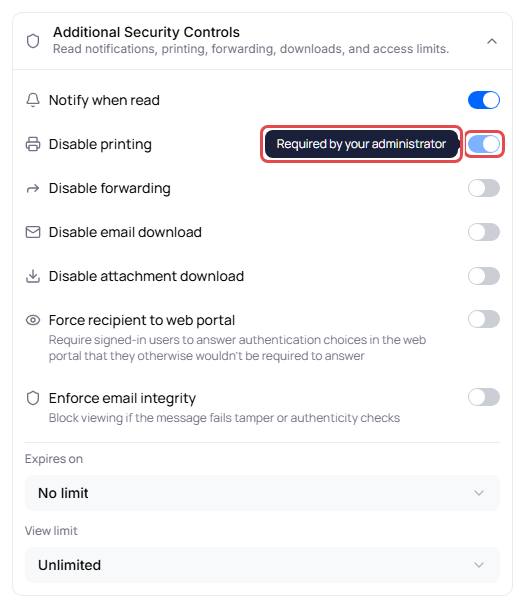
This can apply to Require Authentication, the choices under Authentication method, every switch under Additional Security Controls, and Expires on and View limit. Authentication methods your administrator doesn't allow may not appear at all. Locked settings are also greyed out when you change security after sending, and Smart Security never changes them.
Ask your administrator if you need a locked setting changed. If you're a business administrator, see Set an enterprise policy.
Options that need an add-on
These options appear only if you have the add-on. Without it, they aren't shown at all:
| Option | Add-on |
|---|---|
| SMS passcode (under Authentication method) | MFA Authentication |
| Enforce email integrity (under Additional Security Controls) | Email Integrity |
Ask your business administrator to assign you the add-on. If you're a business administrator, see Assign add-ons to users.
SMS passcode, Last 4 of mobile, Last 4 of business phone or Postal code is missing
With more than one recipient and Same security for all recipients turned on, only Password and Security question are offered, because a phone number or postal code differs from person to person. Turn off Same security for all recipients to set each recipient's method separately. See Require recipients to authenticate.
Restricted by the sender
On a message someone sent you:
- Forward is greyed out when the sender turned off forwarding. Point to it to see Forwarding restricted by the sender.
- Print is greyed out when the sender turned off printing. Point to it to see Printing restricted by the sender.
- An attachment's download icon is greyed out (Download not available) when the file can't be downloaded.
See Read, reply to, and forward secure messages and Print or download a secure message.
Waiting for something to finish
| Greyed-out option | Why | What to do |
|---|---|---|
| Reply and Forward | The message is still being decrypted: Reply and forward are available after the message body is decrypted. | Wait a moment. |
| Smart Security | The message has no subject or text yet. | Type a subject or some text. |
| Send Secure Message | The message is sending (Sending…), or Help me write is still writing. | Wait for it to finish. |
| Send Secure Message | You appear to be offline. Reconnect or use Retry in the bar above before sending. | Check your internet connection, then click Retry. |
| Send Secure Message | Identillect services are unreachable. Use Retry in the banner above, then try sending again. | Click Retry in the banner. If it continues, try again later. |
| Help me write | A message is sending or Help me write is already writing. | Wait for it to finish. |
| Everything in Security policies | The message is retracted: This email has been retracted and cannot be viewed by recipients. | Click Reinstate email to make changes again. |