
Attachment and download limits
This article lists the limits on attaching files to secure messages and on downloading messages, and what to do when you reach one.
Attaching files when you compose
- Up to 2 GB per file. Larger files can't be attached: the portal says, for example, "backup.iso" wasn't attached and It's larger than 2 GB. Each attachment can be up to 2 GB. Split the file up, or compress it into smaller ZIP files. The same limit applies to pictures you insert in the message text.
- Up to 20 files at a time. If you add more, the extra files aren't attached and the portal says, for example, 5 files weren't attached and You can add up to 20 files at a time. Add the rest once these finish uploading. Once the first files finish uploading, add the rest.
-
Files with the same name are renamed, for example
Report (2).pdf. - Pictures in the message text: use Insert inline image to place an image inside the message. Use Add attachment for everything else.
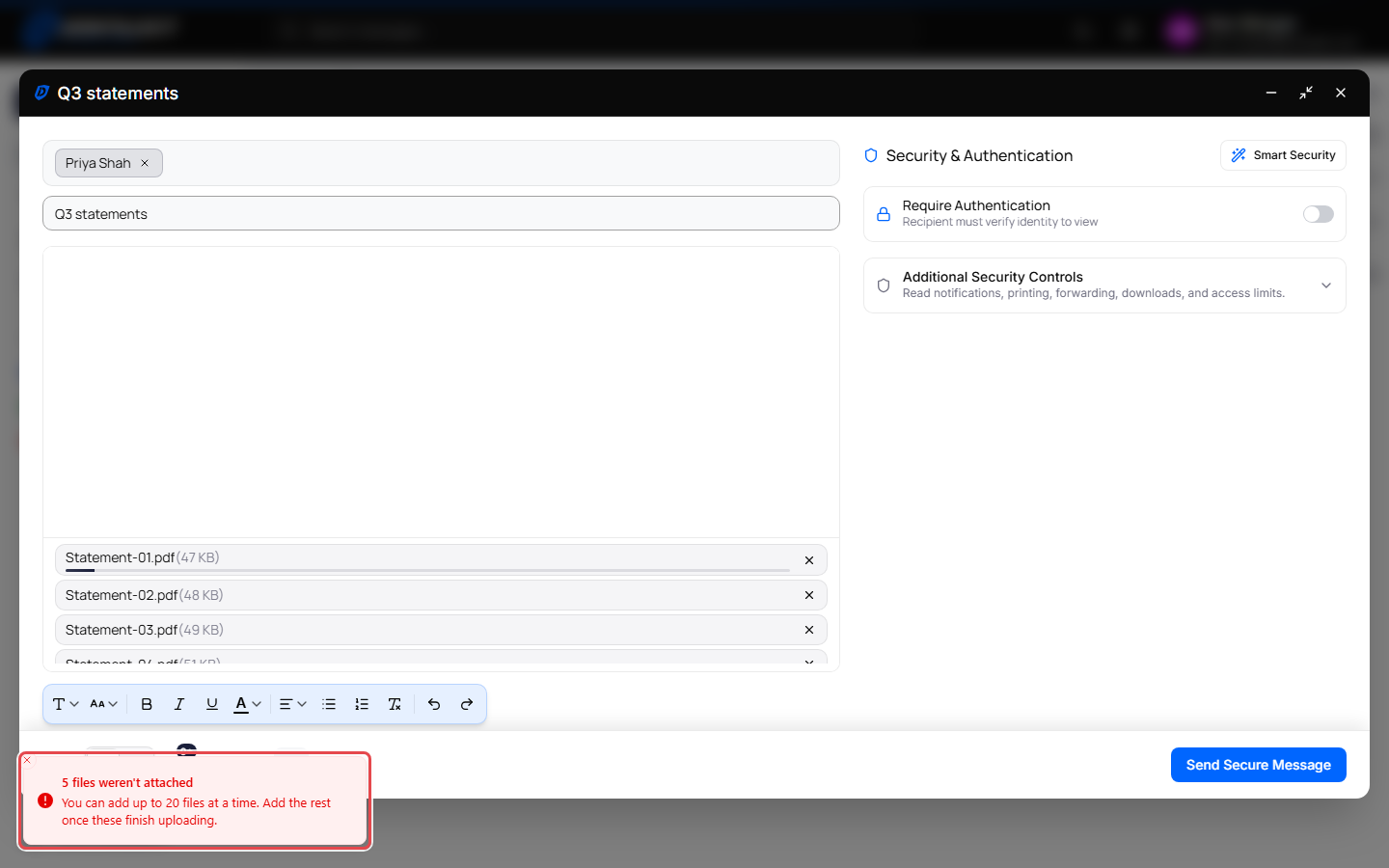
Uploads in progress
Each file starts uploading shortly after you add it and shows a progress bar.
- If you click Send Secure Message before uploads finish, the portal shows Finishing attachment uploads and sends as soon as they're done. Click Cancel send to stop.
- If you close or minimize the window during an upload, the portal asks first: Uploads in progress. Close anyway or Minimize anyway cancels the uploads, and your draft may be missing those files. Click Cancel to let them finish.
- If an upload failed, the portal shows Retrying attachment upload when you send and tries again.
- Attachments are still uploading: wait until the progress bars finish, then click Send Secure Message again.
Attachments from recipients
When a recipient replies to your secure message, or someone sends you a message through your Secure Email Link, they can attach files if attachments are allowed. Both pages say Attachments (optional, max 20): a message can have up to 20 files, each up to 2 GB. If they choose more, only the first 20 are kept and the page says, for example, 3 files weren't attached and You can add up to 20 files at a time. The chosen files are listed with their sizes. Choosing files again replaces the earlier choice.
See Reply to a secure message and Send a secure message through a Secure Email Link.
Downloading messages and attachments
When you use Download on a message or conversation (More actions > Download):
- More than 10 messages, or more than 100 MB of attachments: the portal asks you to confirm first. Click Continue to go ahead.
-
Attachments larger than 250 MB are left out of the download. The portal says Download finished with some items skipped., and the downloaded ZIP file includes a
README.txtthat lists what was skipped. Save those files one at a time from the message instead. - Your whole mailbox: use the data export under Settings > Privacy instead of downloading messages one by one.
See Print or download a secure message.
When recipients can't download attachments
If you turned on Disable attachment download for a message, recipients can't download its files. To change that after sending, see Change security settings or retract a message.