
Change security settings or retract a message
After you send a secure message, you can still change each recipient's security settings, for example to give them more time or more views. If a message went to the wrong person or shouldn't be read anymore, you can retract it so no recipient can open it. You can do this only for messages you sent.
Open the security policies
- Open the message in your Sent folder.
-
Click More actions (⋮) in the top-right corner of the message, then click Security policies. In a conversation, you can also click the Security policies button below any message you sent.
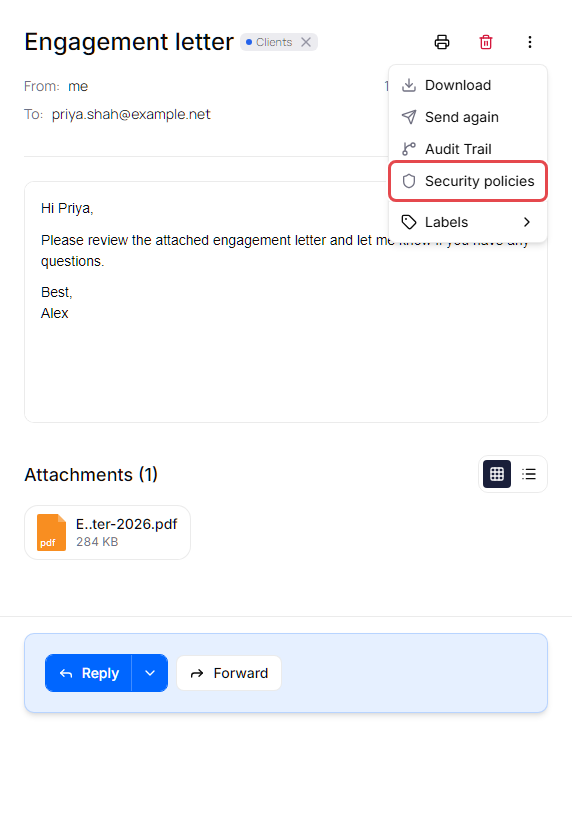
The Security policies window opens.
Change a recipient's settings
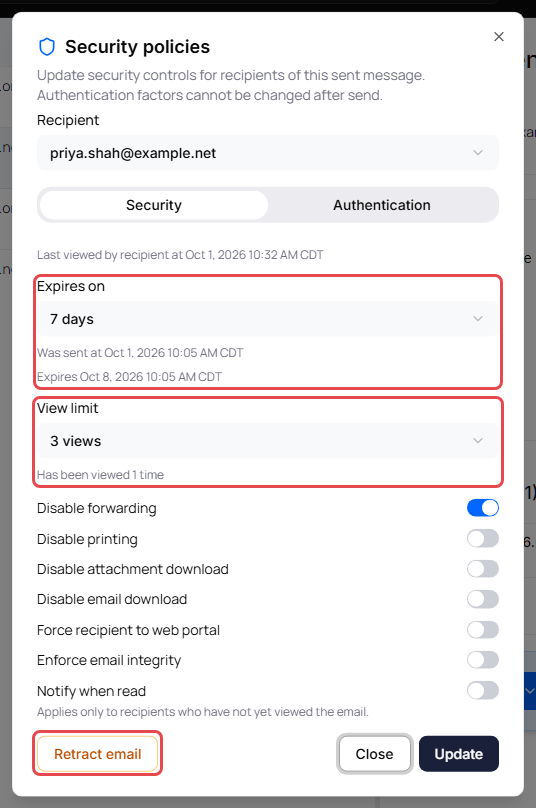
- In Recipient, choose the person whose settings you want to change. Each recipient has their own settings. People you copied are marked Cc or Bcc.
- On the Security tab, change the settings you need (see the table below).
- Repeat for other recipients if needed.
-
Click Update. The portal shows Security policies updated.
| Setting | What it does |
|---|---|
| Expires on | How long the recipient can open the message, counted from when you sent it (shown as Was sent at …): No limit, 1 day, 2 days, 7 days or 30 days. Below it, Expires … shows the date and time access ends for the period you chose (Expired … if that time has passed). Times are in your time zone. |
| View limit | How many times the recipient can open the message: Unlimited, 1 view, 3 views, 5 views or 10 views. Has been viewed … shows how many times they already opened it, in the web portal or from the notification email. |
| Disable forwarding | The recipient can't forward the message. |
| Disable printing | The recipient can't print the message. |
| Disable attachment download | The recipient can't download the attachments. |
| Disable email download | The recipient can't download a copy of the message. |
| Force recipient to web portal | If the recipient is signed in to Delivery Trust, they must still answer the authentication questions in the web portal. |
| Enforce email integrity | The recipient can't view the message if it fails integrity checks. Shown only if you have the Email Integrity add-on. |
| Notify when read | You get an email when the recipient first opens the message. Applies only to recipients who haven't opened it yet. |
Expires on and View limit apply wherever the recipient opens the message: the link in the notification email and their web portal inbox. Each time they open it counts as one view; opening it again within 10 minutes counts once. You can always open your own sent messages.
Tip: If a recipient tells you the message expired or reached its view limit, choose a longer Expires on period or a higher View limit for them and click Update. They can then open it again from the same link or from their inbox.
Settings your administrator locked are greyed out. See Why are some options greyed out?
Authentication can't be changed
The Authentication tab shows how the recipient verifies their identity, but you can't edit it: Authentication factors are read-only after send. Methods that weren't used show (off).
Use this tab to check what the recipient needs to enter, for example the last 4 digits of the mobile number you used. If a verification detail is wrong, retract the message and send a new one with the right details.
Retract a message
Retracting stops every recipient of the message from opening it.
- Open Security policies for the message.
- Click Retract email in the bottom-left corner. The message is retracted right away, and the portal shows Email retracted. The window shows This email has been retracted and cannot be viewed by recipients.
Recipients who open the link see This message has been retracted. Recipients who read their mail in the web portal see Message retracted and The sender retracted this message. in place of the message, and can't reply to it or forward it. While a message is retracted, you can't change its settings.
Reinstate a retracted message
- Open Security policies for the message.
- Click Reinstate email. The portal shows Email reinstated, and recipients can open the message again with their existing link and settings.
Retracting, reinstating and changing settings are recorded in the message's audit trail. See View a message's audit trail.