
Find your way around the portal
The web portal works like a familiar mail app. This article shows where everything is, on a computer and on a phone.
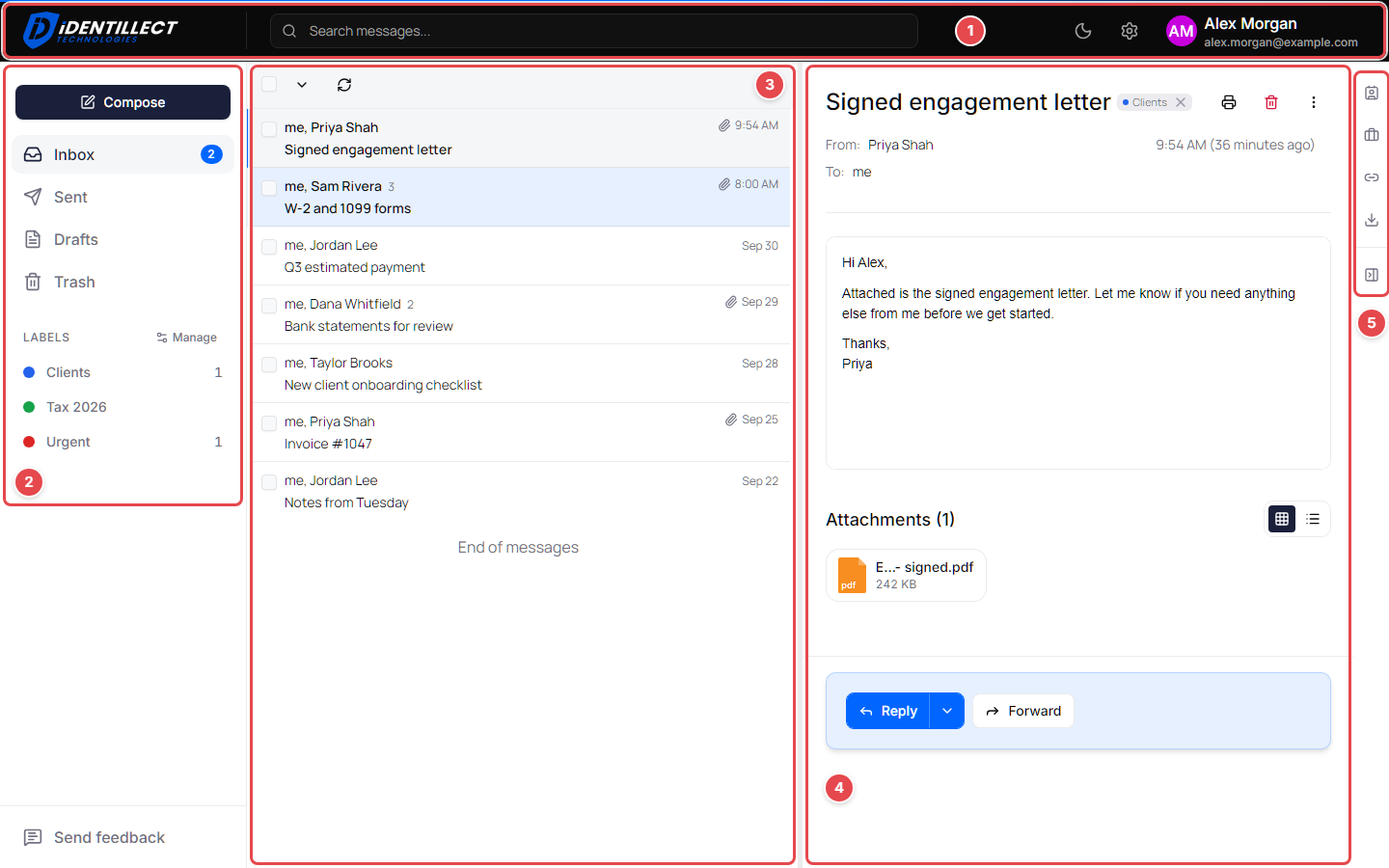
The main areas
- Header (top): your organization's logo, or the Identillect logo if your organization hasn't added one (click it to return to your Inbox), the Search messages... box, and buttons for dark mode, settings and your account menu.
- Folder list (left): Compose, your folders and your labels.
- Message list (middle): the messages in the folder you picked.
- Reading pane: the message you opened. Where it appears depends on your layout; see Appearance and notification settings.
- Quick actions (right edge): shortcuts to other pages.
Folders and labels
| Item | What it shows |
|---|---|
| Inbox | Secure messages you received. The number shows how many are unread. |
| Sent | Secure messages you sent. |
| Drafts | Messages you started but haven't sent, each marked with a red Draft. |
| Trash | Messages you deleted. |
| Labels | Your labels. Click one to see the messages that have it, or click Manage to add and edit labels. |
See Organize mail with labels and Delete and restore messages.
Search
Type in the Search messages... box at the top of the page. Matching messages and contacts appear as you type, with filters such as Has attachment, Last 7 days and From me. See Search and filter messages.
Quick actions
The icons on the right edge of the mail screen open:
- Contacts: your address book.
- Organization: your organization's settings. Shown only if you're a business administrator.
- Secure Email Link: your personal link for receiving secure messages.
- Get Add-ins: downloads for the Outlook and Gmail add-ins. Shown only if your administrator assigned you an add-in.
To make more room for your mail, click Hide quick actions at the bottom of the icons. Click Show quick actions in the top-right corner of the mail screen to bring them back.
Your account menu
Click your name or picture in the top-right corner to open your account menu.
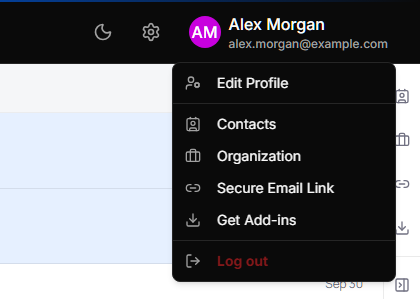
| Menu item | What it does |
|---|---|
| Edit Profile | Opens your profile, where you change your name and phone number. |
| Contacts | Opens your contacts. |
| Organization | Opens your organization's pages. Business administrators only. |
| Secure Email Link | Opens your Secure Email Link settings. |
| Get Add-ins | Opens the add-in downloads. Shown only if you have an add-in assigned. |
| Log out | Signs you out of the portal. |
Settings, dark mode and help
- Settings: click the gear icon (Open settings) in the top-right corner.
- Dark mode: click the moon icon (Switch to dark mode) or the sun icon (Switch to light mode) in the header. Until you choose, the portal follows your computer's light or dark setting.
- Feedback: click Send feedback at the bottom of the folder list to report a problem or share ideas.
- Support: in Settings, go to Support and click Contact Support to open a request with our support team.
On a phone or small window
On a narrow screen the portal rearranges itself:
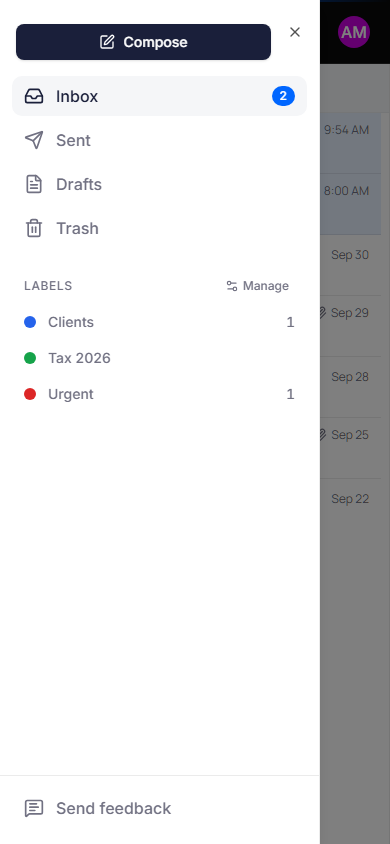
- Tap the menu icon (Open navigation menu) in the top-left corner to open Compose, your folders, your labels and Send feedback.
- Tap the magnifying glass (Open search) in the header to search.
- The message list and the message you're reading take turns filling the screen.
- Quick actions are hidden. Use your account menu for Contacts, Organization, Secure Email Link and Get Add-ins.
Related articles
Was this helpful?