
Additional security controls
Besides authentication, you can limit what recipients do with your secure message: stop printing, forwarding or downloads, make the message expire, or limit how many times it can be opened.
Set the controls
- In the compose window, find the Security & Authentication panel. In full screen it's on the right. In the smaller corner window, click the Security tab. On a phone, tap Security settings.
- Click Additional Security Controls ("Read notifications, printing, forwarding, downloads, and access limits.") to expand it.
-
Turn on the switches you want and choose Expires on and View limit.
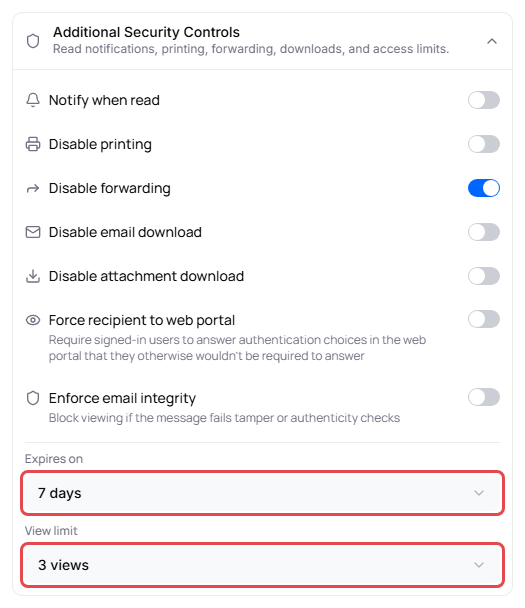
Your defaults are already filled in. To change them for every new message, see Set your default security settings.
What each control does
| Control | What it does |
|---|---|
| Notify when read | You get an email the first time each recipient opens the message, with a View message button that opens it in your Sent folder. To see every time each recipient opened it, check the message's audit trail. |
| Disable printing | Recipients can't print the message. In the web portal, their Print button is greyed out. |
| Disable forwarding | Recipients can't forward the message. Their Forward button is greyed out. |
| Disable email download | Recipients can't download a copy of the message. |
| Disable attachment download | Recipients can't download the attached files. |
| Force recipient to web portal | Recipients who are signed in to Delivery Trust must still answer the authentication questions in the web portal, even when they otherwise wouldn't have to. |
| Enforce email integrity | Recipients can't view the message if it fails tamper or authenticity checks. Shown only if you have the Email Integrity add-on. See Email integrity results. |
| Expires on | No limit, 1 day, 2 days, 7 days or 30 days. Counted from when you send. After that, recipients can't open the message, from the notification link or from their web portal inbox. |
| View limit | Unlimited, 1 view, 3 views, 5 views or 10 views. Each recipient can open the message that many times, counting opens from the notification link and from their web portal inbox. Opening it again within 10 minutes counts once. |
You can always see when recipients opened the message in its audit trail. See View a message's audit trail.
When you set an expiration, authentication or a view limit, the Security tab in the corner window shows a short summary, for example Auth on · Expires · 3 views.
Change the controls after you send
You can change most of these controls for each recipient after the message is sent, or retract the message completely. See Change security settings or retract a message.
Settings your administrator controls
If your organization has an enterprise policy, some controls may be locked. A locked control is greyed out. Point to it to see Required by your administrator (always on) or Disabled by your administrator (always off). See Why are some options greyed out?