
Set your default security settings
Choose the security settings every new secure message starts with, such as requiring recipients to verify their identity or setting an expiration. You can still change the settings on each message before you send it.
Open your security defaults
- Click the gear icon (Open settings) in the top-right corner.
-
The Security section is at the top of the page.
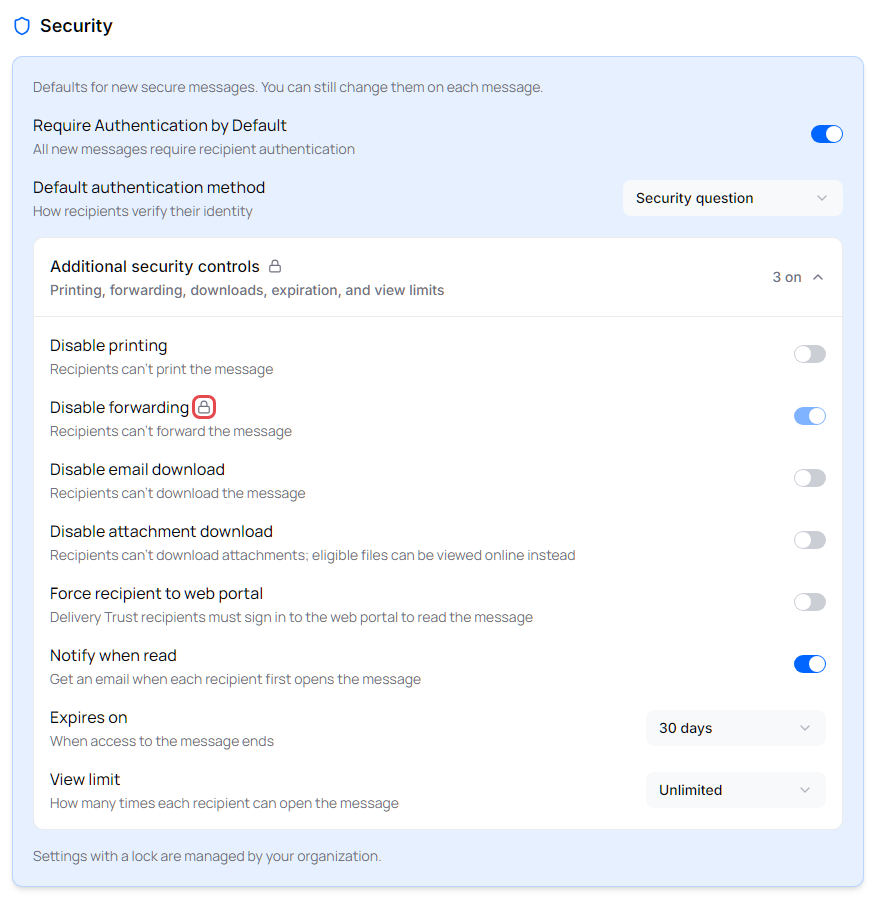
Each change saves as soon as you make it, and the portal shows "Security defaults saved".
Recipient authentication
- Turn on Require Authentication by Default to make every new message ask recipients to verify their identity before they can read it.
- In Default authentication method, choose how recipients verify:
| Method | How the recipient verifies |
|---|---|
| Last 4 of mobile | The last four digits of their mobile number. |
| Last 4 of business phone | The last four digits of their business phone number. |
| Postal code | A postal code. |
| Security question | The answer to a question you write. |
| SMS passcode | A one-time code sent by text message. Shown only if you have the MFA Authentication add-on. |
You enter the details (for example, the phone number or the question and answer) on each message when you compose it. See Require recipients to authenticate.
Additional security controls
Click Additional security controls to show more defaults. The row shows how many are turned on (for example, 2 on) or None on.
| Setting | What it does |
|---|---|
| Disable printing | Recipients can't print the message. |
| Disable forwarding | Recipients can't forward the message. |
| Disable email download | Recipients can't download the message. |
| Disable attachment download | Recipients can't download attachments; files that can be previewed are viewed online instead. |
| Force recipient to web portal | Recipients who have a Delivery Trust account must sign in to the web portal to read the message. |
| Notify when read | You get an email when each recipient first opens the message. |
| Enforce email integrity | Recipients can read the message only if it passes an integrity check. Shown only if you have the Email Integrity add-on. |
| Expires on | When access to the message ends: No limit, 1 day, 2 days, 7 days or 30 days. |
| View limit | How many times each recipient can open the message: Unlimited, 1 view, 3 views, 5 views or 10 views. |
See Additional security controls for more about each control.
Settings managed by your organization
If your organization has an enterprise policy, some settings may be set for you. A locked setting shows a lock icon (hover over it to see "Set by your organization") and you can't change it here. Some authentication methods may also be greyed out in the Default authentication method list because your organization doesn't allow them.
In the compose window, the same settings show "Required by your administrator" or "Disabled by your administrator". If you need a locked setting changed, ask your business administrator. See Set an enterprise policy and Why are some options greyed out?.
Note: Your security defaults are saved to your account, so they also apply when you use the classic portal.